Why locations matter
In Audit Now, locations form the foundation of your audit structure. Locations determine where audits can be conducted, which checklists users can access, and how audit results are organized and filtered. They also define how analytical reports are segmented.
Location cards also support additional management capabilities you may need:
- You can manage notification flow by defining location-specific contact emails.
- You can assign tags to locations to easily categorize different types of branches, regions, or special groups.
- You can mark locations as Active / Disabled, allowing you to keep unused locations in the system without deleting them.
- You can save the physical position of a location by selecting it from the map.
With this structure, both operational control and audit processes become more organized and measurable.
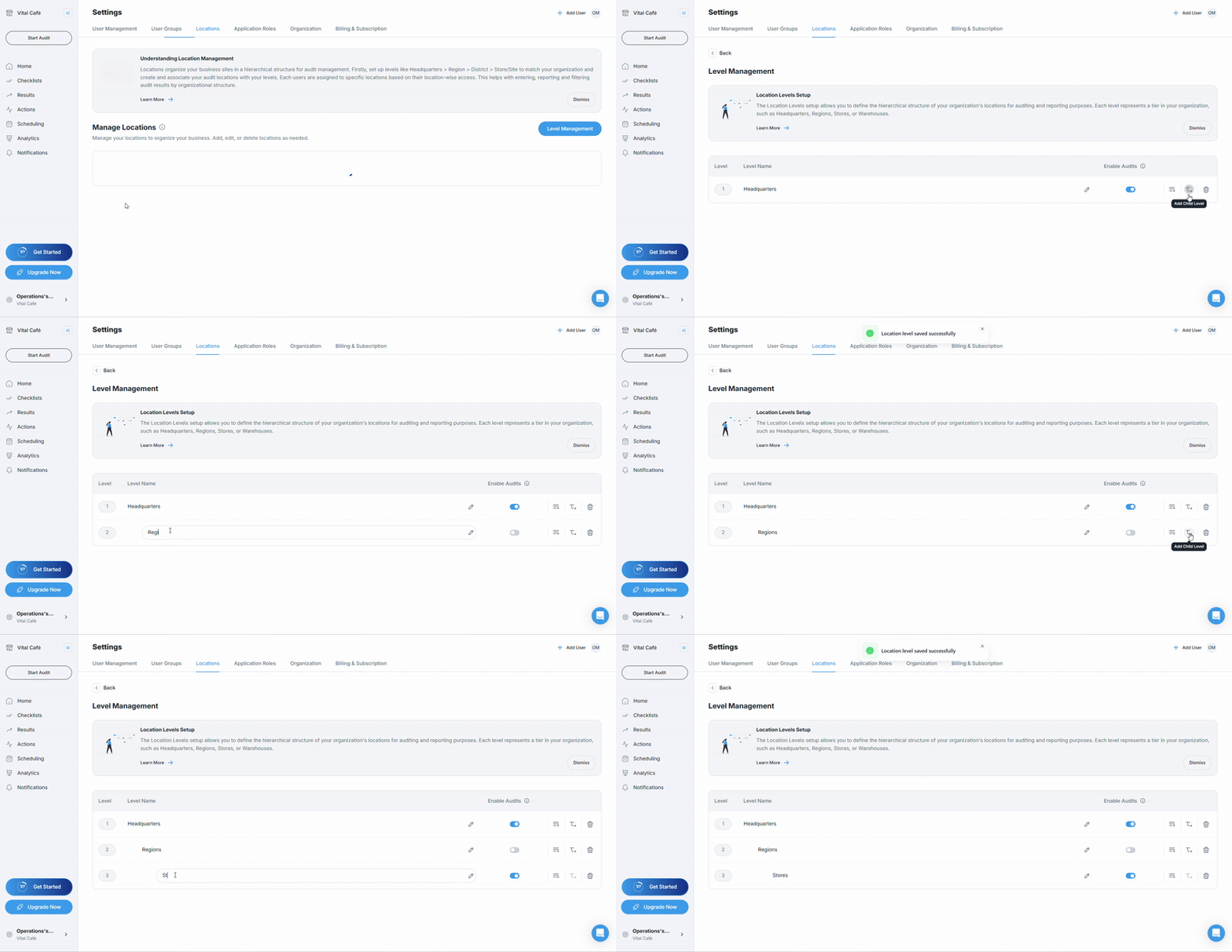
Setting up your location levels
- Go to Settings → Locations → Level Management
- Audit Now provides a default level named "Headquarters".
- You can add additional levels that reflect your organizational structure (e.g., Regions, Cities, Stores).
- Arrange the levels in hierarchical order (top level = 1).
Adding your locations
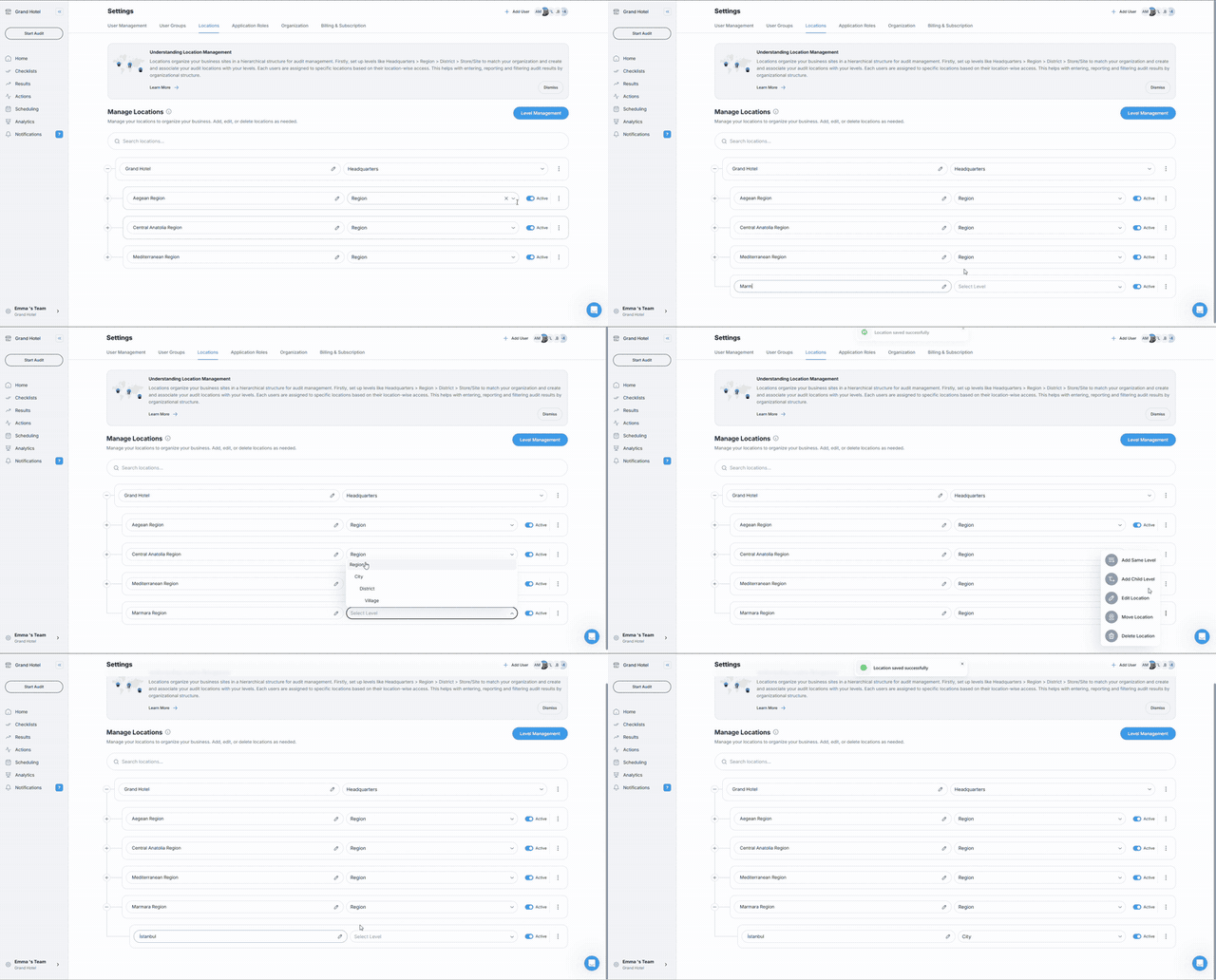
- Return to the main Locations screen
- Notice after first sign up, Audit Now has created a default location representing your company:
- To add more locations:
- Click the + (Add Child) button
- Enter the location name
- Select the appropriate location level
Moving Locations in Hierarchy
When your organizational structure changes or you realize a location has been added to the wrong level, you can easily move the location to a different hierarchy.
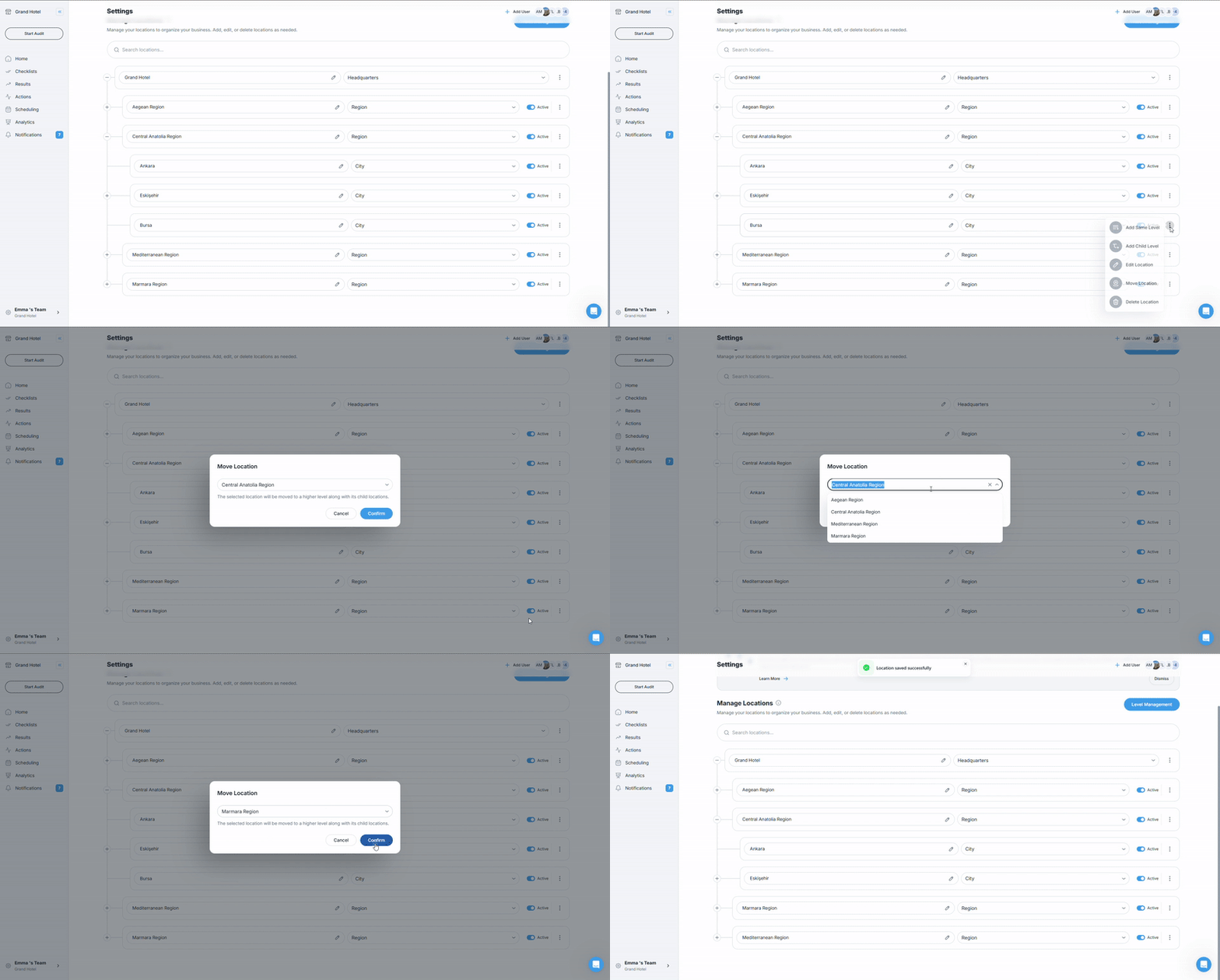
Steps to Change Hierarchy:
- Click on the Move Location on the location card you want to move
- Find the "Location Parent" field on the edit page
- Select a new parent level from the dropdown menu or search for it
- Save your changes
Example Use Cases:
- If you've added a store to the wrong region, you can move it under the correct region
- When you restructure your regions, you can redistribute branches to new regions
- If a franchise location becomes a corporate office, you can change its hierarchy level
- When you open a new intermediate level (e.g., "Area Management"), you can reorganize existing locations accordinglyQuick start recommendation
Editing a Location
Click the Edit Location on any location card to open its editing page.
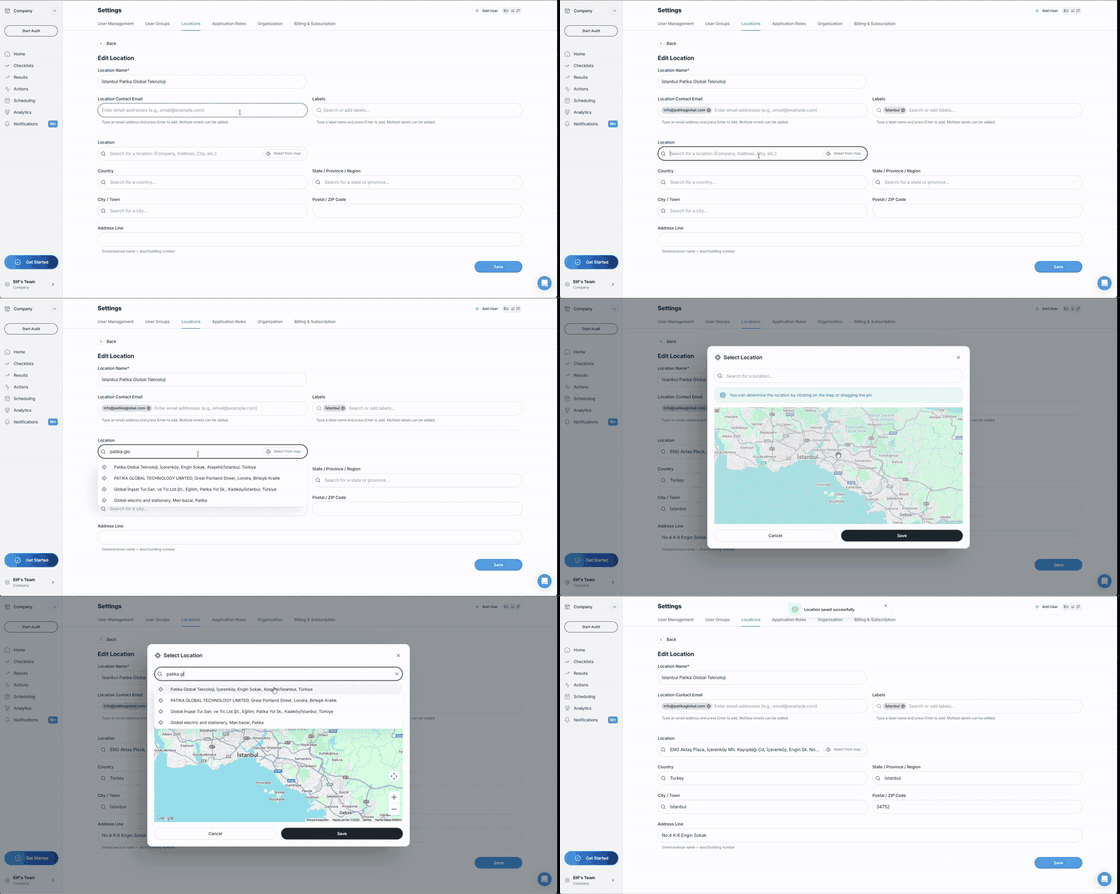
The following information can be managed here:
- Location Name
The name that will appear in the system.
- Location Contact Email
You can add one or multiple email addresses.
Type an email and press Enter to add it.
Reports for this location can be sent to these addresses.
- Adding Labels
You can add tags to classify your locations.
Example tags:
-
“Franchise”
-
“Head Office”
-
“A+ Region”
-
Country / Region / City Information
Enter detailed address information to ensure better segmentation in reports.
- Postal Code & Address Line
Add detailed address information as needed.
- Selecting the Location From the Map
Click “Select From Map” in the editing screen to set the physical position of the location using Google Maps.
On the map:
- Drag the pin
- Or click directly on the map
to place the location.
After saving, the location coordinates are stored automatically.
This is especially important for proximity validation, location-based audits, or field operations.
Disabling a Location
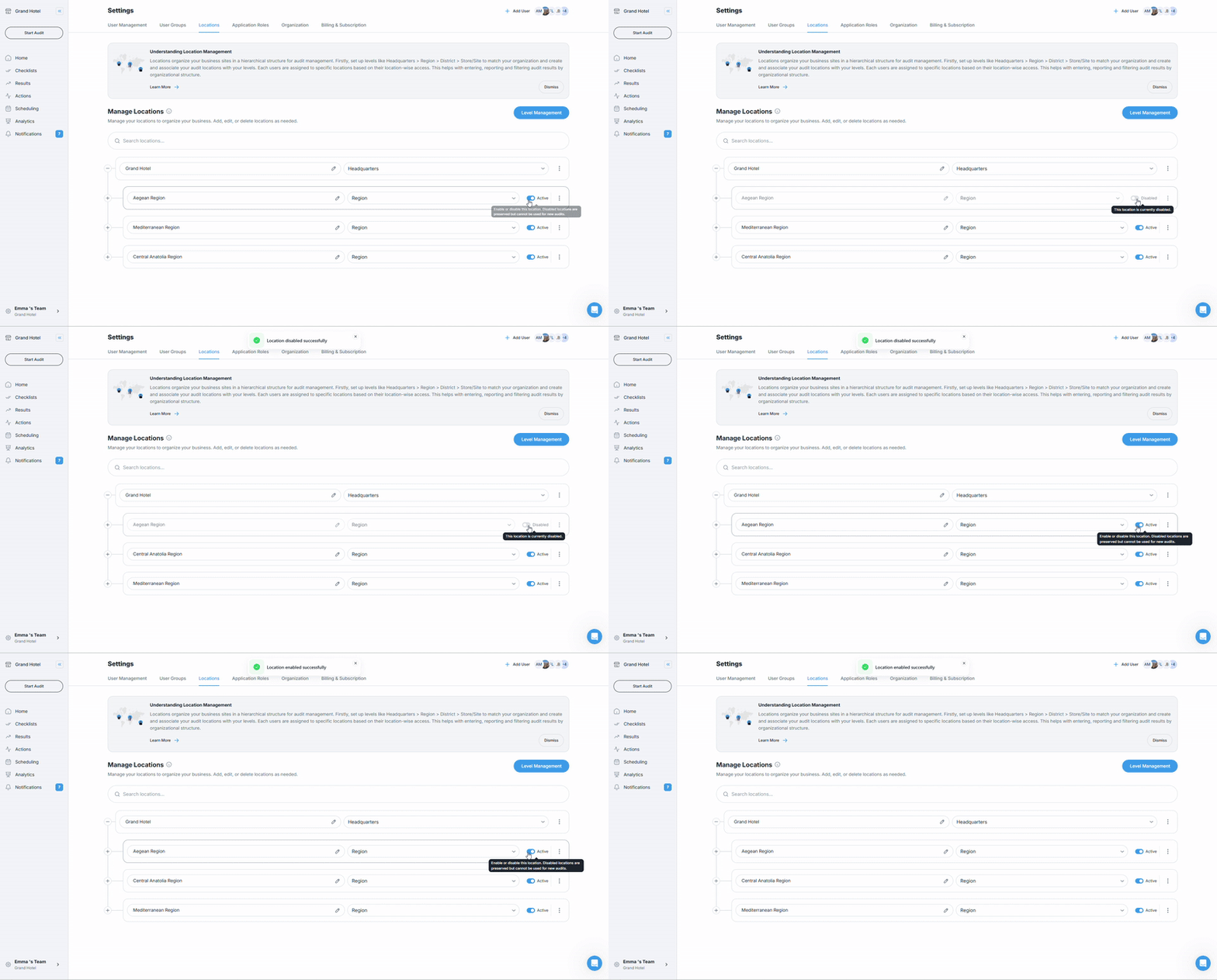
Each location card includes an Active / Disabled toggle.
What happens when you disable a location?
- The location can no longer be selected for audits.
- Users’ location permissions will not include this location.
- Past audit results remain available, but the location cannot be used in new processes.
This is useful for organizations with seasonal operations (hotel chains, summer facilities, temporary branches, etc.).
Quick Start Recommendation
For new users, we recommend:
- Start by adding only your critical locations
- Focus on the locations where audits will take place immediately
- Expand your hierarchy later as needed
Next Steps
Once your location structure is ready, you can begin organizing your teams by creating User Groups:
- Regional managers
- Audit teams
- Operations managers
- Franchise owners
This allows you to control which locations users can see and which audits they can access.
Next article: Set up a user group →