What This Feature Does
The AuditNow web application allows you to start, progress, and complete audits directly from your desktop browser—without needing the mobile app. You can:
- Start an audit
- Answer questions
- Add photos
- Create notes and actions
- Submit and complete the audit
The experience mirrors the mobile workflow but is optimized for desktop use.
Why Use Web-Based Auditing?
Performing audits through your web browser provides several advantages:
- Larger screen for easier review of questions and notes
- Faster writing with a full keyboard
- Easily complete desk-based audits or documentation reviews
- Multitask with dual monitors (documents on one screen, audit on the other)
- Seamlessly continue audits between mobile and web
- Better collaboration when multiple team members are reviewing information together
How to Start a New Audit on the Web
Step 1: Go to the Start Audit Option
You can start an audit from several locations:
Option 1: From the Sidebar
- Click Start Audit in the left sidebar
- Available from any page in the app
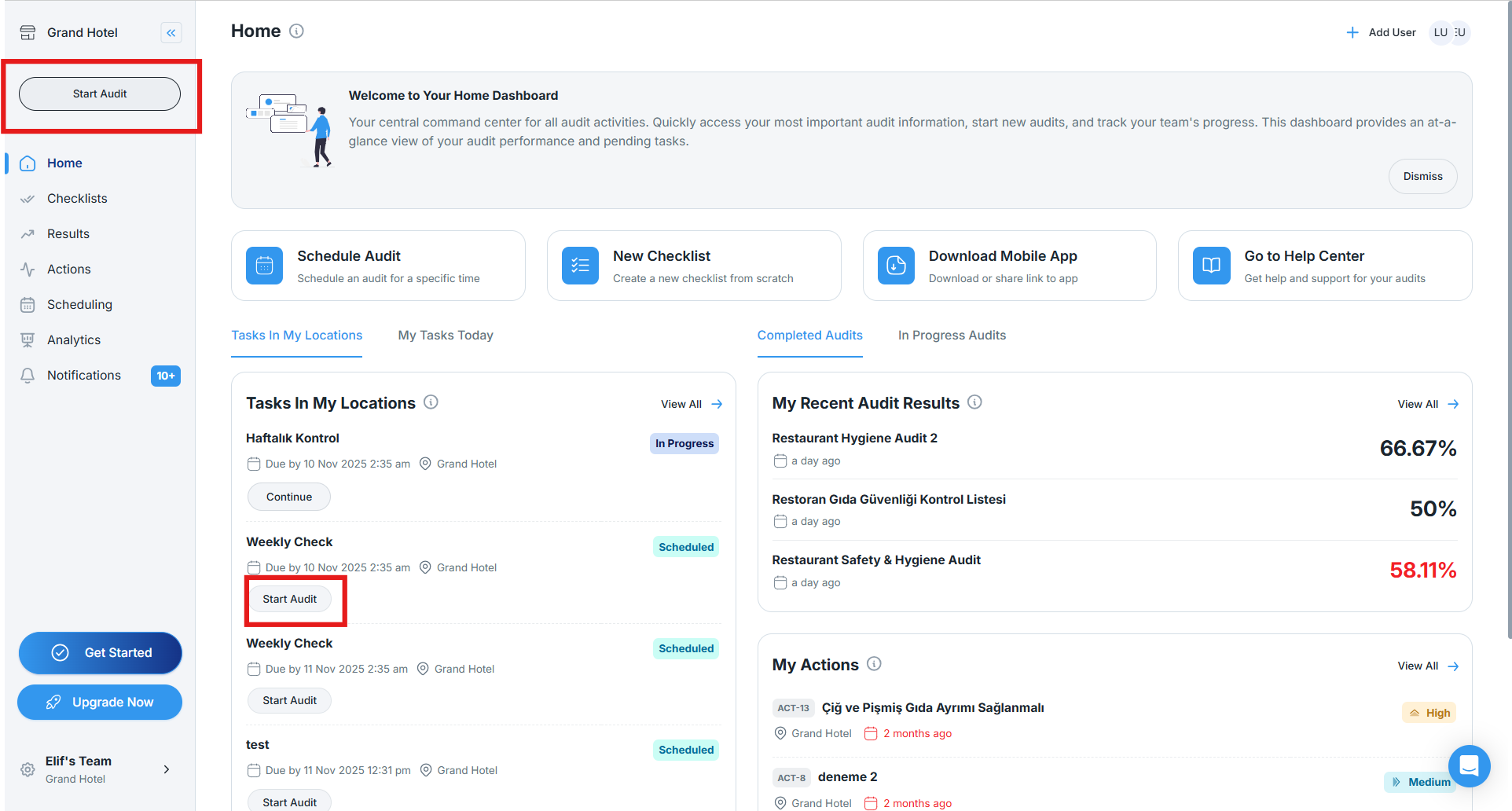
Option 2: From the Home Page
- Go to the Home page
- Locate the scheduled task and click Start Audit
Option 3: From the Checklists Page
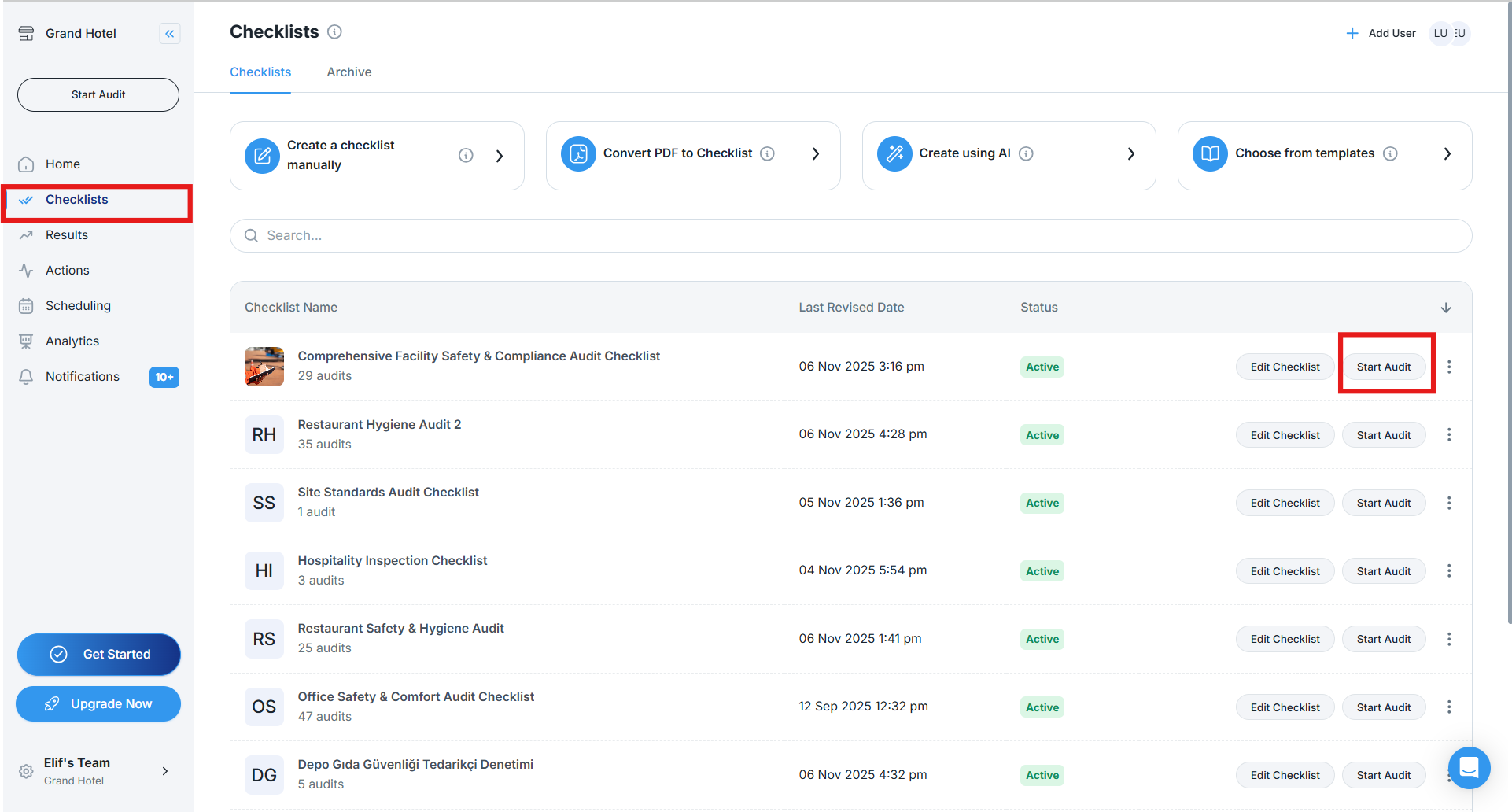
- Go to Checklists in the left menu
- Find the checklist you want to use
- Click Start Audit next to the checklist
Option 4: From the Checklist Editor
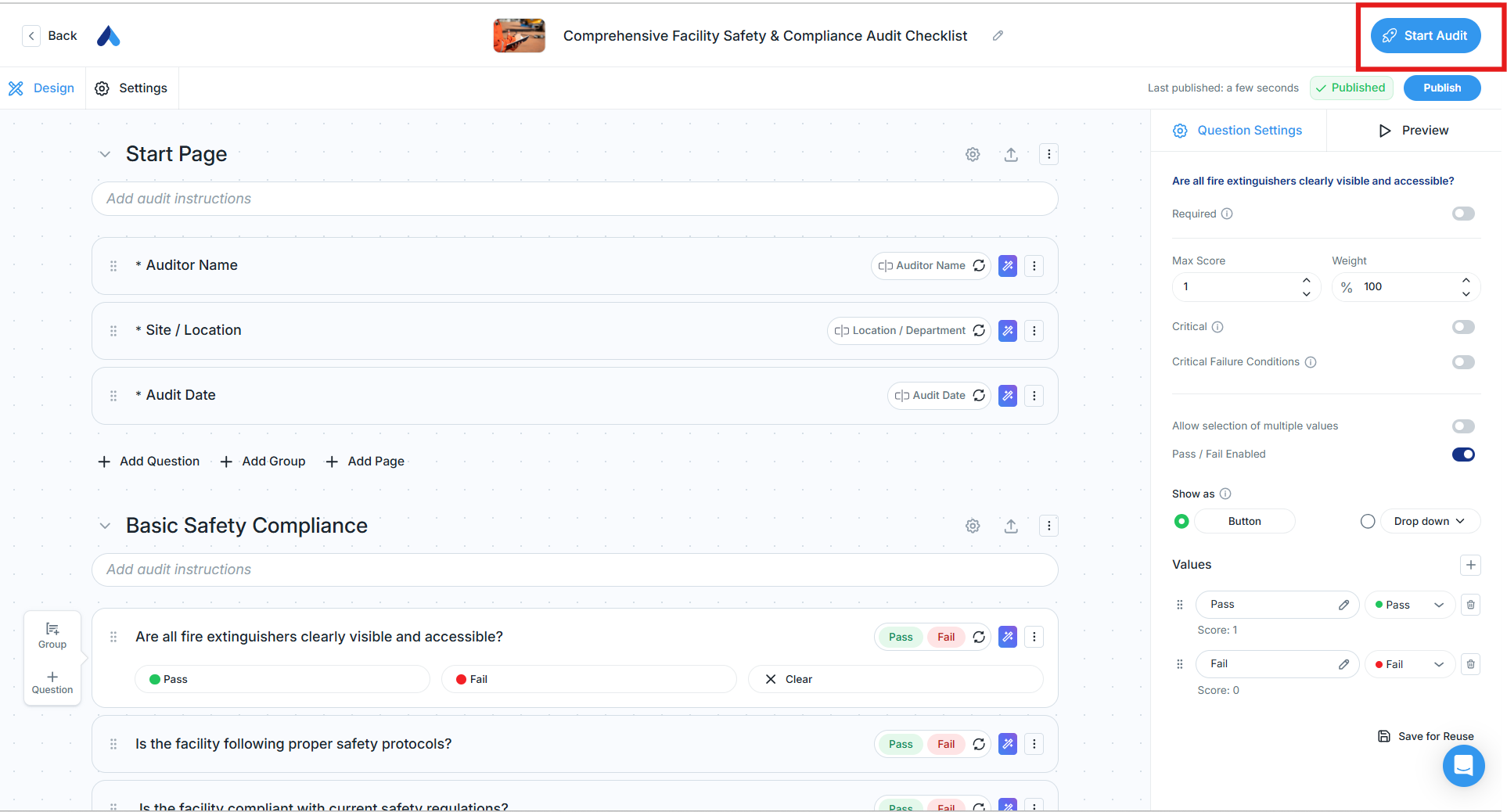
- Open the Checklist Editor for the checklist
- Click Start Audit in the top-right corner
- Ideal for testing or previewing a checklist
Option 5: From the Scheduling Page
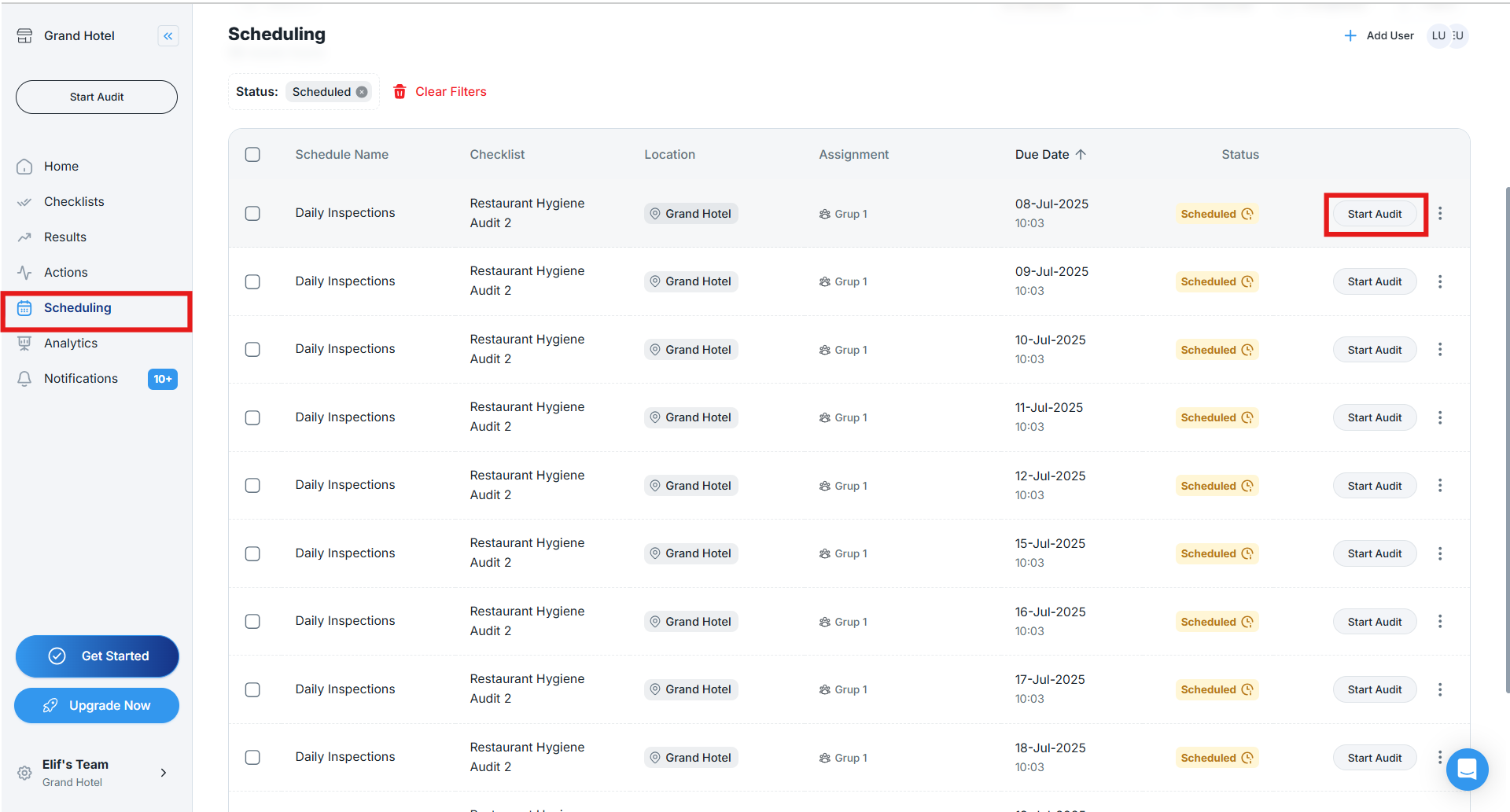
- Go to Scheduling
- Find tasks marked Ready to Start or Scheduled
- Click Start Audit
Step 2: Complete the Audit
-
After filling out the required information on the start page and clicking Continue, you will proceed to the audit questions.
- Questions are organized into pages/sections. Use left/right arrows or page numbers to navigate.
- Answer each question according to your findings. You can add notes, upload photos, and create corrective actions where needed.
- Once you complete all questions, review your responses on the final page and click Submit to finalize the audit.
- After submission, the audit status changes to Completed and becomes visible in Results, Home, Scheduling, and Analytics.
How to Continue an In-Progress Audit on the Web
If you started an audit but didn’t finish it, you can continue it from multiple locations:
Option 1: From the Home Page
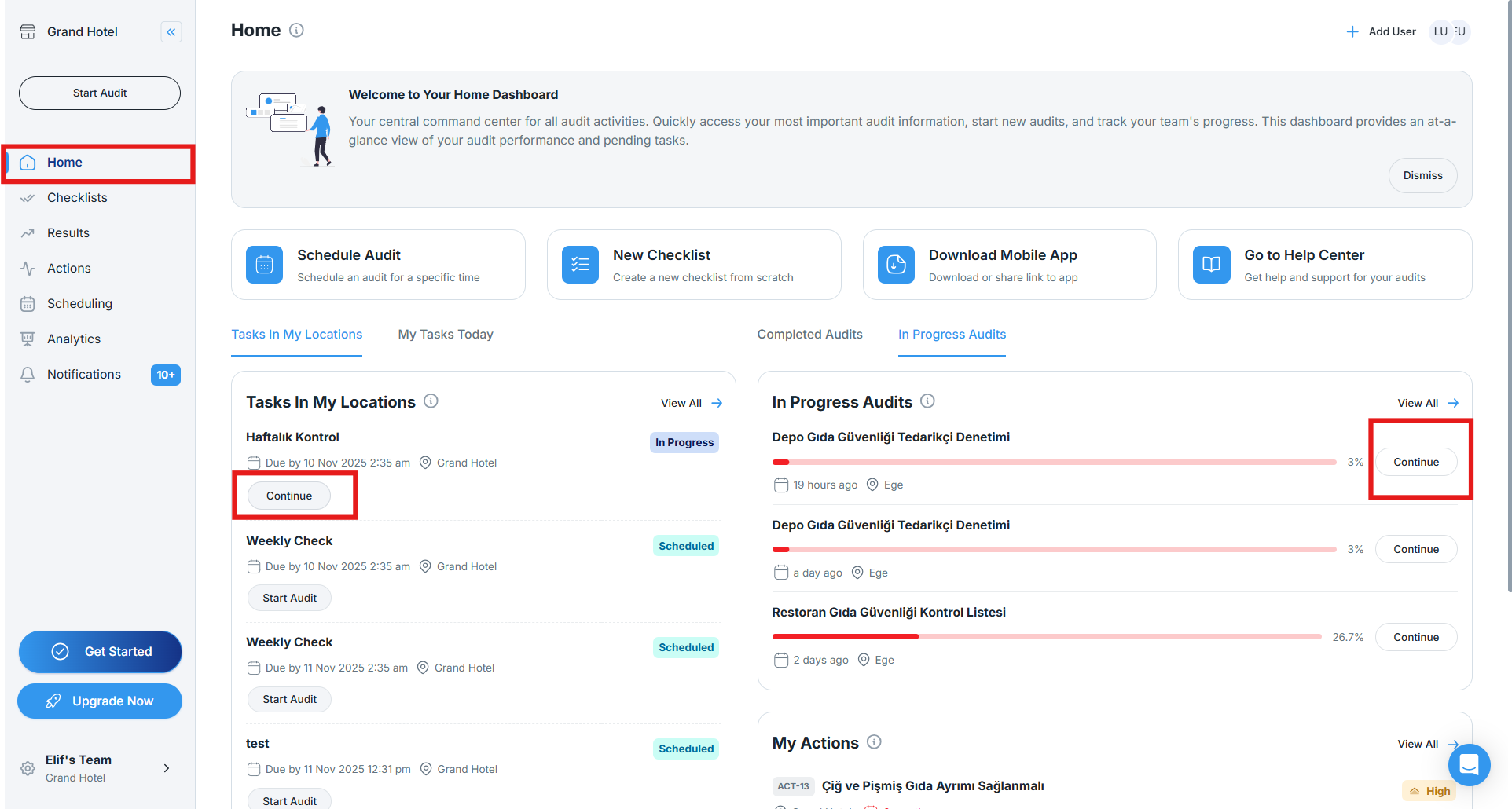
- Go to Home
- Click In Progress Audits
- View all audits you started but haven’t completed
- Click the audit to continue where you left off
Option 2: From the Results Page
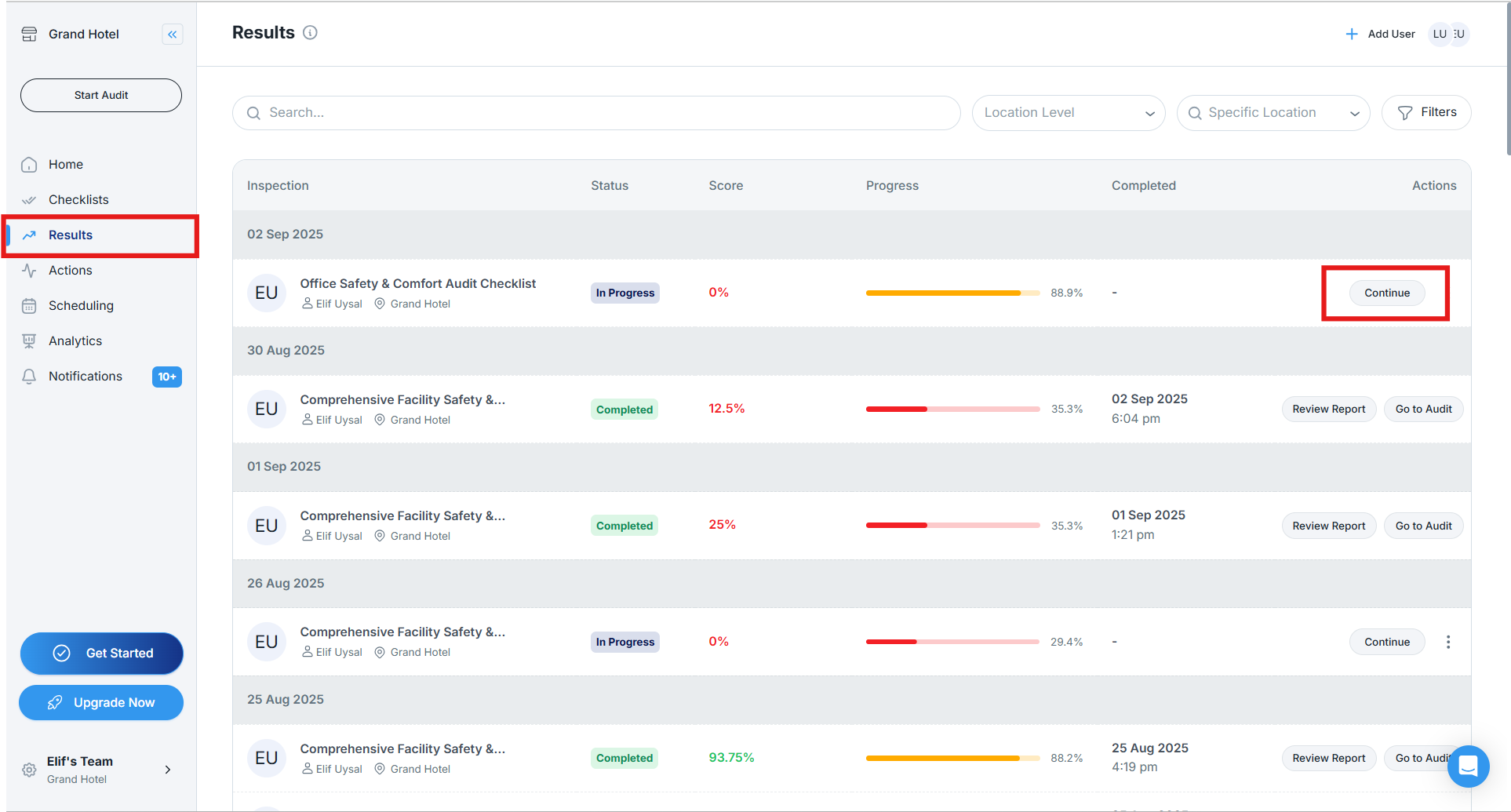
- Go to Results
- Look for audits with the In Progress status
- Find your audit
- Click Continue
Option 3: From the Scheduling Page
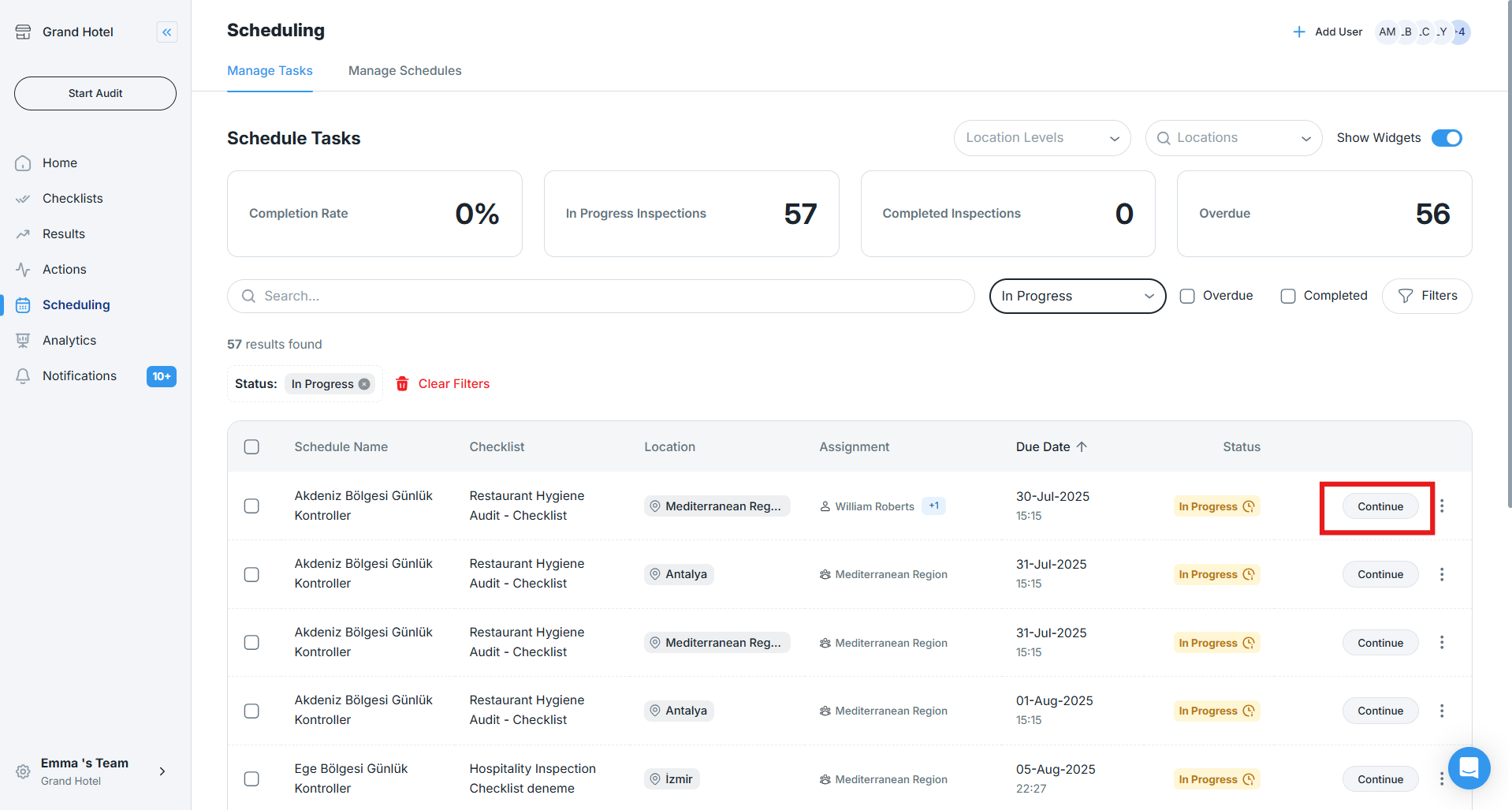
- Go to Scheduling
- Set the status filter to In Progress
- Find the audit with the orange In Progress badge
- Click Continue
Best Practices
When to Use Web vs. Mobile
Use the Web App For:
- Document reviews
- Desk-based audits (no physical walk required)
- Long-form text entry or data entry
- Multi-person review processes
- Uploading large files
Use the Mobile App For:
- On-site inspections
- Photo evidence collection
- GPS-verified audits
- Quick spot checks
Tips for Effective Web Auditing
-
Before You Start: Gather reference documents, prepare files to upload, confirm your assignment, and verify the correct checklist.
-
During the Audit: Rely on auto-save but avoid closing mid-page, use keyboard shortcuts, open reference materials in separate tabs, take breaks if needed.
-
After Completion: Check that the audit appears as Completed, generate/download reports, create actions, and share results with stakeholders.
Switching Between Web and Mobile
- Start on Mobile, Finish on Web: Begin on-site, complete desk-based questions later.
- Start on Web, Finish on Mobile: Begin at your desk, finalize photo/GPS-required sections on-site.
Benefits: Use the best device for each part of the workflow, avoid duplicate data entry, and maintain continuity.