If your checklist includes many questions or sections, using pages helps keep it organized and user-friendly—especially for mobile users.
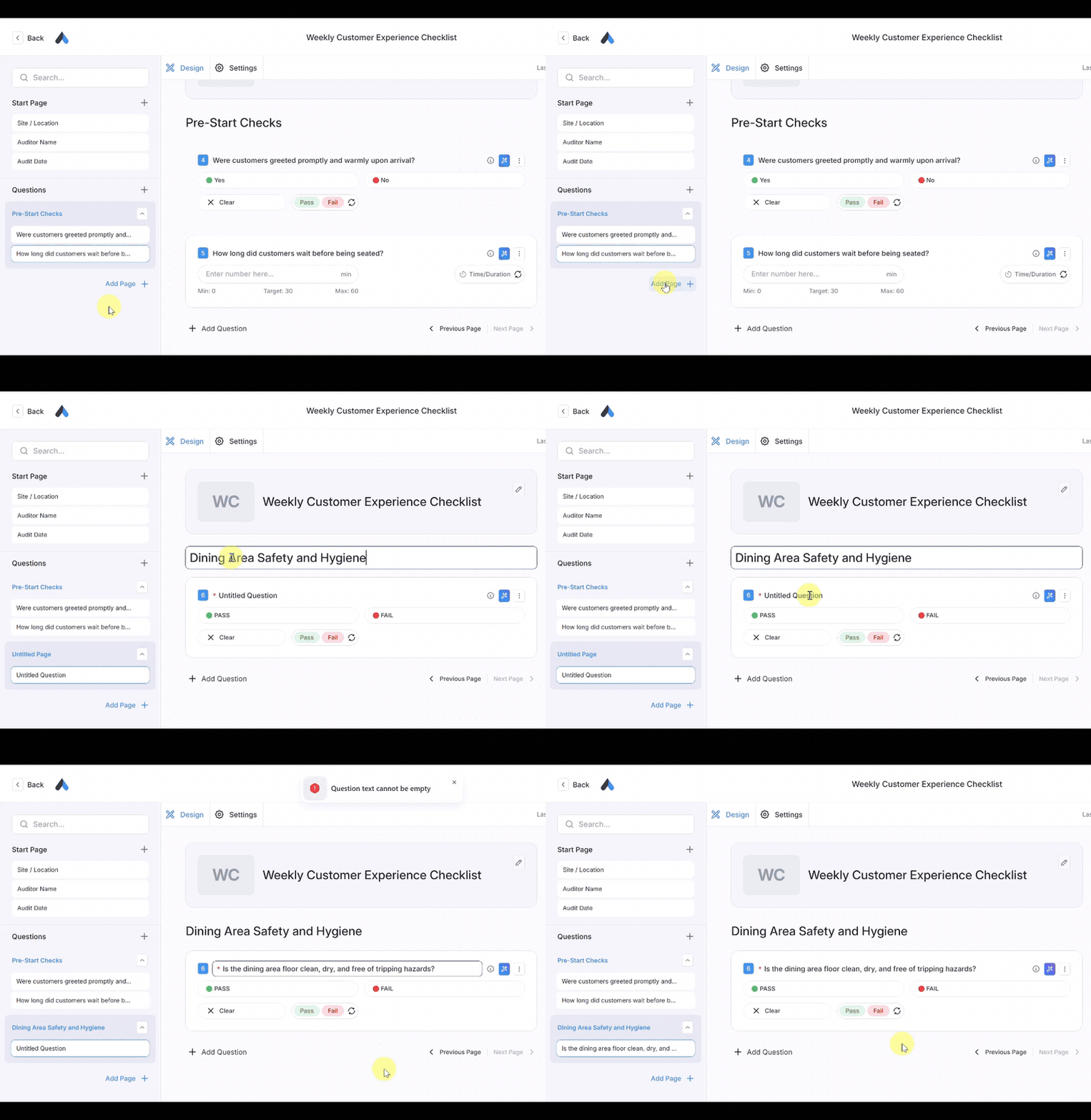
➕ Add a New Page
- Click “Add Page” at the bottom of your checklist.
- Each page acts like a tab or screen the auditor will swipe through.
- Use pages to group related sections (e.g., Page 1: “Pre-Start Checks,” Page 2: “On-Site Safety,” Page 3: “Wrap-Up”).
🔀 Reorder Pages
- Drag and drop pages to rearrange them.
- This is useful if you want to change the audit flow or prioritize certain checks earlier.
✏️ Rename Pages
- Click on the page title to rename it.
- Use clear labels like "Equipment Setup," "Checklist Review," or "Final Sign-off" to guide your users.
🗑️ Delete Pages
- Click the trash icon next to a page to remove it.
- Don’t worry—Audit Now will confirm before anything is deleted.
🧠 Best Practices
- Keep each page focused on a single topic or workflow.
- If your checklist feels cluttered, break it into more pages for a better mobile experience.
- Try to limit each page to 5–10 questions when possible for quicker navigation.