Example Use Cases
- Executive Summary: Scores and critical findings only
- Detailed Compliance Report: All questions, answers, and instructions
- Field Team Report: Photos and actions focused
- Quick Review: Failed items
Why Use Custom Report Templates?
- Focus: Show only relevant information
- Flexibility: Different templates for different audiences
- Consistency: Standard reporting format
How to Create a New Template
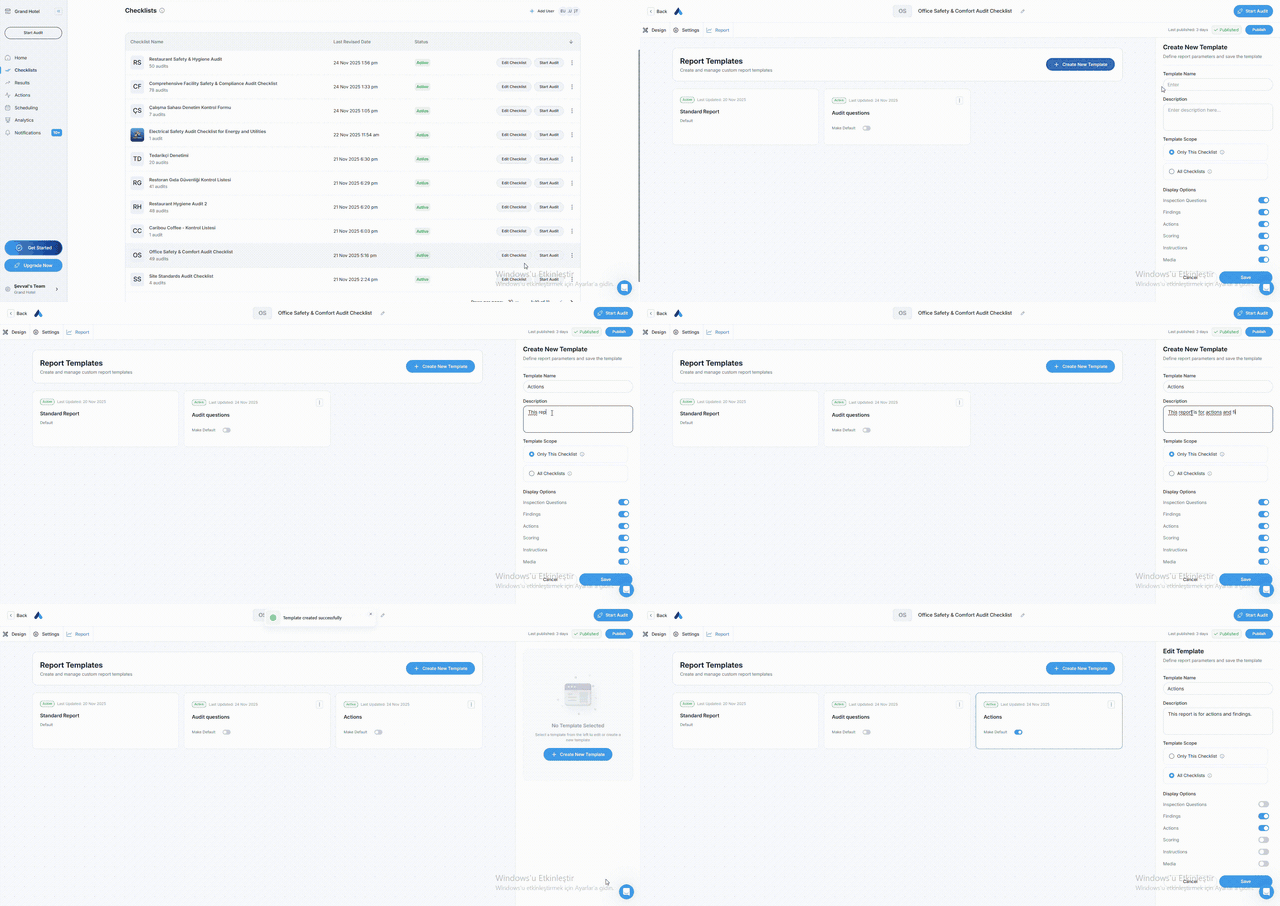
Step 1: Access the Checklist Editor
- Open your checklist in the web application
- Click the "Reports" tab in the top menu
- View the "Report Templates" section
Step 2: Create New Template
- Click the "Create New Template" button
- Fill in the template information in the panel that opens on the right
Step 3: Enter Basic Information
Template Name
Give your template a descriptive name. Good examples:
- "Executive Presentation"
- "Compliance Audit Report"
- "Daily Field Inspection"
- "Client Sharing Report"
Tip: Choose a template name that reflects the report's purpose.
Setting Template Scope
This setting determines where your template can be used:
| Option | Description |
|---|---|
| ○ Only This Checklist | Template is used only for this specific checklist. Ideal for unique, specialized reporting requirements. |
| ○ Only This Checklist | Template is available organization-wide. Perfect for standard reporting formats. (Recommended) |
Display Options
Choose which sections appear in your report. Each option has a toggle (on/off) button:
1. Audit Questions
- What it includes: All questions and answers from the checklist
- When to use: Detailed audit records
2. Findings
- What it includes: Failed items and identified issues
- When to use: Issue-focused reports
3. Actions
- What it includes: Created corrective and preventive actions
- When to use: Follow-up required reports
4. Scoring
- What it includes: Audit score, percentages, pass/fail status
- When to use: Metric-focused executive reports
5. Instructions
- What it includes: Guidance notes added to questions
- When to use: Training and procedure documents
6. Media
- What it includes: Photos and videos captured during audit
- When to use: Reports requiring visual evidence
Template Suggestions
| Report Type | Recommended Options | Use Case |
|---|---|---|
| Executive Summary | Scoring + Findings + Actions | Quick status update |
| Detailed Audit | All (default) | Official record and audit |
| Field Report | Findings + Media + Actions | Immediate response |
| Training Document | Questions + Instructions | New employee onboarding |
| Client Presentation | Scoring + Media | Professional sharing |
Managing Templates
Editing a Template
- In the Reports tab, click directly on the template card
- The editing panel will automatically open on the right side
- Make your changes (name, description, scope, display options)
- Click "Save"
Tip: When you click on a template card, you can edit all settings from the same panel. No separate "Edit" menu needed
Disabling a Template
You can temporarily disable a template instead of deleting it:
- Click the ⋮ (three-dot) menu on the template card
- Select "Deactivate" option
- The template remains visible in the list but cannot be selected
- To reactivate, use "Activate" option from the same menu
Important: Disabled templates are not deleted, just temporarily unavailable. This is a safer option than permanent deletion
Setting a Default Template
Make your most-used template the default:
- Select "Make Default" option on the template card
- New audits will automatically use this template
- The default template card will display a ⭐ star indicator
Best Practices
Do's
- Use descriptive names (e.g., "ISO 9001 Audit Report")
- Create purpose-specific templates
- Utilize the description field
- Build a template library (3-5 standard templates)