Overview
Conditional Logic automatically triggers actions based on audit responses, making your inspections more thorough and consistent. Set rules once, and let Audit Now handle follow-ups, evidence requests, and notifications automatically.
Common Use Cases:
- Require action plans for failed items
- Request photo evidence when issues are found
- Send alerts when values exceed safety limits
- Show follow-up questions based on responses
1. How Conditional Logic Works
Conditional Logic evaluates responses and automatically activates specific rules.
Each Conditional Logic rule consists of two core components:
Trigger Condition
Determines when a response will trigger the rule.
For example:
- If response status is Failed
- If the entered value exceeds the defined limit
Action
Defines the operation that will be automatically applied by the system when the condition is met.
For example:
- Require action plan creation
- Request photo or video
- Send notification
- Show additional questions
With this structure, necessary actions are automatically triggered during the audit without requiring manual intervention from the user.
2. Setting Up Conditional Logic
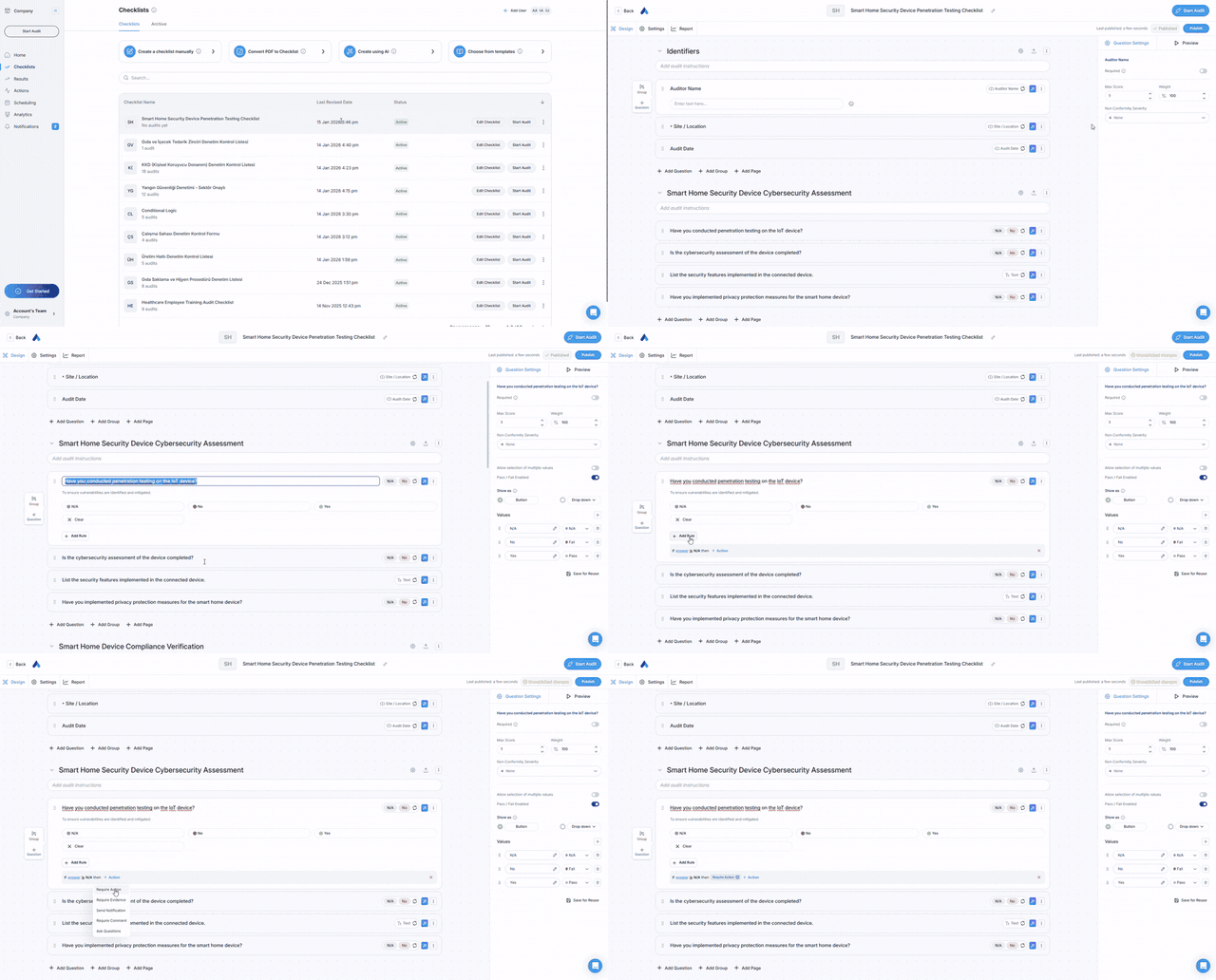
Where to Add Rules
- Click the Edit button from the Checklists tab to open your checklist
- Select the question you want to add logic to
- Click Add Rule below the question
- Define your condition and action
💡 Tip: You can add multiple rules to a single question.
3. Condition Types
Conditions are triggered based on the response given by the auditor.
3.1. Response Status Conditions
The following response statuses can be used as conditions:
- Pass
- Fail
- Warning
- Not Applicable
Example usage:
- If response status is Fail → require action plan
- If response status is Warning → require comment
3.2. Numeric Value Conditions
For numeric question types, conditions can be defined based on the value entered by the user.
Supported comparisons:
- Is
- Is not
- Is greater than
- Is less than
- Is empty
- Is not empty
Example usage:
- If temperature value is less than 28 degrees → send notification
- If entered value is empty → request comment
4. Action Types
When a condition is met, the system automatically applies the following actions.
4.1. Require Action
Forces auditors to create a corrective action before completing the audit.
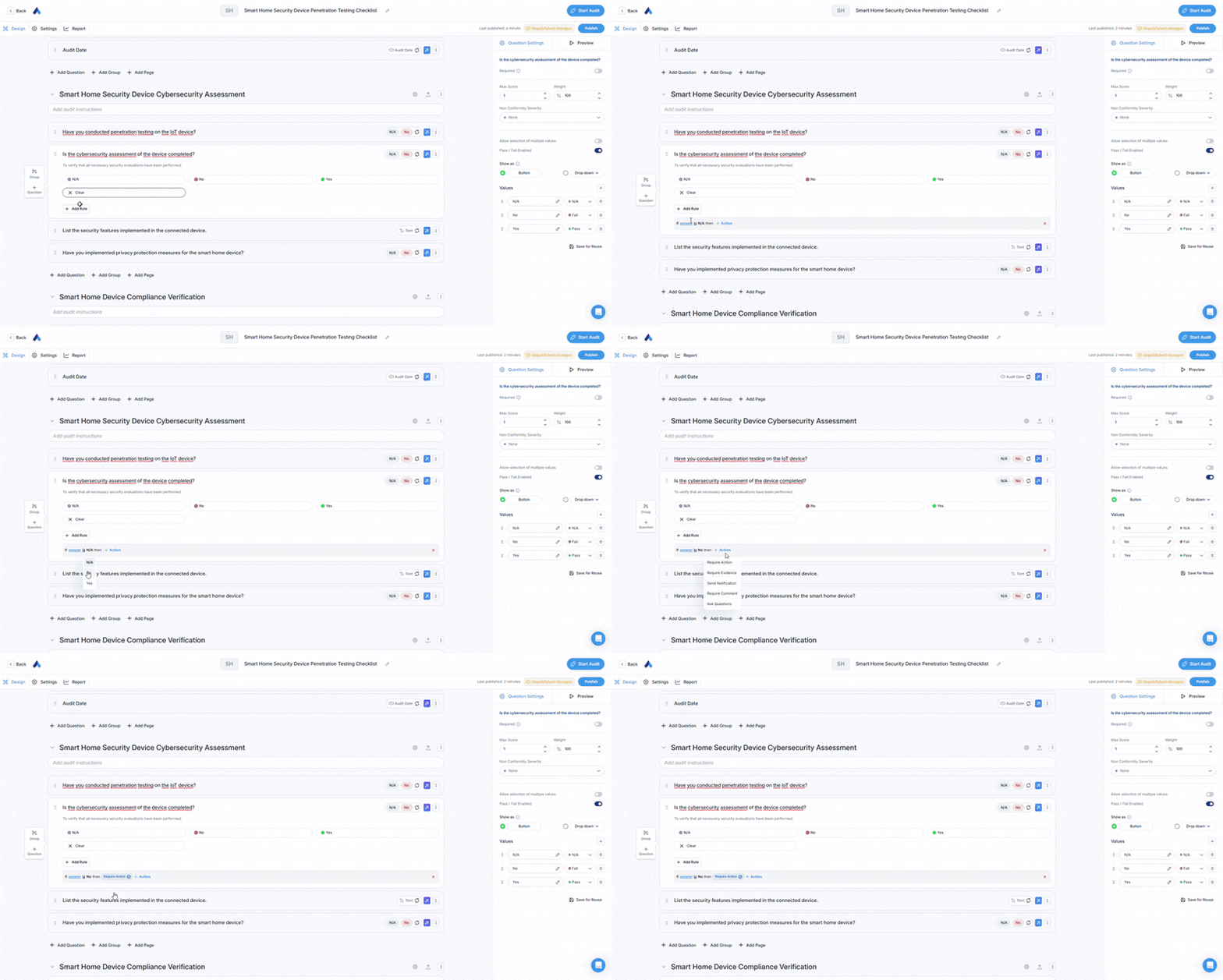
When to use:
- Failed safety checks
- Quality violations
- Non-compliance findings
✅ Audit cannot be completed until action is created
4.2. Require Evidence
Makes photo or video documentation mandatory.
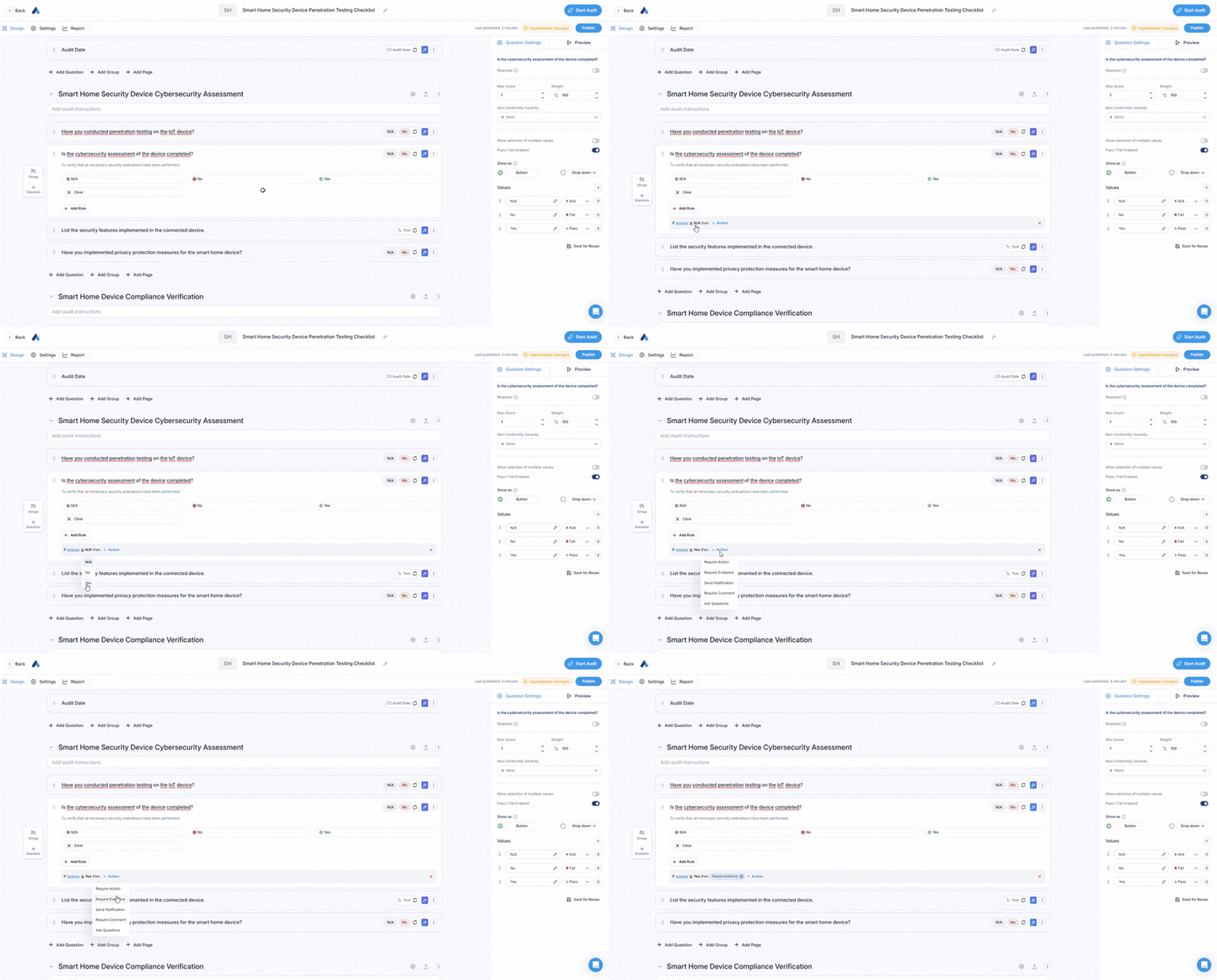
When to use:
- Damage documentation
- Before/after comparisons
- Proof of cleaning or maintenance
✅ Audit cannot be completed until media is attached
4.3. Require Comment
Forces auditors to add explanatory notes.
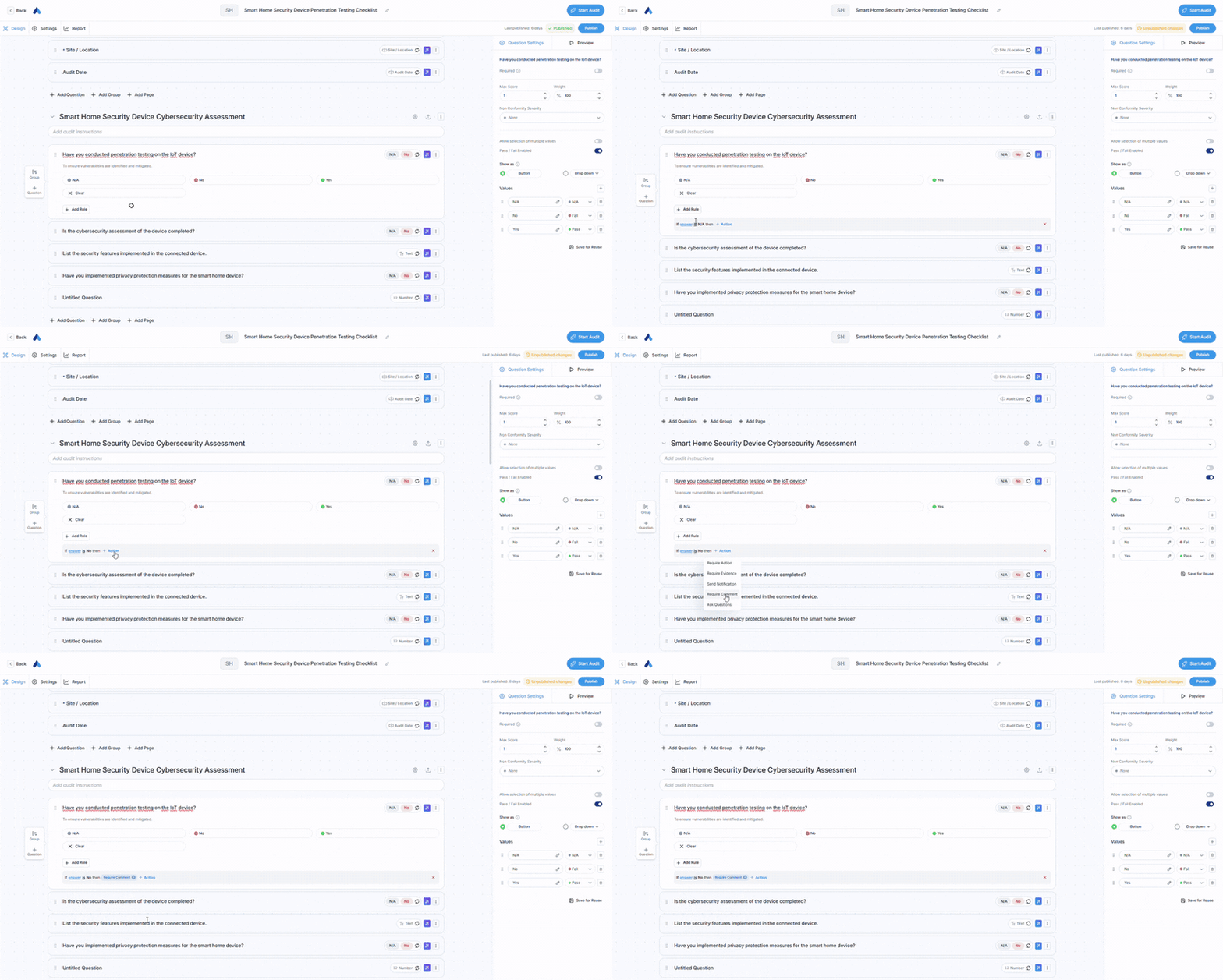
When to use:
- Unusual findings
- Warning conditions
- Context-dependent results
✅ Audit cannot be completed until comment is added
4.4. Send Notification
Sends instant push notifications and/or emails to specified users or user groups.
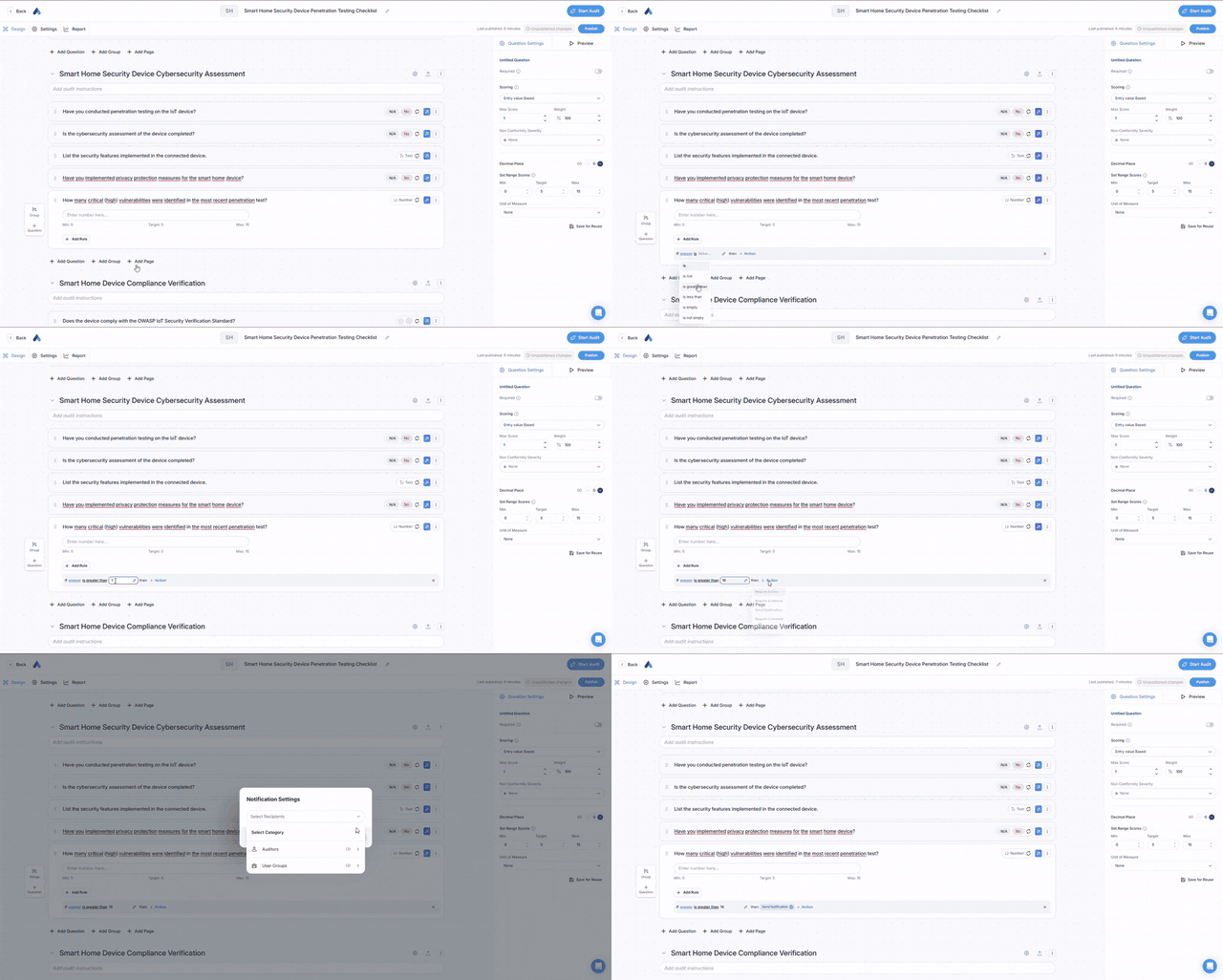
This action is typically used for:
- Critical violations
- Situations requiring urgent intervention
- Management notifications
4.5. Ask Question (Conditional Visibility)
Reveals additional questions based on responses, creating dynamic audit flows.
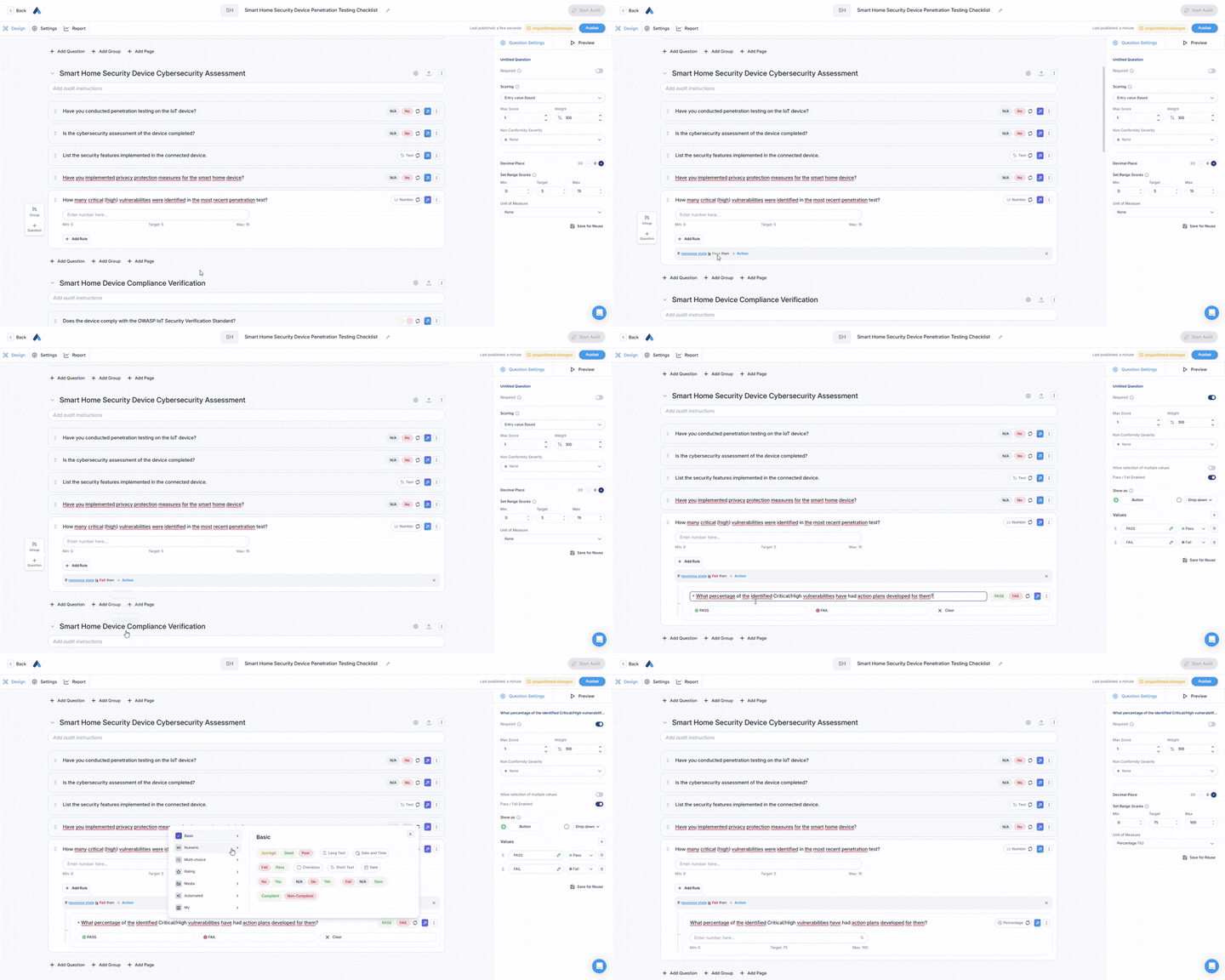
When to use:
- Follow-up investigations
- Conditional inspections
- Progressive disclosure workflows
Example: If "Equipment malfunction" is selected → Show detailed troubleshooting questions
5. Review Before Completion
When mandatory requirements aren't met, auditors see the Review screen:
Required Items Incomplete
- Shows count of missing requirements
- Lists specific items needing attention
- Mandatory Fields Missing button navigates to incomplete sections
Audit cannot be submitted until all required fields are completed.
6. Web and Mobile Behaviors
Mobile App
- Conditional Logic rules are applied instantly during audits
- Action, evidence, or comment requirements are clearly displayed to the user
- Audit cannot be completed until missing items are addressed
Web Dashboard
- Conditional Logic rules are managed centrally
- Audit results are analyzed in detail
- Standard audit templates can be created
7. Tips
- Always define action or evidence requirements for critical questions
- Use limit-based conditions for numeric questions
- You can create multiple Conditional Logic rules for the same question
- It's recommended to conduct a test audit before publishing your rules