Overview
Mass Action Management revolutionizes how you handle corrective actions by allowing you to select and modify multiple actions simultaneously. Whether you're reassigning actions after team changes, updating statuses following meetings, or adding context to action groups, this feature eliminates the repetitive work of updating actions one by one.
Key Benefits
Accelerate Action Resolution
- Update dozens of action statuses in seconds instead of minutes
- Eliminate repetitive form filling and clicking
- Reduce administrative time by up to 75%
Dynamic Team Coordination
- Quickly reassign actions when priorities shift
- Distribute workload across user groups and individuals
- Adapt to team availability without losing momentum
Smart Change Documentation
- Add explanatory comments to multiple actions simultaneously
- Create audit trails without slowing down your workflow
- Maintain accountability with optional change context
Maintain Action Quality
- Keep corrective actions moving through proper workflows
- Ensure no actions stall during team transitions
- Preserve compliance documentation during bulk updates
How to Access Mass Action Management
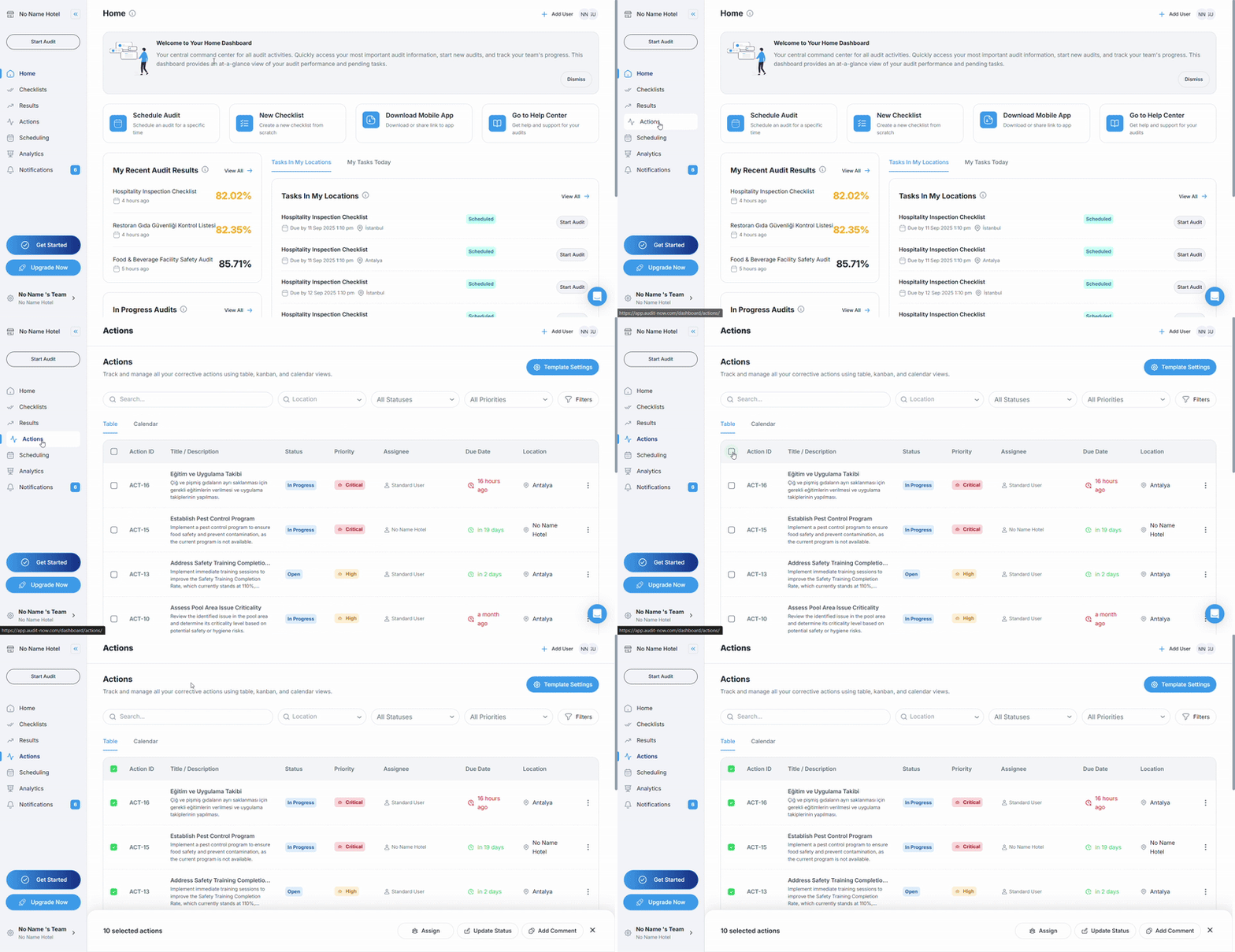
Getting to the Actions Screen:
- Click Actions from your main navigation menu
- Select the Table view (default view)
- You'll see your Actions list with current status, priority, and assignment information
Selecting Actions for Bulk Operations
Individual Action Selection
- Browse through your action list to find the actions you want to modify
- Click the checkbox next to each action you want to include
- Selection count appears at the bottom: "X selected actions"
Select All Visible Actions
- Use the header checkbox (next to "Action ID") to select all actions on the current page
- Apply filters first if you want to select specific action types (e.g., all "Critical" priority or all "Open" status)
- Combine with search to select actions matching specific keywords or assignees
Bulk Operations Available
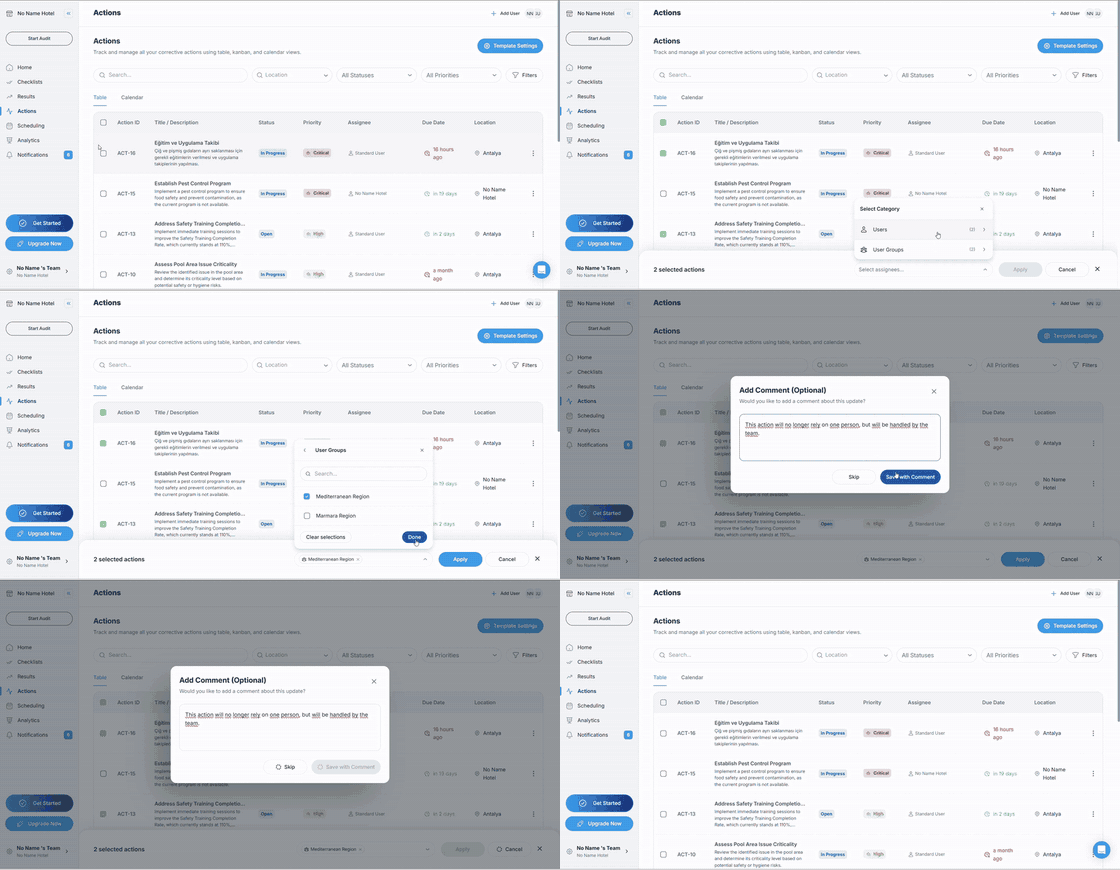
Bulk Assign Actions
When to Use Mass Assignment:
- Team member is transitioning roles or leaving
- Redistributing workload based on expertise or availability
- Escalating multiple related actions to management
- Balancing action assignments across team members
- Assigning department-specific actions to appropriate groups
How to Bulk Assign:
- Select the actions you want to reassign using checkboxes
- Click "Assign" in the bulk actions bar at the bottom
- Choose assignment category from the selector: Users: Assign to specific individuals from your team User Groups: Assign to entire teams, departments, or specialized groups
- Select the new assignee from the dropdown list (shows available users or groups)
- Click "Apply" to update all selected actions
- Optional comment screen appears: Add context about the reassignment or click "Skip" to save immediately
- New assignees receive automatic notifications about their new action assignments
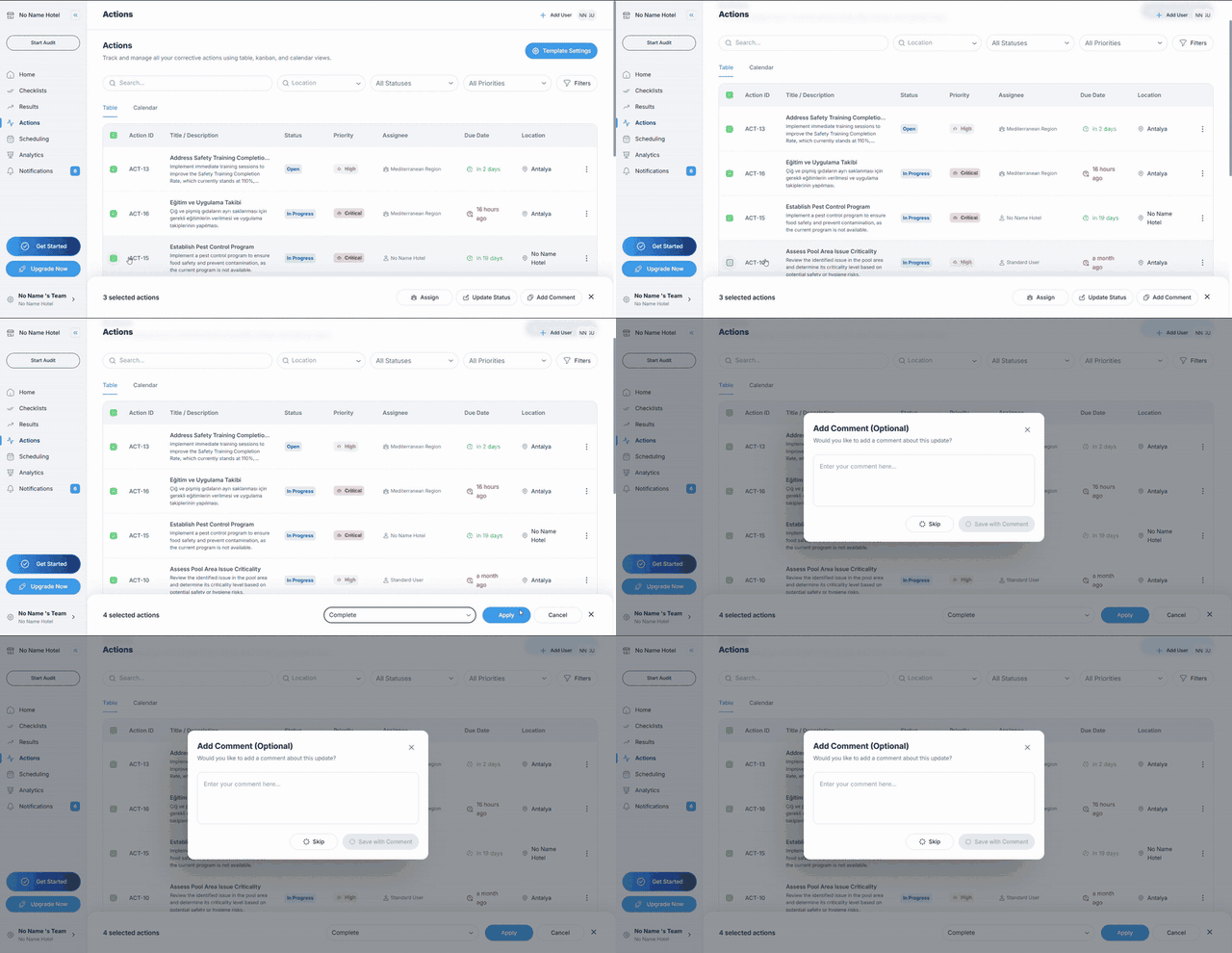
Bulk Update Action Status
When to Use Status Updates:
- Moving multiple actions through workflow stages after team meetings
- Closing multiple resolved actions simultaneously
- Updating status after implementing bulk corrective measures
- Transitioning actions to new workflow stages based on review outcomes
How to Update Status:
- Select the actions you want to update using checkboxes
- Click "Update Status" in the bulk actions bar
- Choose the new status from the dropdown (options depend on your action templates): Open: Actions requiring attention In Progress: Actions currently being worked on Complete: Resolved actions Cancelled: Actions no longer needed Custom statuses: Based on your organization's action templates
- Click "Apply" to update all selected actions
- Optional comment screen appears: Explain the status change or skip to save time
- Status changes trigger appropriate notifications to assignees and stakeholders
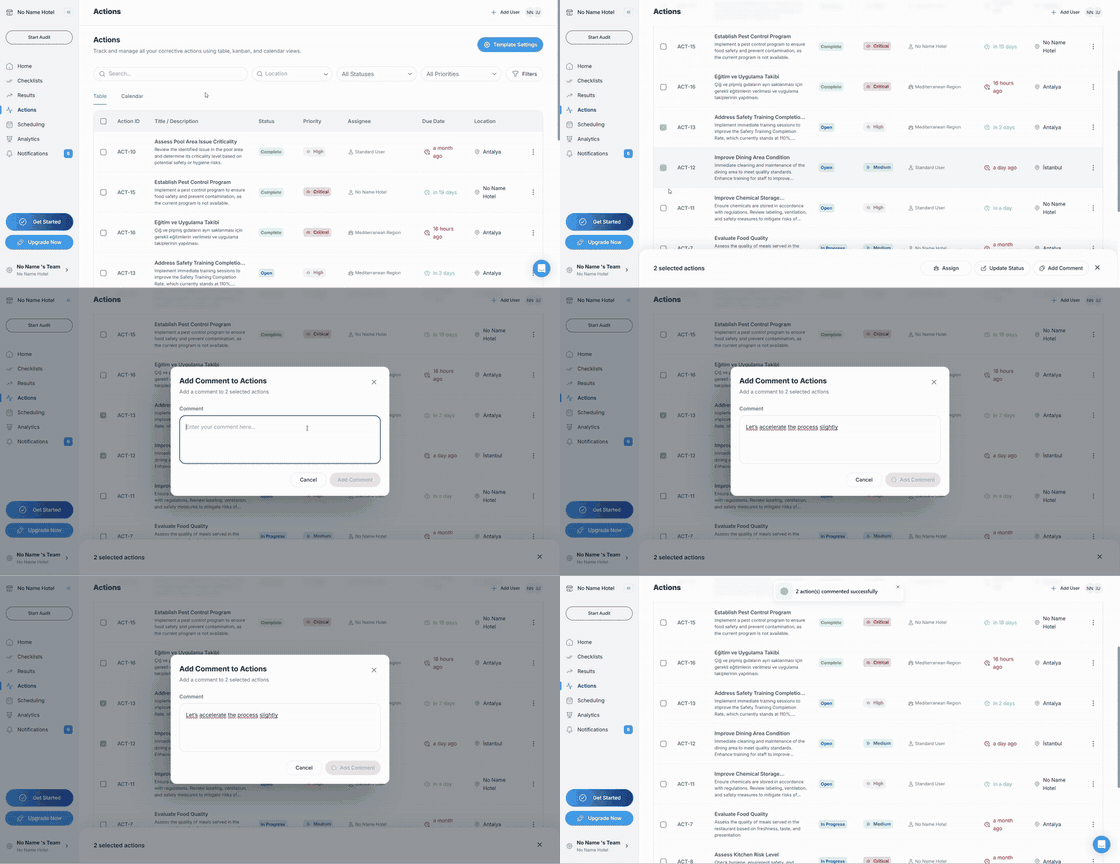
Bulk Add Comments
When to Use Bulk Comments:
- Adding updates to multiple related actions simultaneously
- Providing context or instructions for action groups
- Documenting meeting outcomes or management decisions
- Adding reference information without changing assignment or status
- Creating consistent documentation across similar actions
How to Add Comments:
- Select the actions you want to comment on using checkboxes
- Click "Add Comment" in the bulk actions bar
- Type your comment in the text area that appears
- Click "Add Comment" to apply to all selected actions
- Comments appear in each action's history with timestamp and author information
- Comment notifications are sent to action assignees automatically