A response type decides how an auditor answers a question: choosing from fixed options, typing text, entering a number, taking a photo, and so on. You choose the response type for each question while you build your checklist.
This article is for people who build checklists. To learn how to use response types while auditing, see Response Types and How to Use Them During Auditing.
How to Choose a Response Type
- Open your checklist in the editor and click the question whose response type you want to change
- Click the response type button next to the question
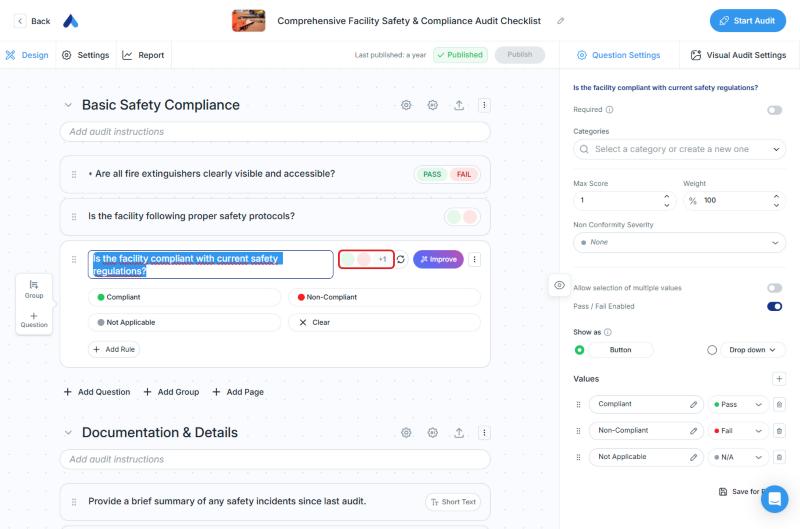
- Select a category from the list on the left: Basic, Numeric, Multi-choice, Rating, Media, Automated, or My
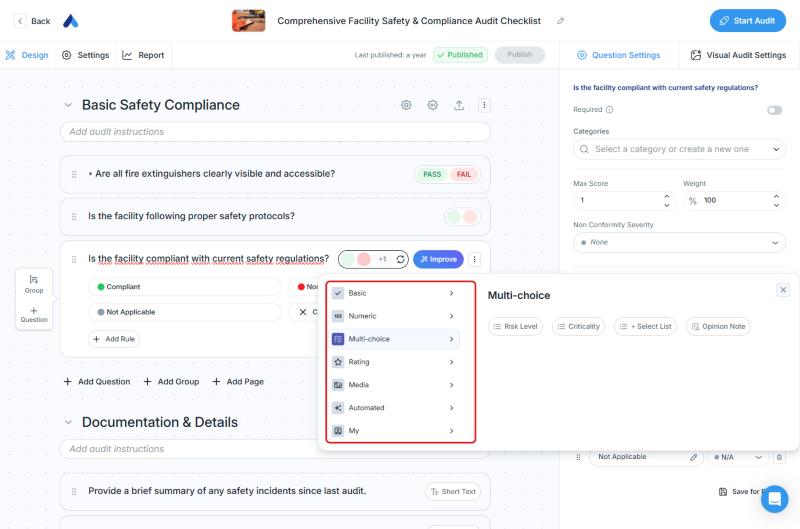
- Click the response type you want from the list on the right
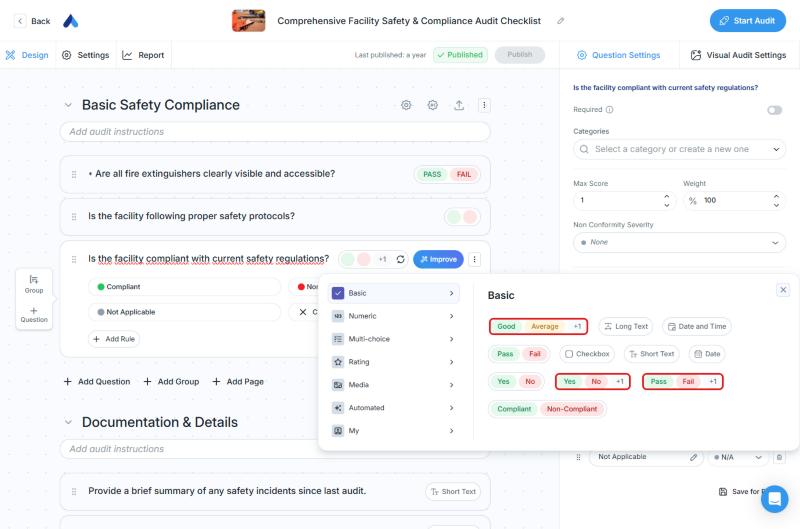
Some ready-made option sets show +1 next to them. This means the set includes a third option (for example, Yes / No and Yes / No +1 are listed separately).
Categories and Response Types
Basic
| Response Type | What It Is For |
|---|---|
| Auditor Name | Filled in automatically with the auditor's name, and can be edited if needed |
| Location | Choose a site or location from your organization's location hierarchy |
| Audit Date | Records when the audit takes place |
| Date | Pick a single date from the calendar |
| Date and Time | Pick both a date and a time in one field |
| Short Text | Short entries such as a name, ID, or label |
| Long Text | Detailed notes, findings, or observations |
| Checkbox | Mark an item as checked or completed |
| Ready-made option sets | Choose one fixed option, such as Yes / No, Pass / Fail, Compliant / Non-Compliant, or Good / Average (+1) |
Numeric
| Response Type | What It Is For |
|---|---|
| Number | Numeric values such as quantities, measurements, or thresholds |
| Time/Duration | Duration values in minutes or hours |
| Currency | Financial amounts such as costs or penalties |
| Percentage | Values entered as a percentage (for example, 75%) |
Multi-choice
| Response Type | What It Is For |
|---|---|
| Criticality | Choose urgency or risk level from a dropdown, such as High, Moderate, or Low |
| + Select List | A list of values you define yourself (it can appear as a button group or a dropdown) |
Rating
| Response Type | What It Is For |
|---|---|
| Star Rating | Tap stars to give a rating from 1 to 5 |
| 1 - 3 Scale | A rating from 1 to 3 |
| 1 - 5 Scale | A rating from 1 to 5 |
| Thumbs Up/Down | Quickly show approval or disapproval with 👍 or 👎 |
Media
| Response Type | What It Is For |
|---|---|
| Photo/Video | Capture photos or videos as supporting evidence |
| Voice | Record a short voice note |
| Signature | Sign on the screen with a finger or stylus |
| Annotation | Upload files with notes or marked-up images |
Automated
| Response Type | What It Is For |
|---|---|
| GPS Location Capture | Records the auditor's location automatically, with no action needed |
| Barcode / QR Code Scanner | Scans asset or product codes with the device camera |
My
Response types that you saved for reuse are listed here. If you have not saved any yet, the list is empty.
Options and Result Statuses
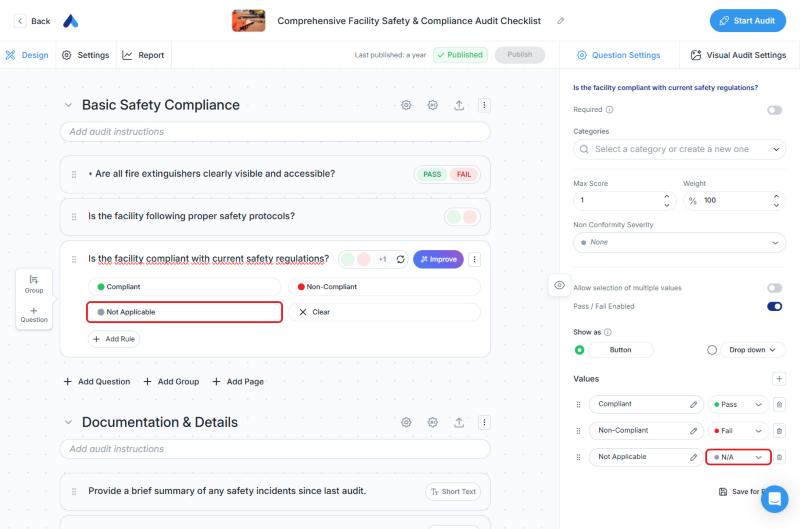
For response types with options, such as the ready-made option sets or + Select List, every option has a result status. The status decides how the result is evaluated when the auditor selects that option. For example, the Compliant option is linked to Pass, and the Non-Compliant option is linked to Fail.
To see or change the status of each option:
- Click the question
- In the Question Settings panel on the right, look at the Values list. The status appears next to each option (Pass, Fail, N/A)
What Does N/A (Not Applicable) Mean?
N/A stands for Not Applicable. You select it when a question does not apply to the situation being audited.
Example: The question is "Are the holiday decorations up?" The answer is normally Yes or No. But outside the holiday season, no one expects decorations to be up. The question does not apply, so the correct answer is N/A.
In sets with a third option (Yes - No - N/A, Pass - Fail - N/A, Compliant - Non-Compliant - N/A), choose N/A when the question does not apply. To add an N/A option to a question, choose a +1 option set, or set an option's status to N/A in your own + Select List.
Best Practices
- Use ready-made option sets to keep results consistent
- Pair Photo/Video with a comment on checks that can fail
- Add GPS Location Capture and Barcode / QR Code Scanner for audits that need location and asset traceability
- Add an N/A option to questions that may not apply at every location, so auditors do not have to give a misleading Yes or No
Next steps
Learn how auditors use response types during an audit.
Next article: Response Types and How to Use Them During Auditing →