User Groups in Audit Now allow you to cluster users based on departments, locations, or roles (e.g., Region Managers, Store Supervisors). This makes it easier to assign audits, control access, and filter reports by team.
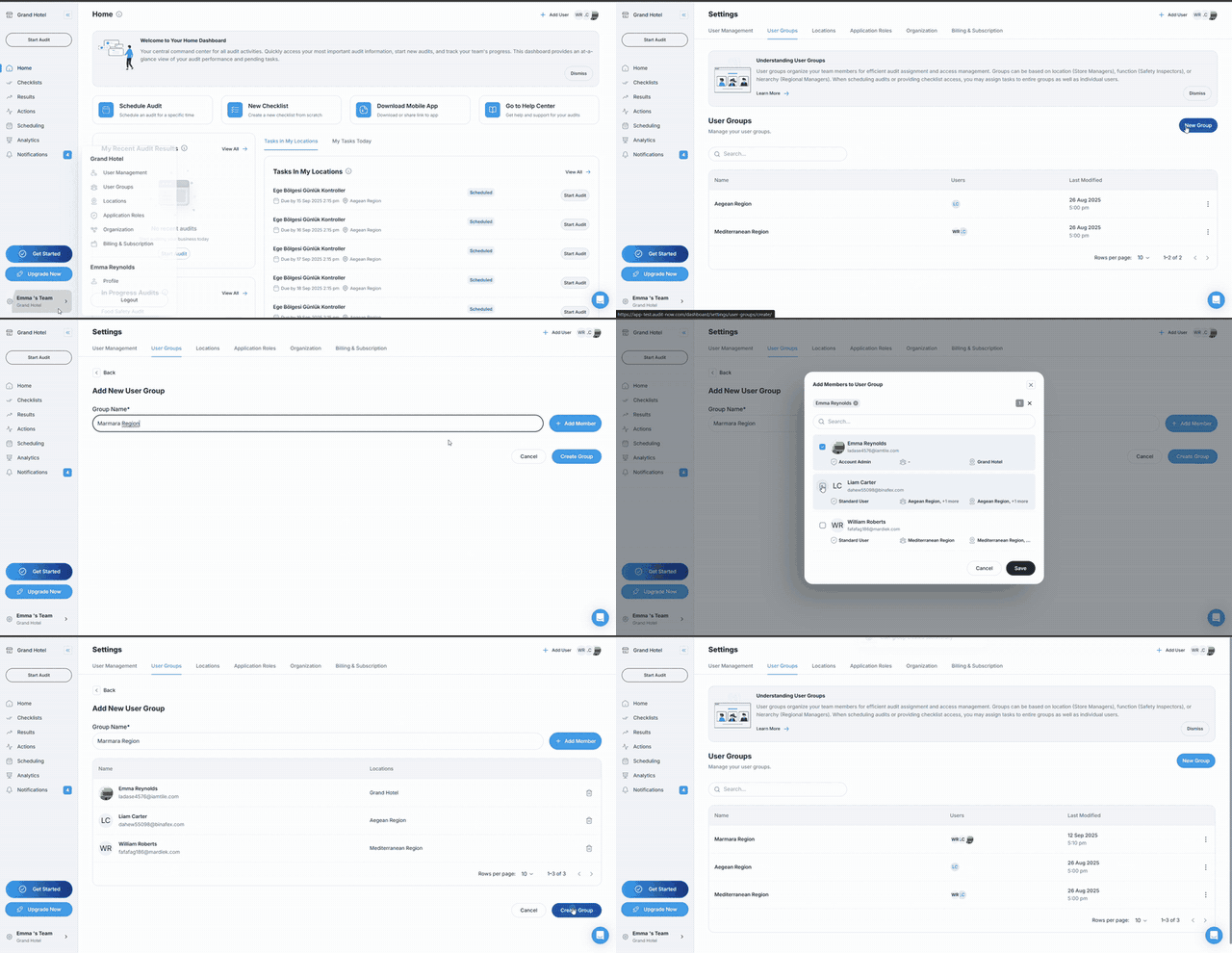
Step-by-step: How to Create a User Group
- Go to Settings
- From the left-hand navigation menu, go to Settings > User Groups
- Click "New Group"
- On the top-right, click the New Group button
- Name Your Group
- Enter a clear, descriptive name (e.g., Warehouse Inspectors, Northeast Supervisors)
- Add Users
- You can add members directly while creating the group
- Click the Users field and select from the dropdown or start typing names
- Save the Group
- Click Create Group to finalize
How to Edit or Delete User Groups
-
Edit: Click a group’s name to view and modify members, or change group name
-
Delete: Use the three-dot menu (⋮) beside a group to remove it
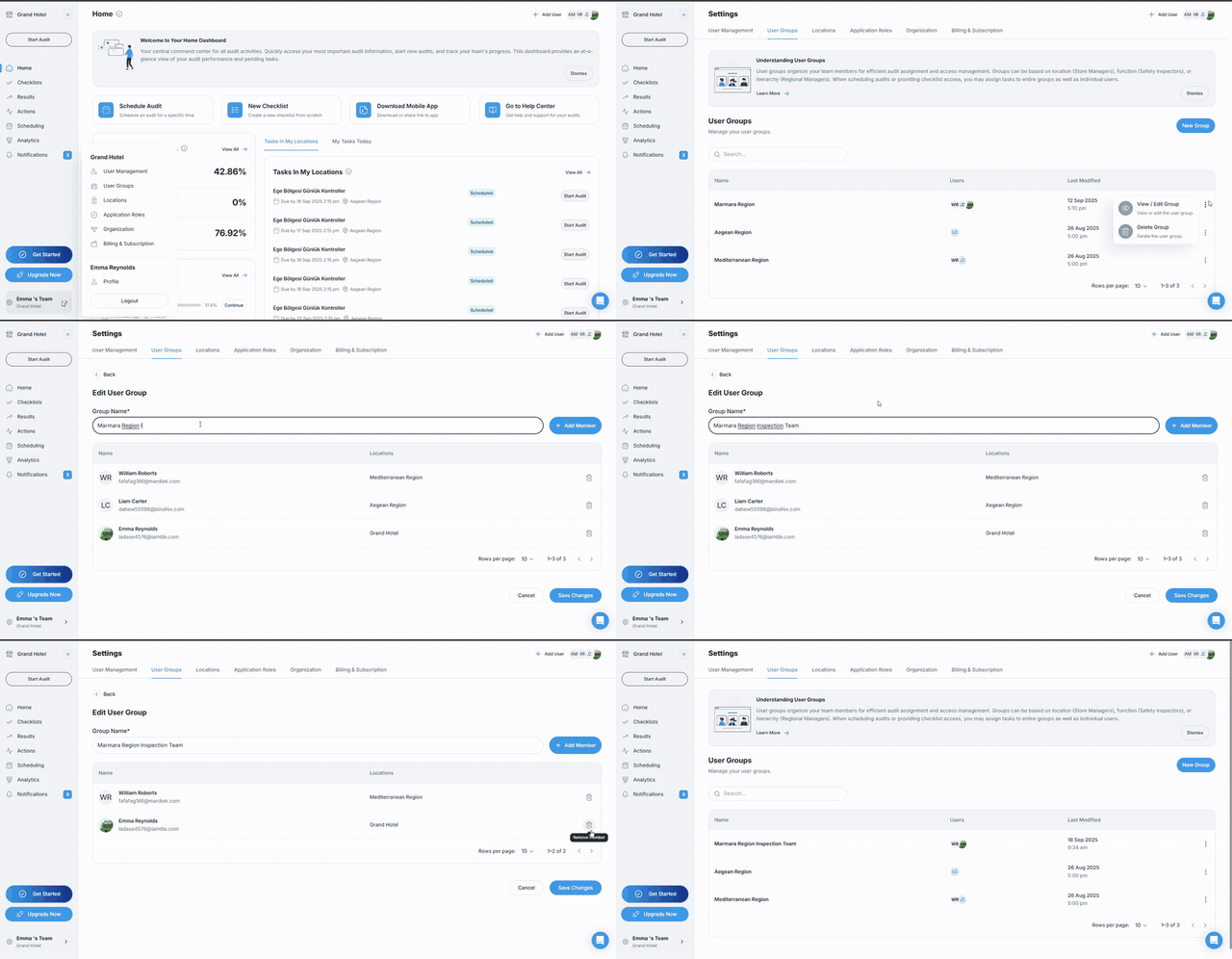
Deleting a group does not affect historical audit records. However, it becomes unavailable for future assignments.
Tips for Using User Groups Effectively
| Use Case | Benefit |
|---|---|
| Access Control | Assign audits and checklists by group rather than individuals |
| Performance Reporting | Filter analytics by group to track team-level compliance |
| Scalability | Simplify permissions and scheduling as your organization grows |
Next Article: Adding & Inviting Users →