✅ Read Before User Creation:
Audit Now makes it simple to bring new team members onto the platform. Admins can add users by filling in their information and sending an automatic invite email. Users then activate their accounts by setting a password.
Option 1: Add a User Manually
-
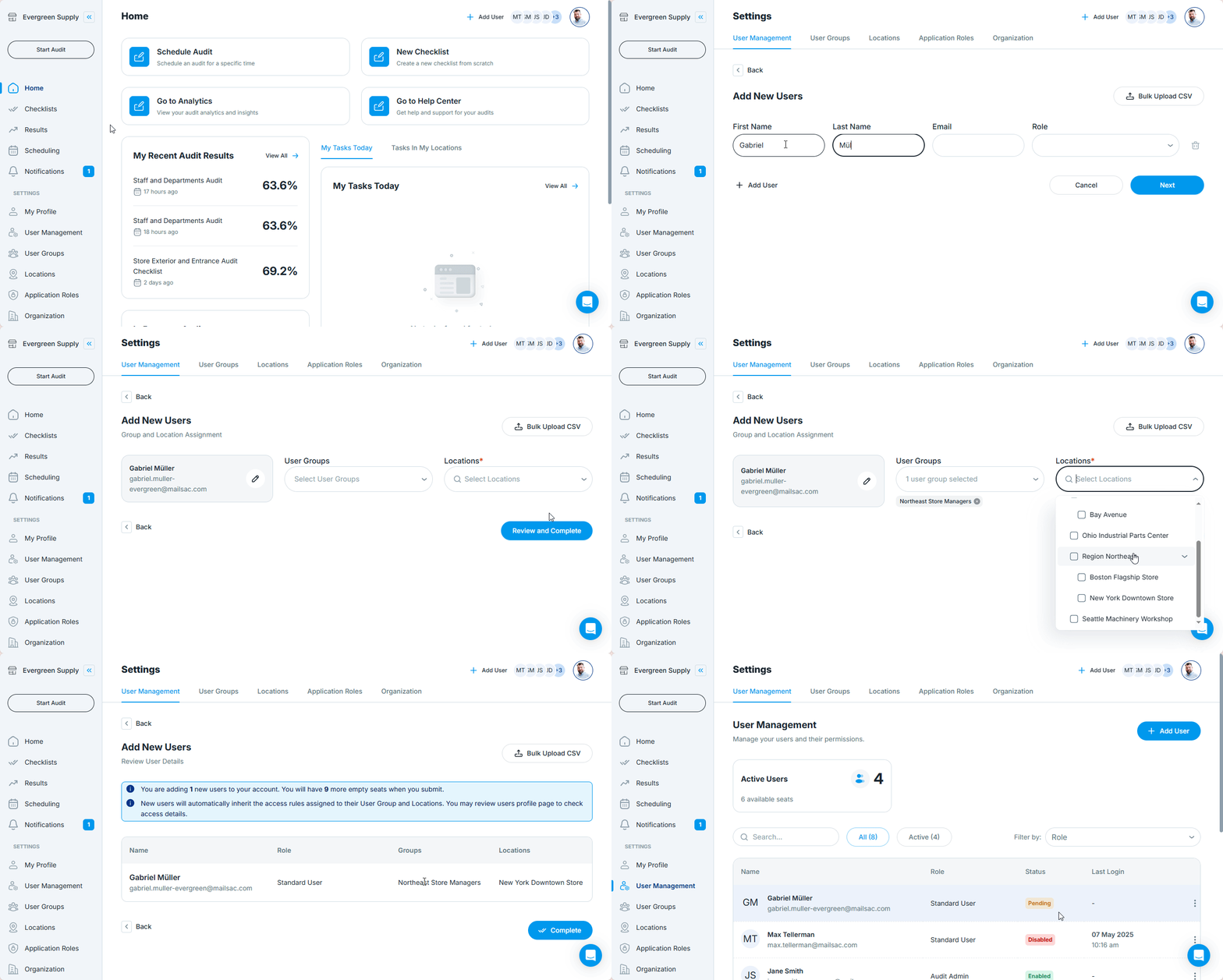
Go to User Management
- From the left-hand menu, select Settings > User Management
-
Click "+ Add User"
- Located in the top-right corner of the page
-
Fill in the User Details
- First Name
- Last Name
- Email Address
- Role (e.g., Admin, Auditor)
- User Group (optional)
- Location
-
Click "Add User" to Confirm
- An invitation email will be sent to the new user with a link to activate their account
Option 2: Bulk Upload Users via CSV
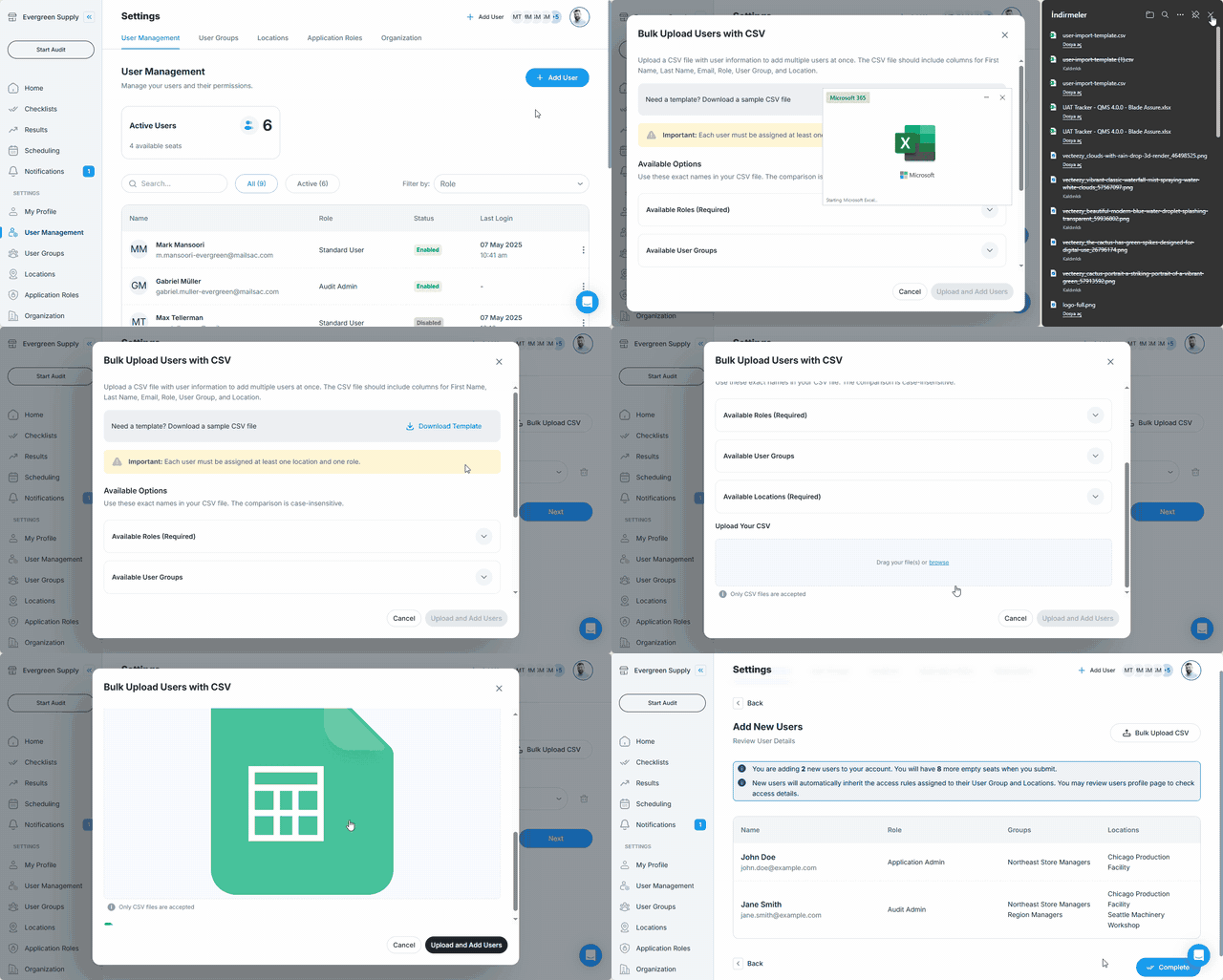
- In User Management, click "+ Add User"
- Select "Bulk Upload CSV"
- Download the CSV template provided
- Follow the intructed Role, User Group, Location names and fill in the file with the required fields:
- First Name
- Last Name
- Role
- User Group (optional)
- Location
- Upload the completed file using the import modal
- Click Upload and Add Users
- Review the details of all uploaded user and click Next
- Click Review and Complete
- Click Complete Invitations will be sent to all users
Activation Process
- User Activates Account
- Each user receives a unique link by email.
- The user clicks the invite link, sets their password, and logs in
- Status is Updated
- Once the user logs in, their Status and Last Login fields are automatically updated in the system
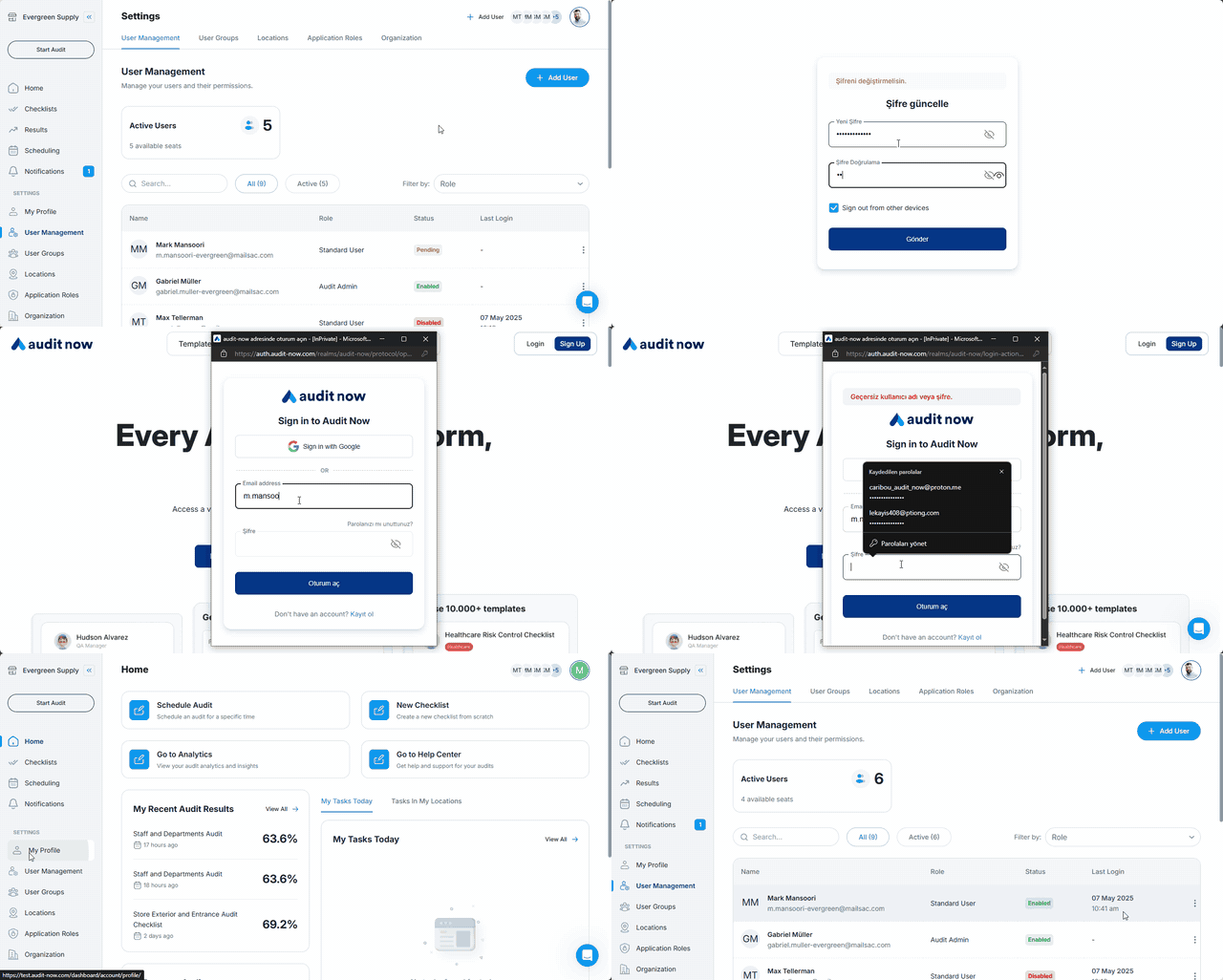
- Once the user logs in, their Status and Last Login fields are automatically updated in the system
🔐 Notes
- Only Admins and authorized users can create or manage users.
- Email addresses must be unique across the platform.
- Invitations expire after a set period—resend if needed.
Next article: Managing User Profiles →