Admins can view and update user accounts anytime. This includes editing personal details, changing user roles, or disabling access (e.g., for former employees or paused accounts).
How to Manage a User Profile
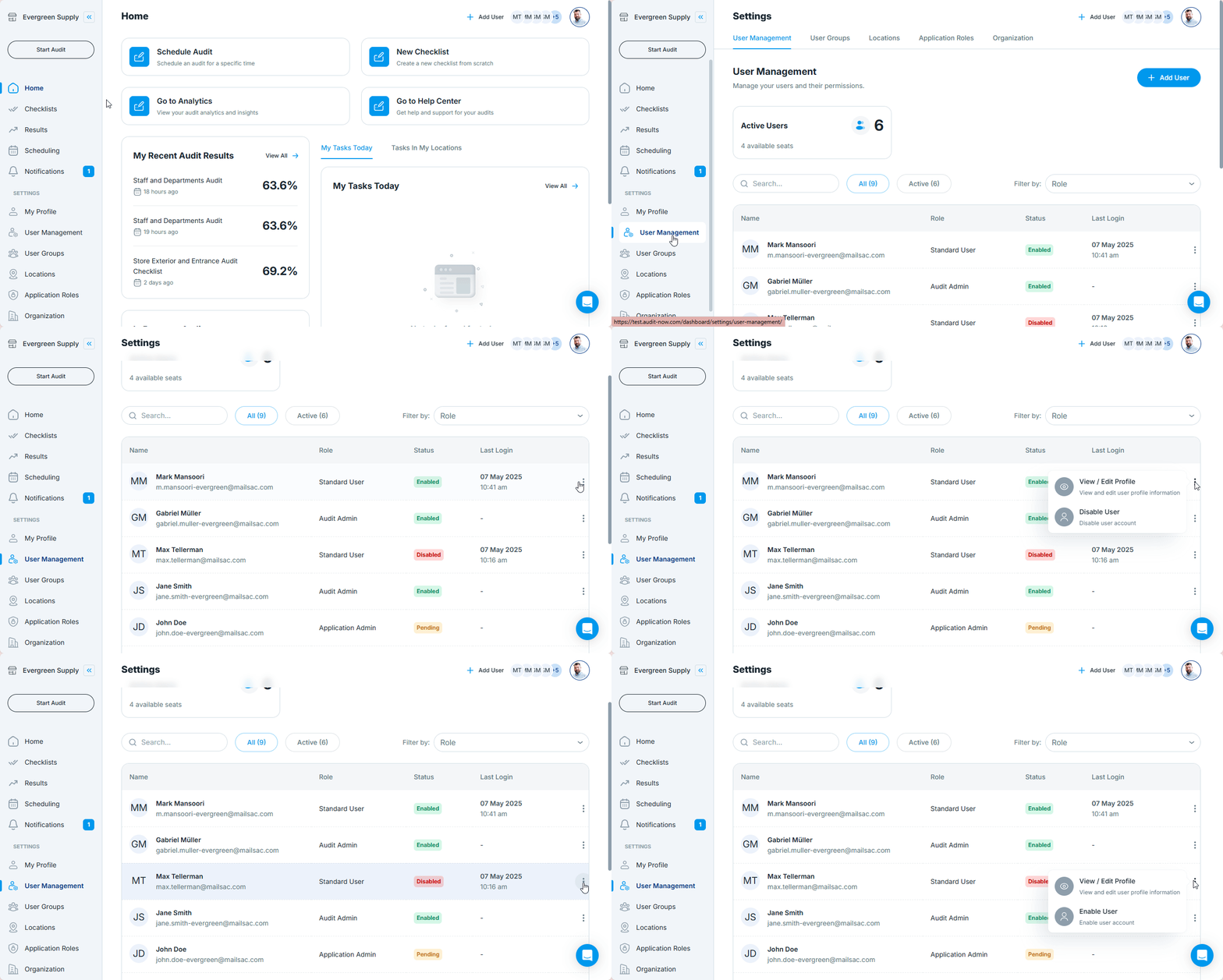
- Go to Settings > User Management
- Find the user you want to manage in the list
- Click the three-dot menu (⋮) next to their name
You’ll see two options:
- View/Edit Profile
- Update Full Name, Email Address, User Role, and User Groups
- Disable User (if user is active)
or
Enable User (if user is disabled)
Edit User Profile
When you choose View/Edit Profile, you can:
- Change the user's name or email
- Update their role (e.g. from Auditor to Admin)
- Change or add locations
- Modify group assignments to reflect new responsibilities
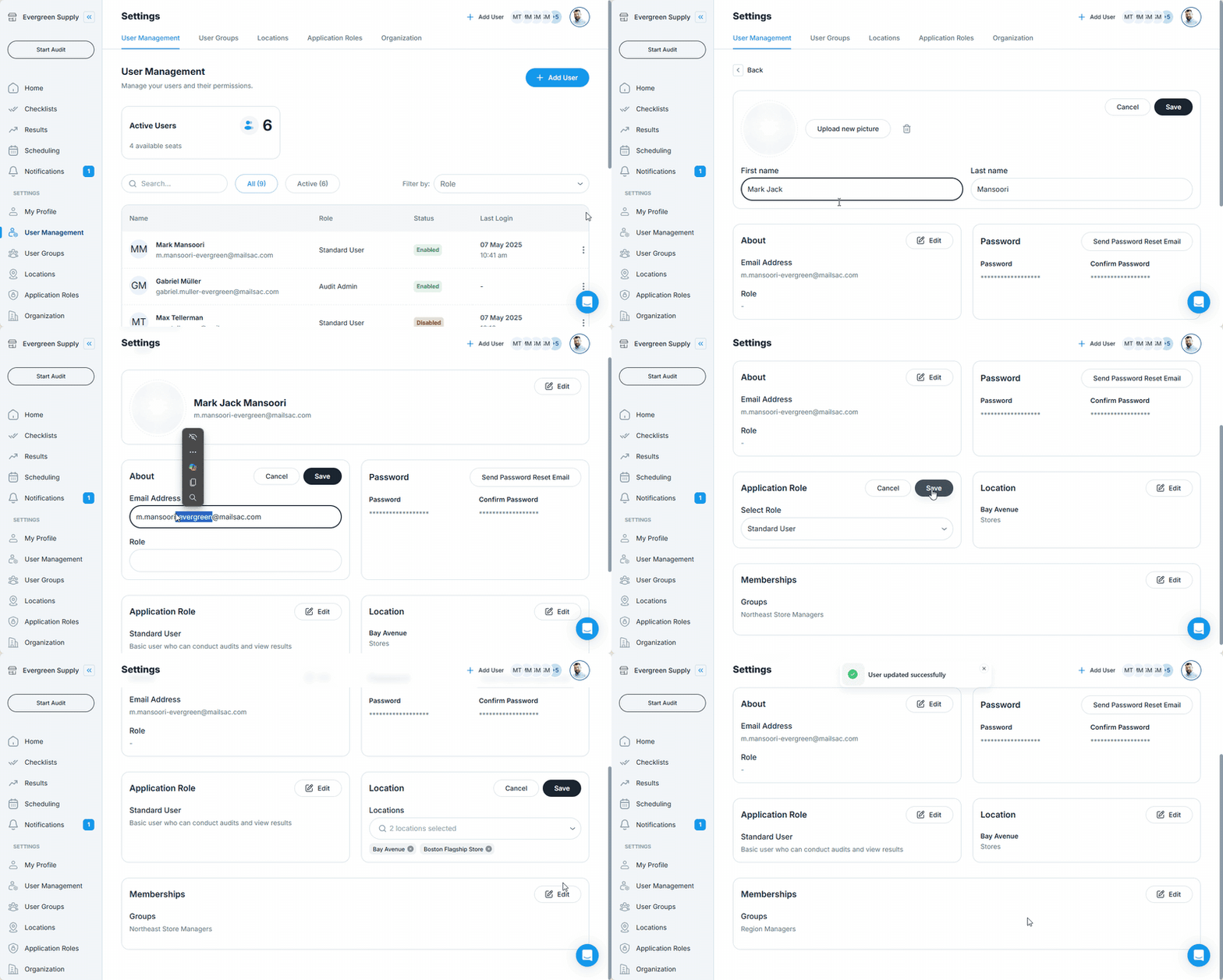
All changes are saved instantly and apply across the platform.
Disable or Enable a User
- Disabling a user prevents them from logging in or being assigned new audits
- Enabling a user reactivates their account with previous permissions
- No historical data is lost when disabling a user
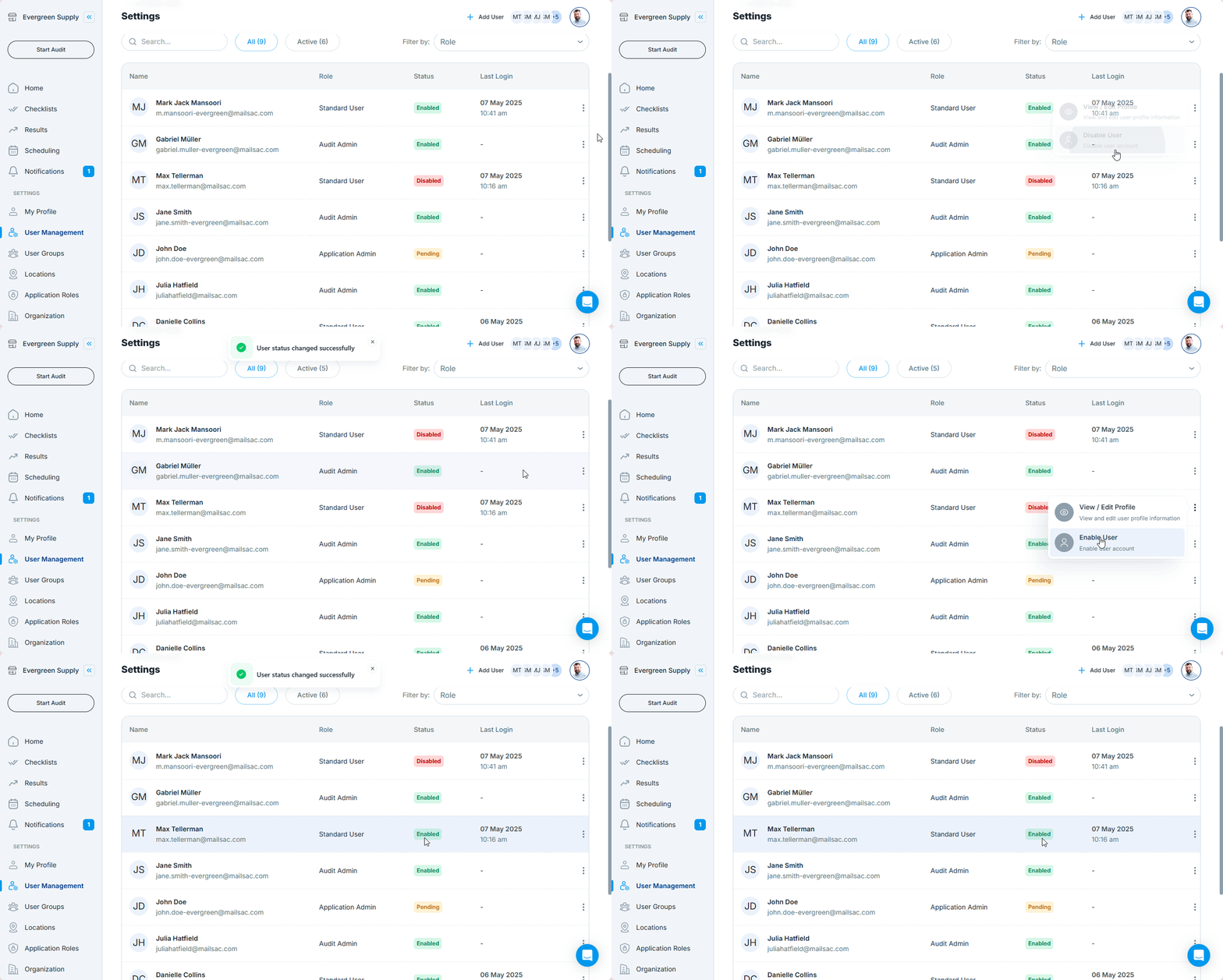
✅ Use this for former employees, extended leaves, or inactive team members
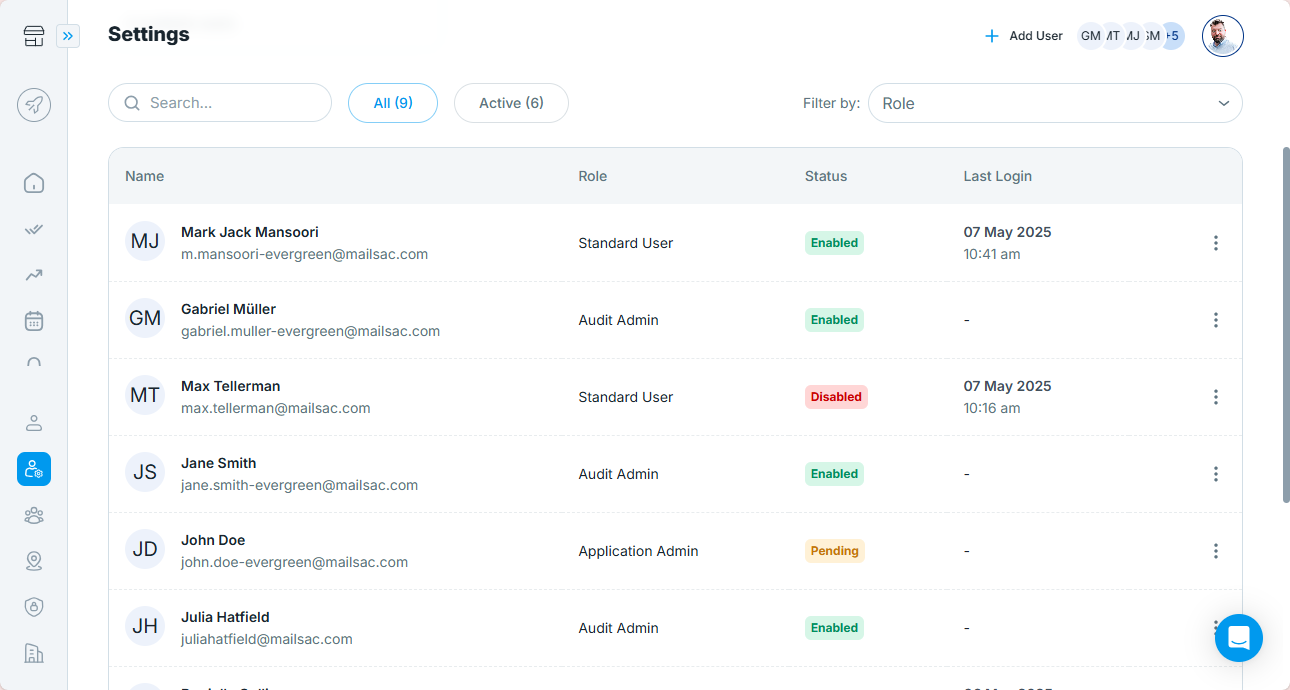
User Profile Summary
| Field | Description |
|---|---|
| Full Name | First and last name of the user |
| Email Address | Email address of the user |
| Status | Enabled, Pending, or Disabled |
| Last Login | Shows the most recent login timestamp |
| Role | Determines access and visibility |
✅ Best Practices
- Keep user profiles updated after promotions or transfers
- Disable (not delete) users who leave, to retain audit history
- Use meaningful user group names for better visibility
Next article: User Roles in Audit Now →