Scheduling ensures audits happen on time—without needing to manually assign them each time. You can define the frequency, assign to users or groups, and track audit completion.
Creating a New Schedule
1. Go to Scheduling
- Click Scheduling from the left-hand menu
- Remain on Manage Schedules page
- Click + New Schedule (top right)
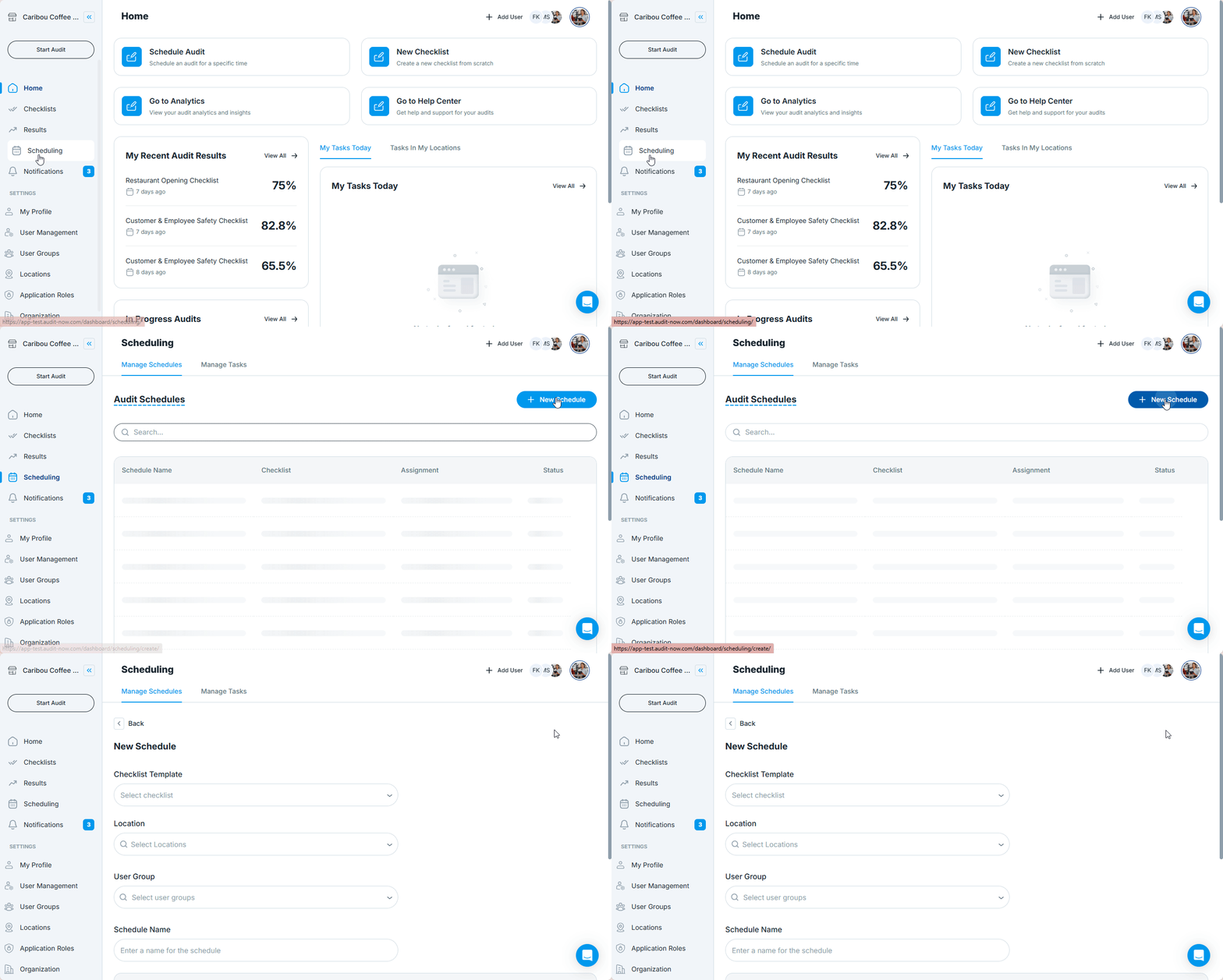
2. Fill in Schedule Details
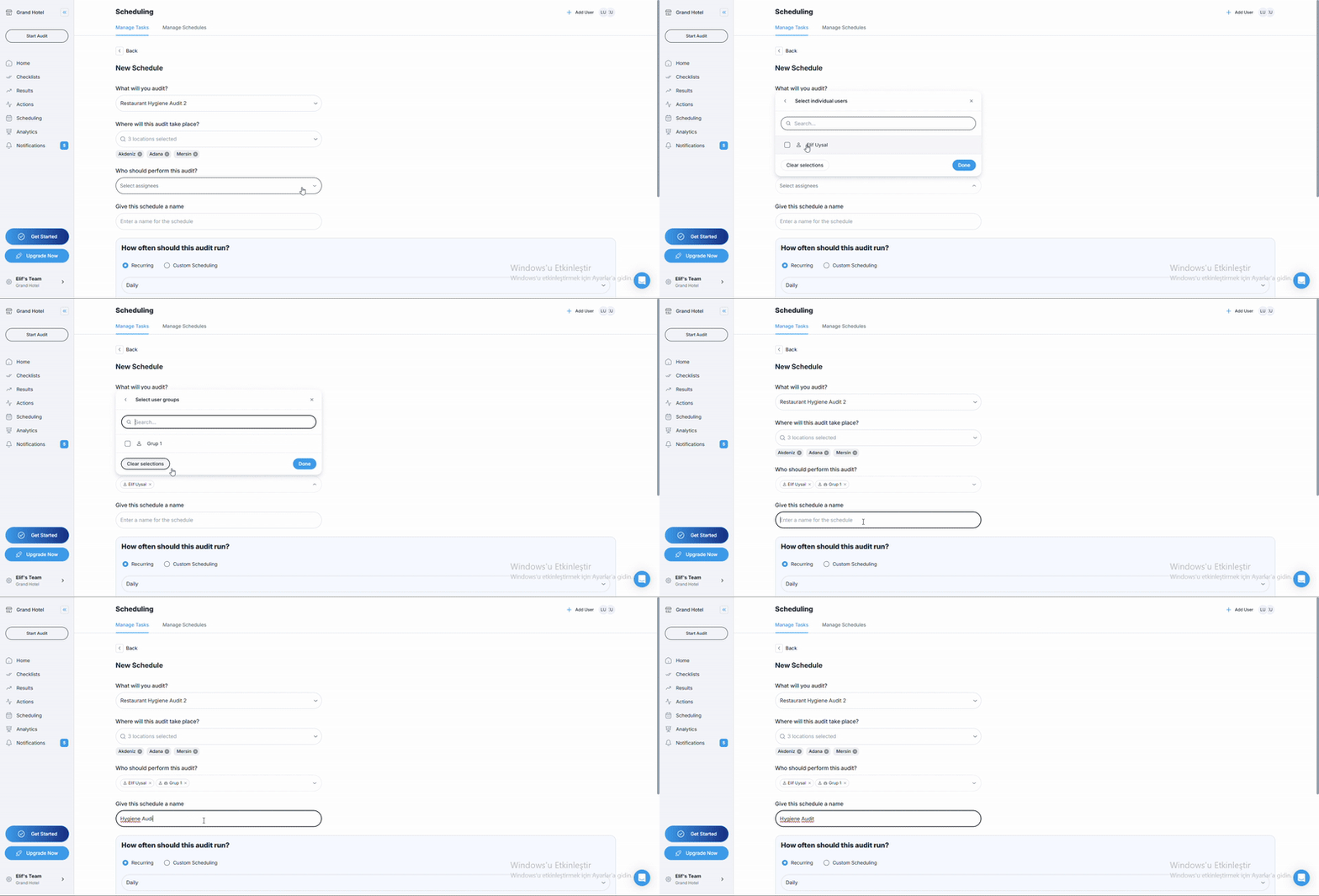
These fields appear for all schedule types and are mandatory:
| Field | Description |
|---|---|
| Checklist Template | Select the checklist to be used in the audit |
| Location | Select one or more Locations |
| User & User Group | Select one or more User & User Groups |
| Schedule Name | Give the schedule a clear and unique name |
3. Select a Frequency Type
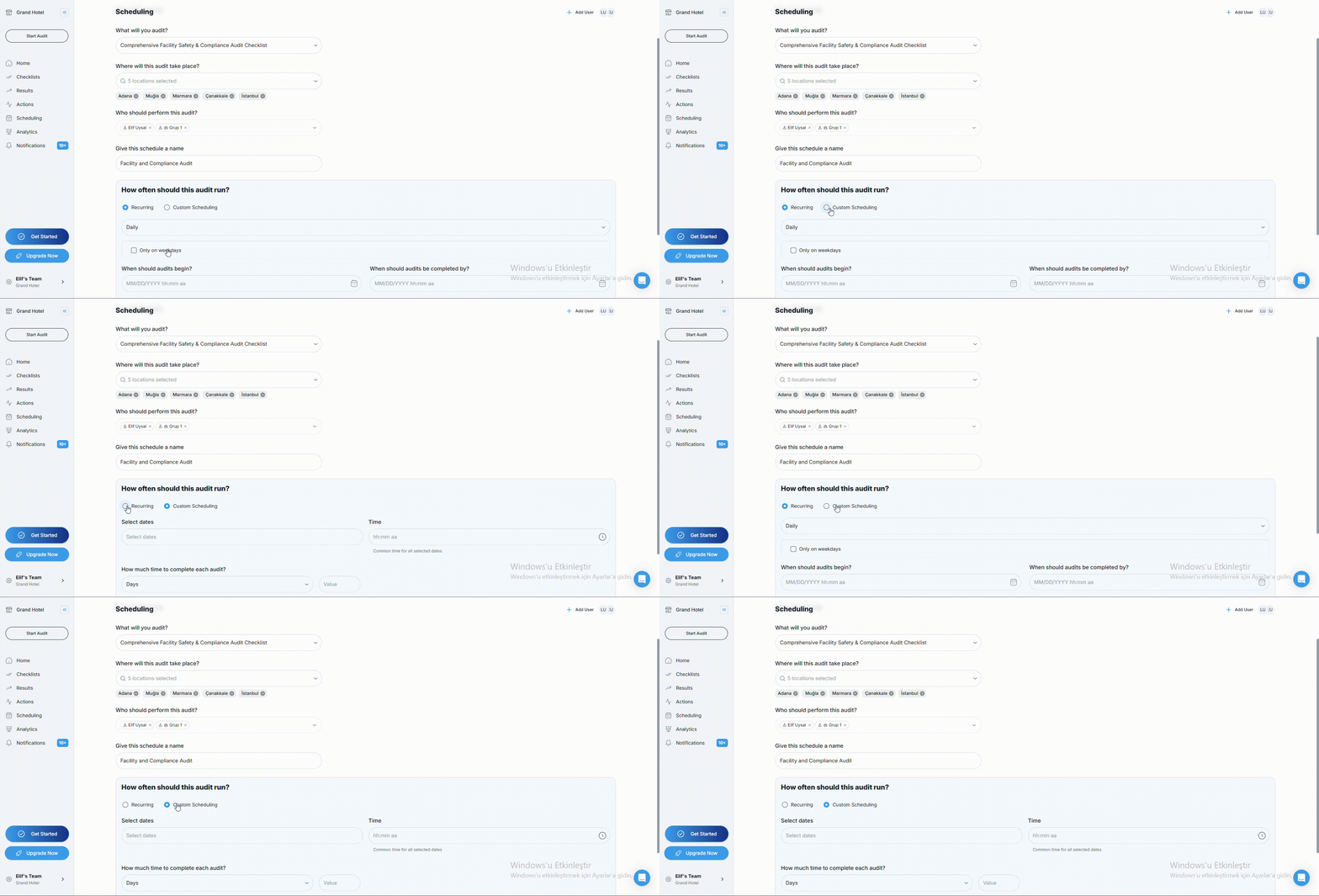
Audit Now offers Recurring and Custom Scheduling schedule types. Once selected, additional fields appear depending on the chosen frequency.
3.a. Scheduling Recurring Tasks
Recurring task scheduling allows you to automatically create audit tasks at regular intervals—such as daily, weekly, monthly, or quarterly—based on a predefined schedule.
-
Fill in all Schedule Details
-
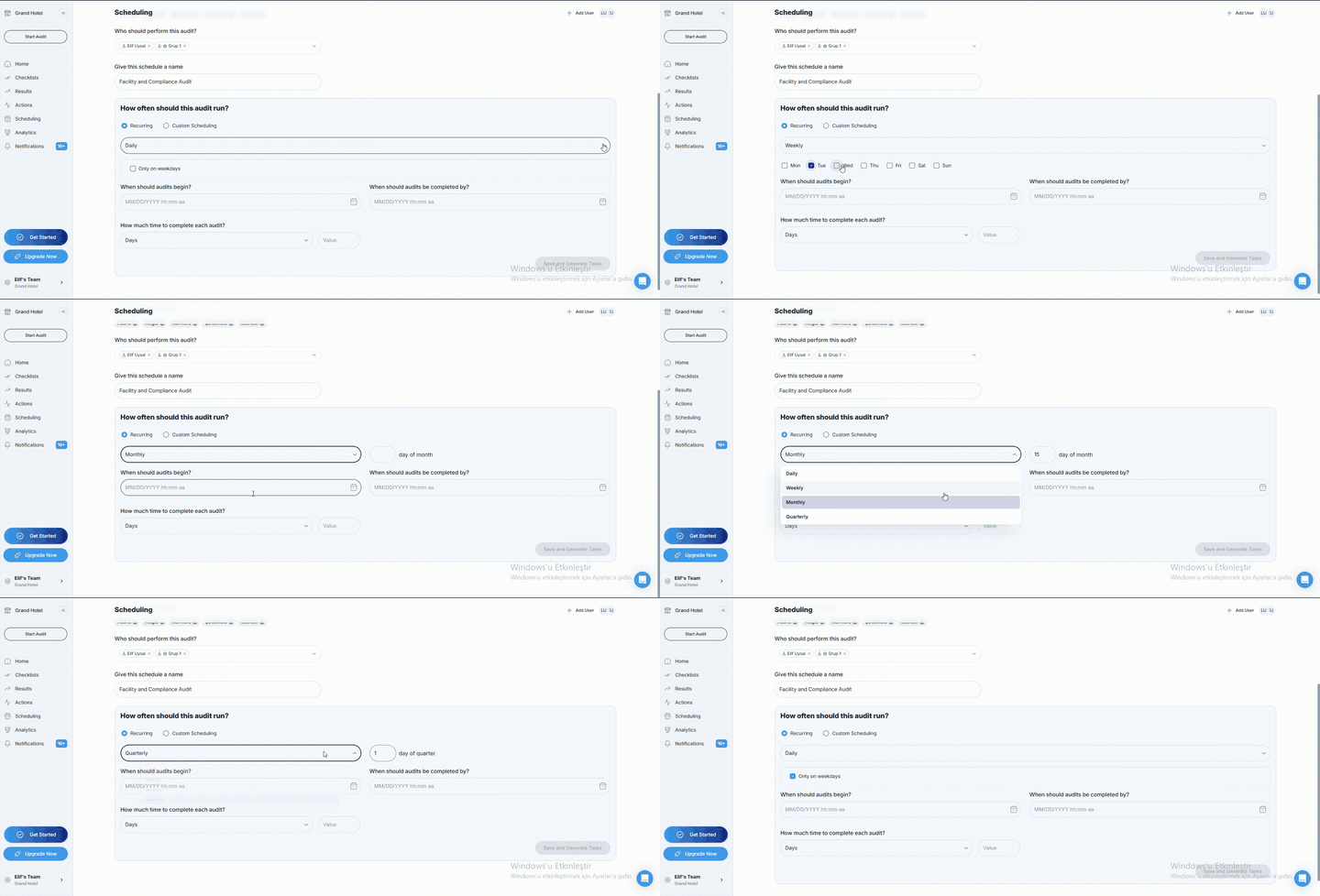
Select Recurring under the “How often should this audit run?” section.
-
Select one of the options below:
-
Daily
- Audit repeats every day.
- Audit can be scheduled to be performed only on weekdays.
-
Weekly
- Audit repeats every week on the same day(s) of the week.
- Desired days can be selected after Weekly selection.
-
Monthly
- Audit repeats every month on the same day.
- Desired day of the month can be entered manually or via numeric stepper after Monthly selection.
-
Quarterly
- Audit repeats every 3 months on the same day.
- Desired day of the quarter can be entered manually or via numeric stepper after Quarterly selection.
-
After choosing a frequency option, define:
| Field | Description |
|---|---|
| When should audits begin? | Start date and time for the first scheduled audit |
| When should audits be completed by? | Due date and time for audit completion |
| How much time to complete each audit? | Time window allocated for completing each audit (specified in Days, Hours, etc.) |
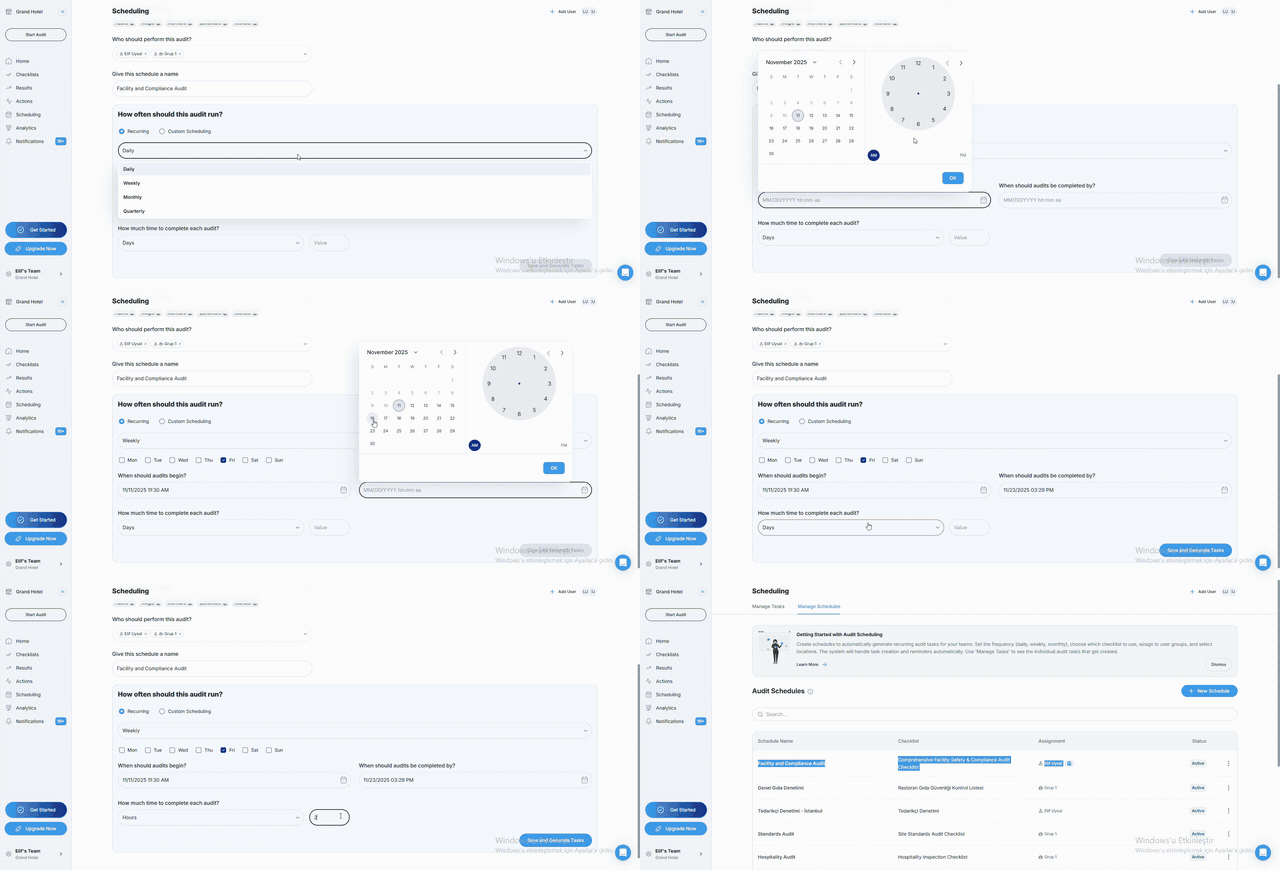
Then click Save and Generate Tasks.
3.b. Custom Scheduling
Custom Scheduling allows you to create audit tasks on specific, non-recurring dates that you manually select.
- Fill in all Schedule Details
- Select Custom Scheduling under the “How often should this audit run?” section.
- Fill in the following fields:
| Field | Description |
|---|---|
| Select dates | Choose one or multiple specific dates for the audit tasks |
| Time | Set a common time (hh:mm aa format) that applies to all selected dates |
| How much time to complete each audit? | Define the time window duration |
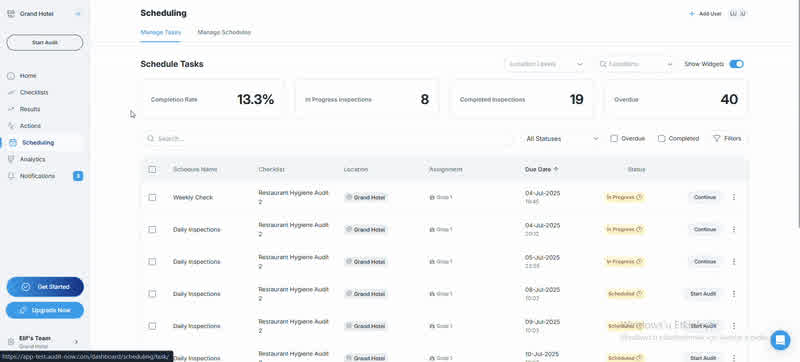
Then click Save and Generate Tasks.
This option is ideal for one-time audits, special events, or irregular scheduling needs.
4. Finalize and Save
After configuring your schedule type and completing all required fields, click Save and Generate Tasks.
The schedule becomes active immediately. Assigned users will see audit tasks in their Tasks tab on the mobile app.
How Time Window Works
The Time Window field lets you set a duration like:
- 1 Hour
- 2 Days
- 1 Week
- 3 Months
- 1 Year
This is defined using two fields:
- Numeric value
- Unit selector (Hour, Day, Week, Month, Quarter, Year)
Time Window begins on the Start Date and defines how long the task is available before it becomes overdue.
Learn more about overdue tasks: Understanding "Overdue" audit tasks and how to report on them →
Who Can Create Schedules?
| Role | Permission |
|---|---|
| Application Admin | ✅ |
| Audit Admin | ✅ |
| Account Admin | ✅ |
| Standard User | ❌ |
Best Practices
- Use descriptive Schedule Names that include frequency and target group (e.g., “Monthly Safety – Plant A”)
- Assign to User Groups for easier team-wide management
- Set reasonable Time Windows to match operational needs
- Use recurring schedules for ongoing compliance and audit cycles
- Revisit schedules quarterly to adjust for team or process changes
Next article: Modify, Put on Hold/Resume or Delete Schedules →