Before starting, check out: How to Create a New Audit Schedule →
You can easily update the configuration of an existing schedule, temporarily suspend its execution, or remove it permanently—all from the Scheduling page.
Modify a Schedule
To make changes to an existing schedule:
- Go to Scheduling from the left menu
- Find the schedule you want to update from the table
- Click the three-dot (⋮) icon at the right end of the row
- Select Edit
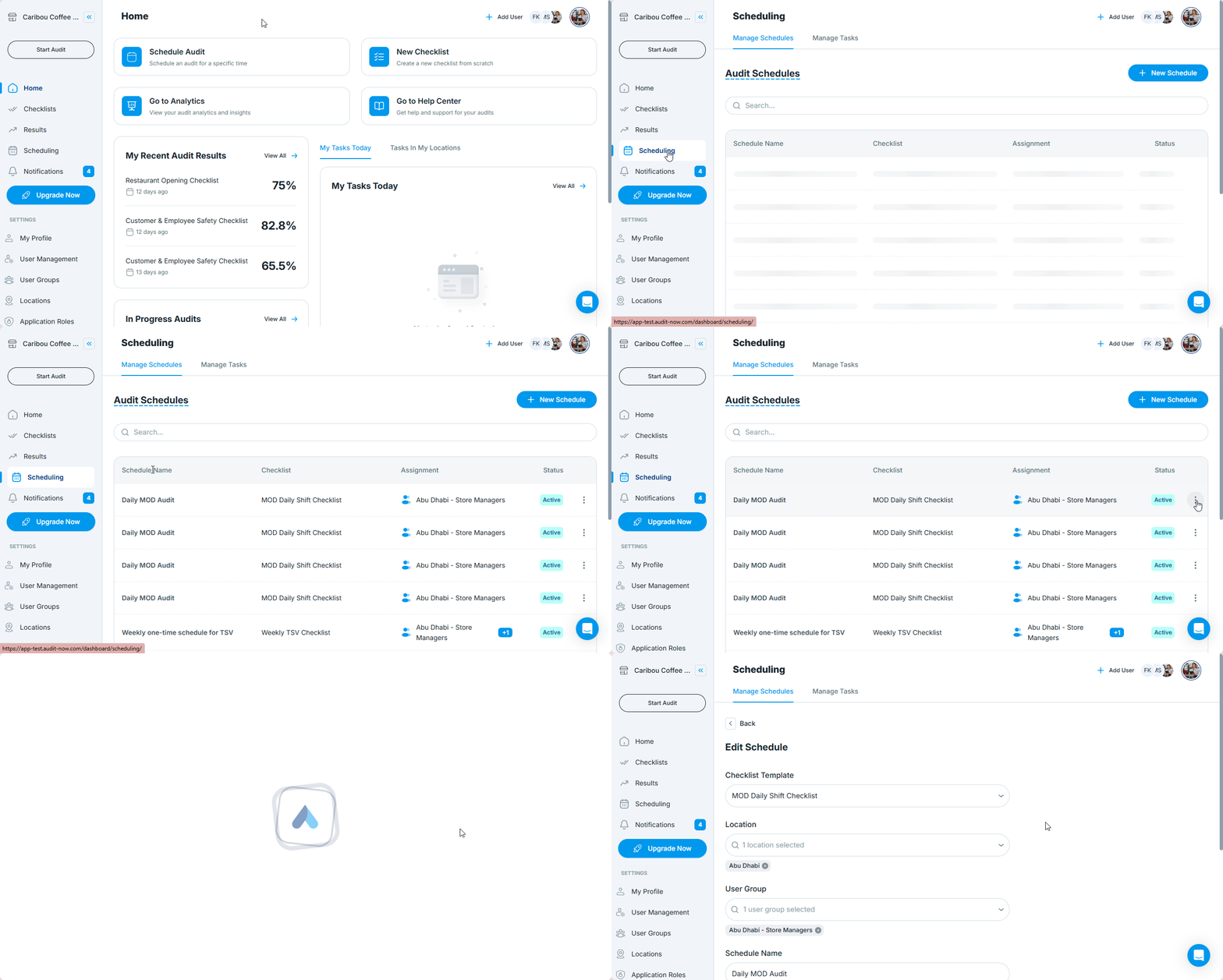
You can update any of the following:
- Checklist Template
- Location
- User Group
- Schedule Name
- Start Date / Due Date
- Recurrence Type
- Time Window
- Frequency (e.g. monthly, quarterly)
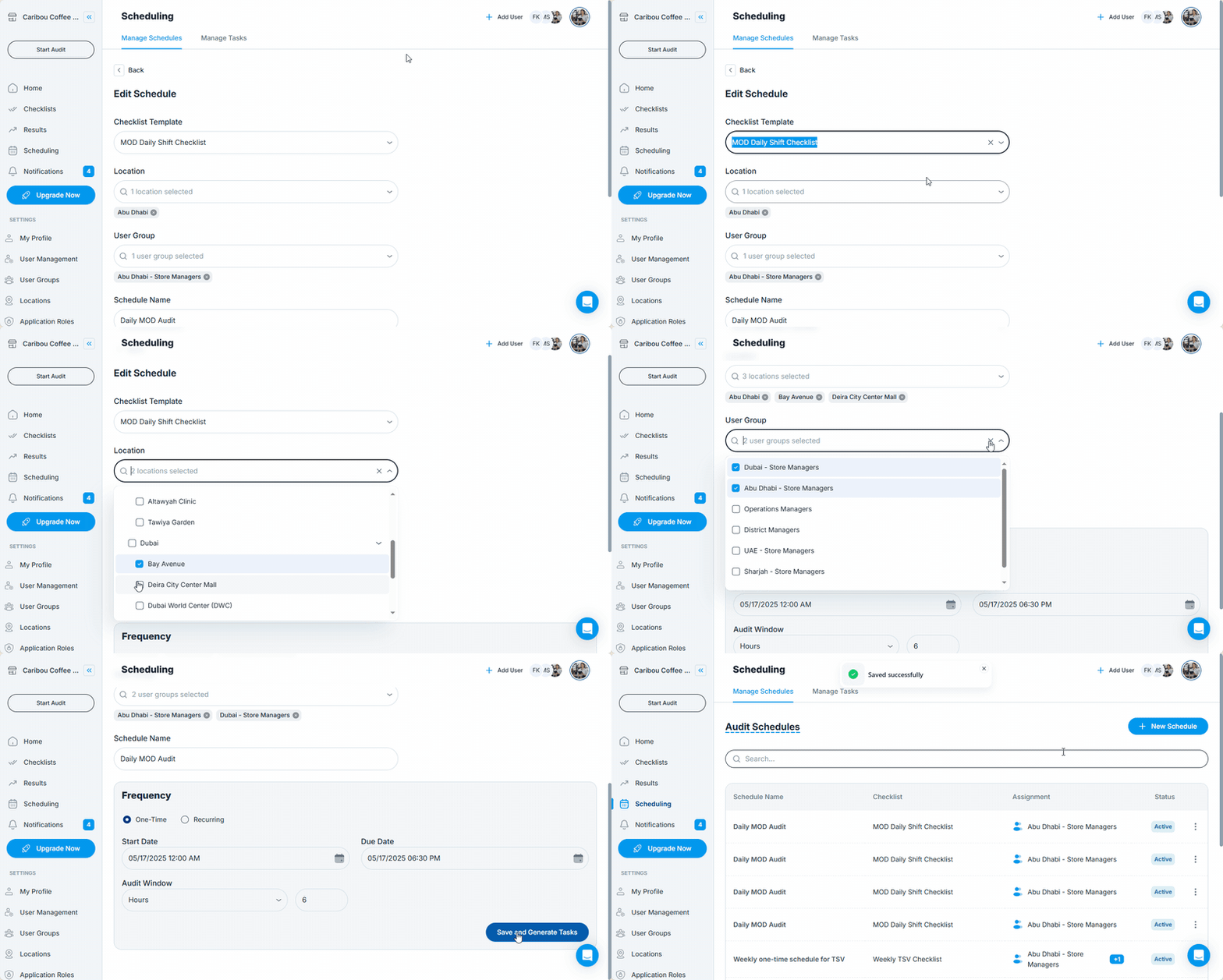
Once your changes are made, click Save and Generate Tasks to apply.
The changes will take effect for future audit tasks. Already-issued audit tasks remain unchanged.
Put a Schedule on Hold
To temporarily stop a schedule without deleting it:
- In the Scheduling list, click the three-dot (⋮) icon
- Select Pause Schedule
The schedule will be deactivated and paused:
- No audit tasks will be created while it’s on hold
- Its status will show as Paused
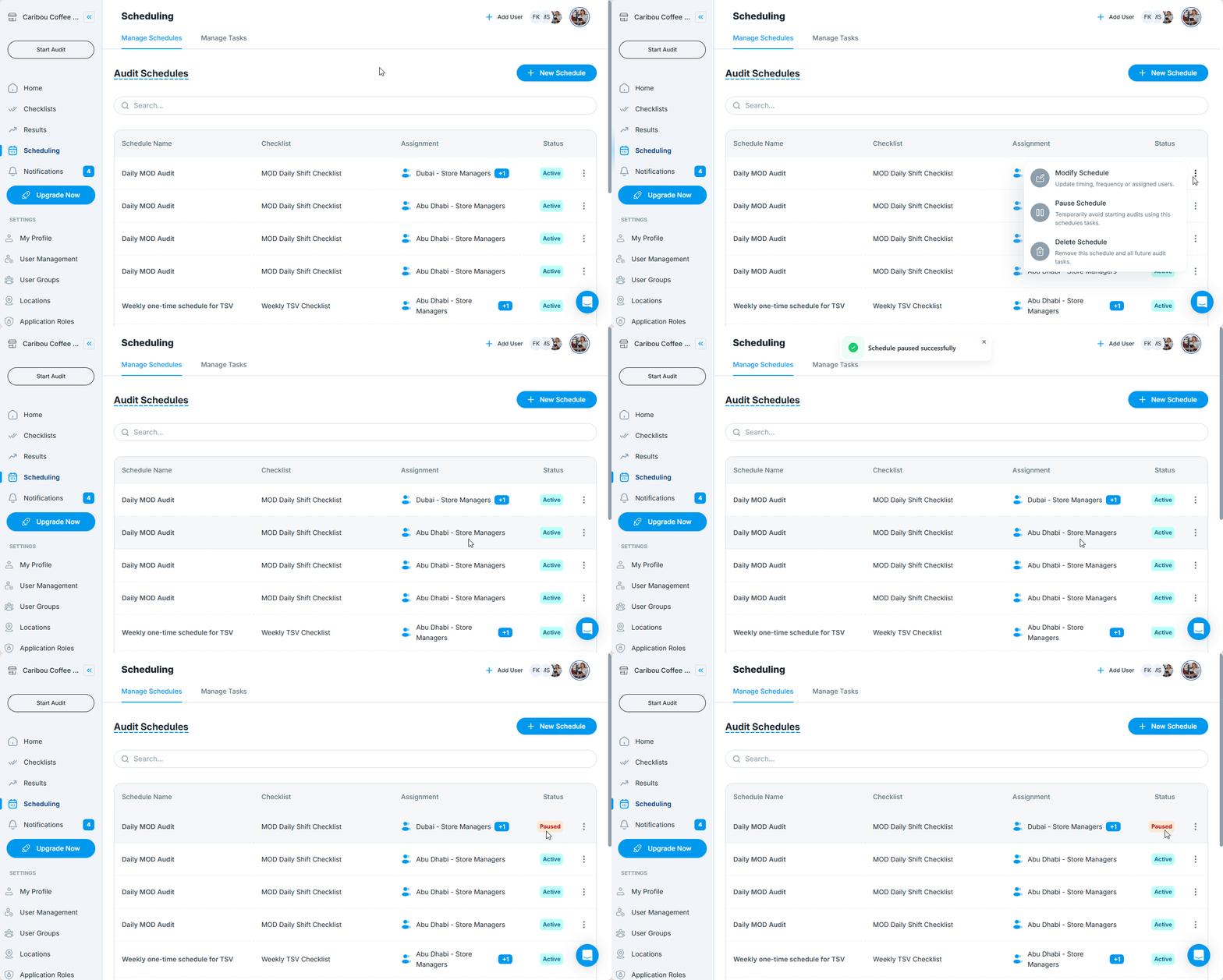
You can resume the schedule anytime.
Resume a Schedule
To reactivate a paused schedule:
- Find a schedule with On Hold status
- Click the three-dot (⋮) icon
- Select Resume Schedule
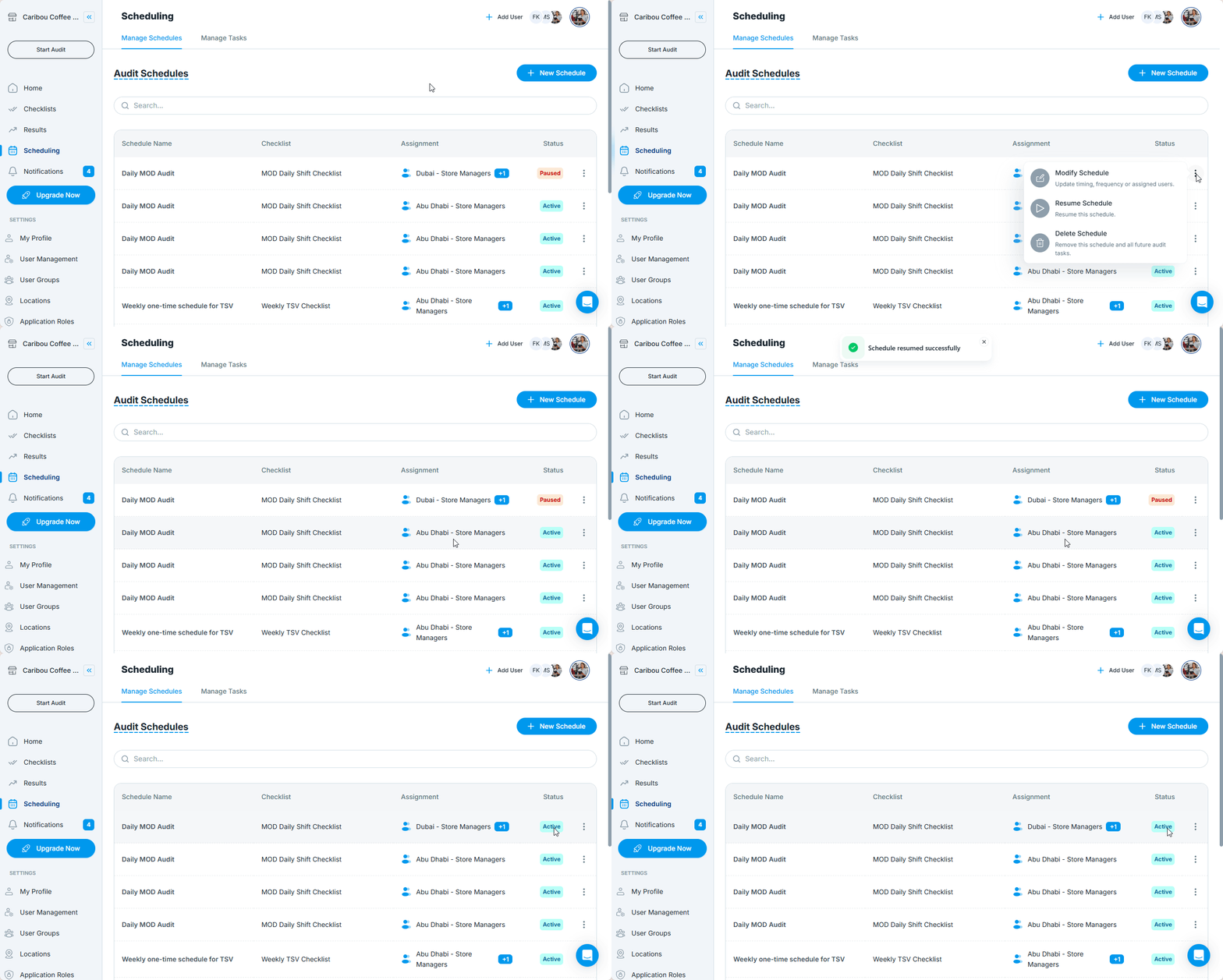
The schedule will reactivate immediately, and the next scheduled audit will be created based on its settings. Its status will show as Active.
Delete a Schedule
To permanently remove a schedule:
- In the Scheduling list, click the three-dot (⋮) icon
- Select Delete Schedule
- Confirm the deletion in the popup
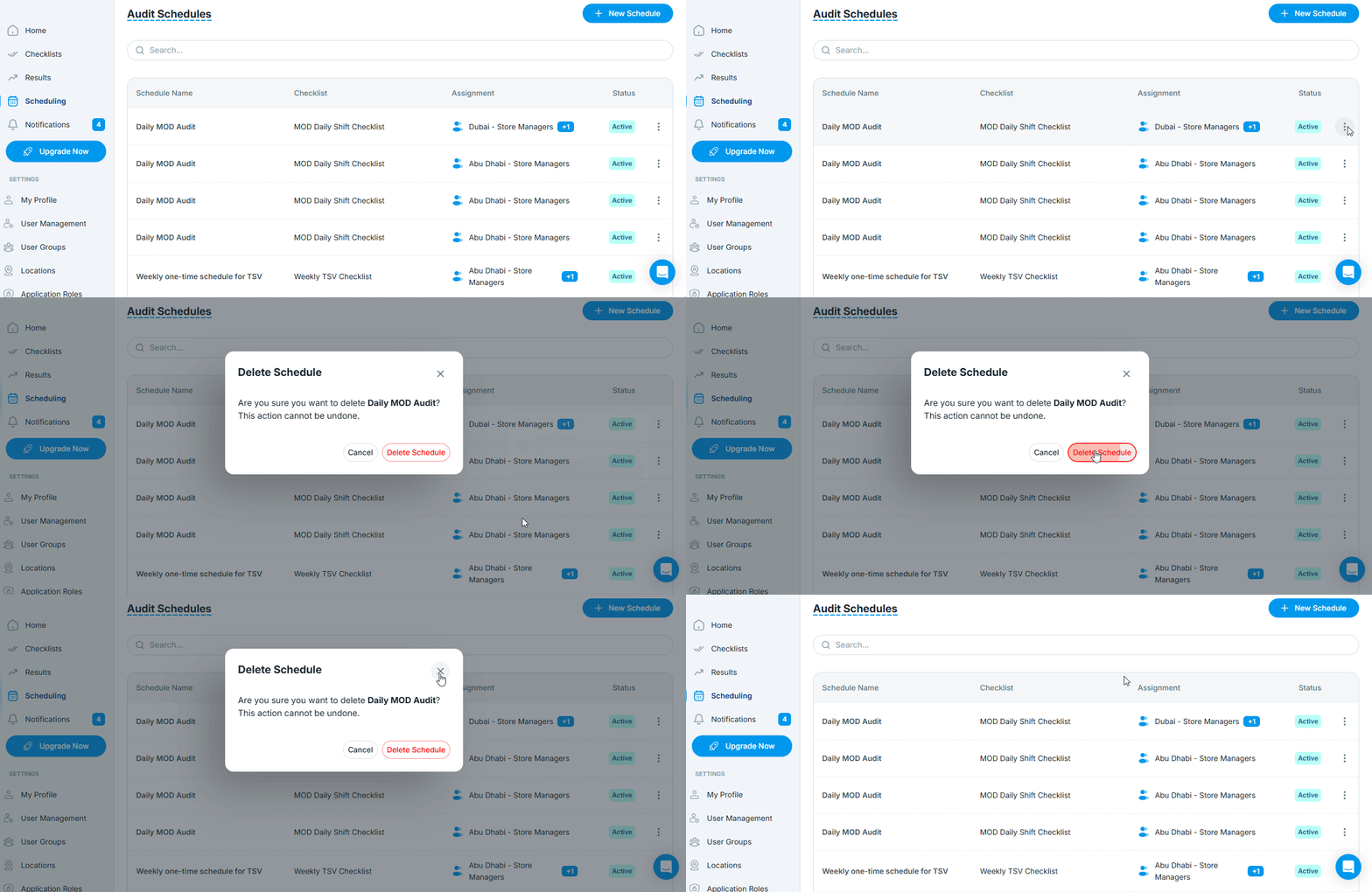
This action is permanent and cannot be undone.
Completed audit tasks from this schedule remain in the system; only future task creation stops.
Who Can Modify or Delete Schedules?
| Role | Permissions |
|---|---|
| Application Admin | ✅ |
| Audit Admin | ✅ |
| Account Admin | ✅ |
| Standard User | ❌ Cannot create/modify/delete schedules |
Best Practices
- Use Put on Hold when a schedule is temporarily not needed (e.g. seasonal audits)
- Regularly review schedules to keep assignments and dates current
- Delete only schedules you’re sure won’t be needed again
Next article: How to Track and Manage Audit Tasks →