Before reading this article, check out:
This tab gives audit owners and admins complete visibility into what’s completed, overdue, or pending—task by task.
Access the Manage Tasks Tab
- Go to Scheduling from the left-hand menu
- Switch to the second tab: Manage Tasks
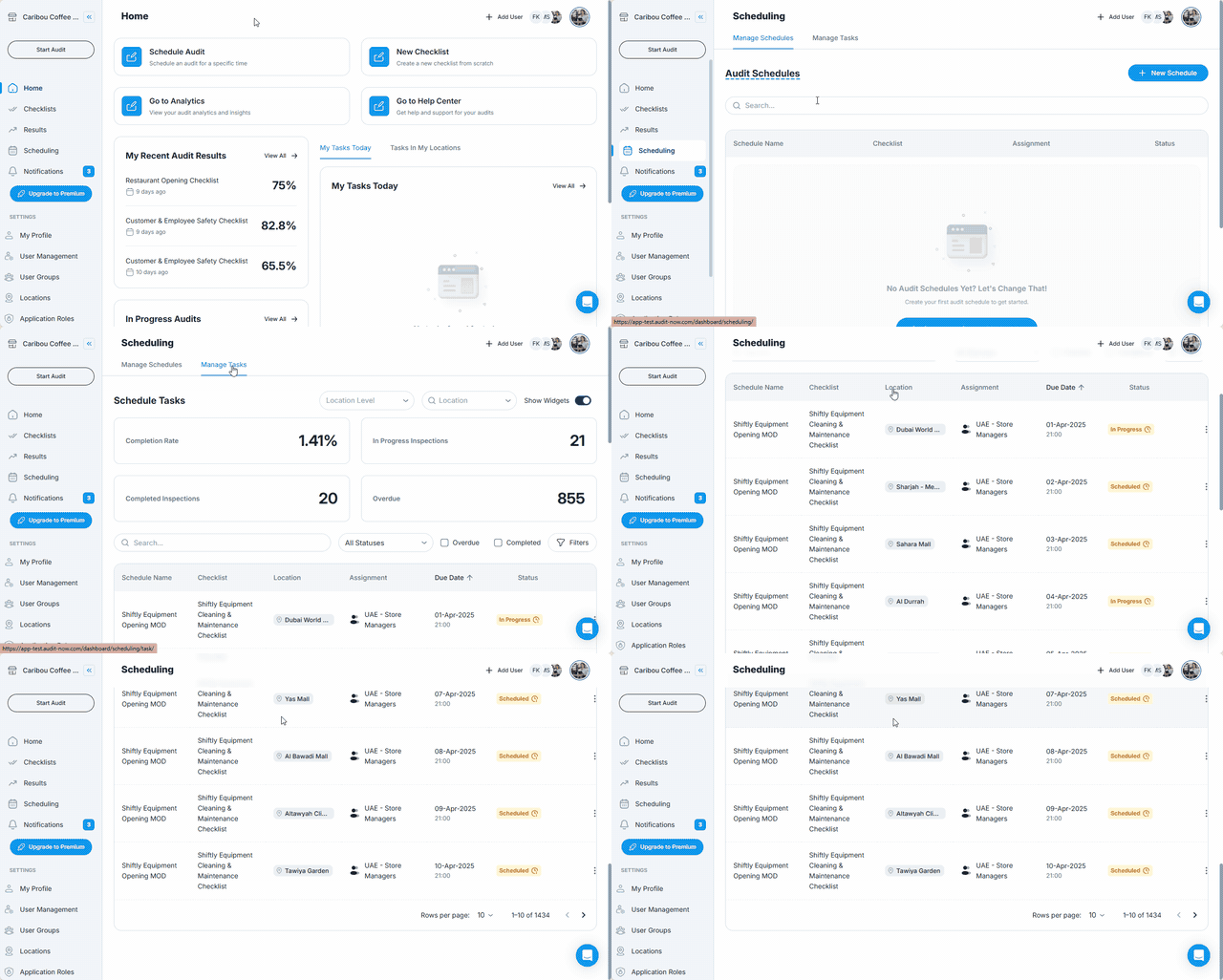
You’ll see a list of individual audit tasks generated from active schedules.
Visual Task Tracking Widgets
At the top of the Manage Tasks tab, you’ll see a set of status summary widgets. These are small visual tiles that help you quickly assess the state of all audit tasks.
Each widget represents a task status and displays the total number of tasks under that category:
- Completion Rate (percentage)
- Completed Inspections (count)
- In Progress Inspections (count)
- Overdue Inspections (count)
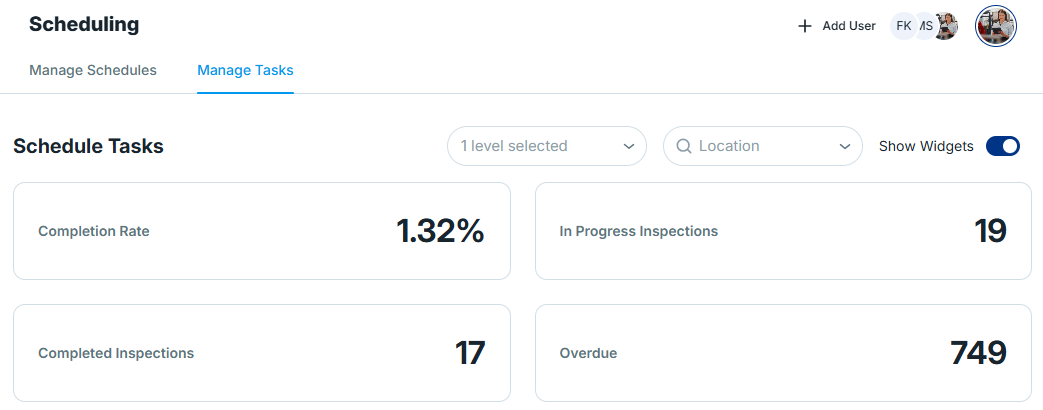
They give you instant visibility into workload and follow-up needs.
Widget Toggle (Enable/Disable)
At the top-right of the widget row, there is a toggle switch labeled “Show Widgets”
- Toggle ON → Widgets are visible
- Toggle OFF → Widgets are hidden
Turning off the toggle hides all widgets and simplifies the list view.
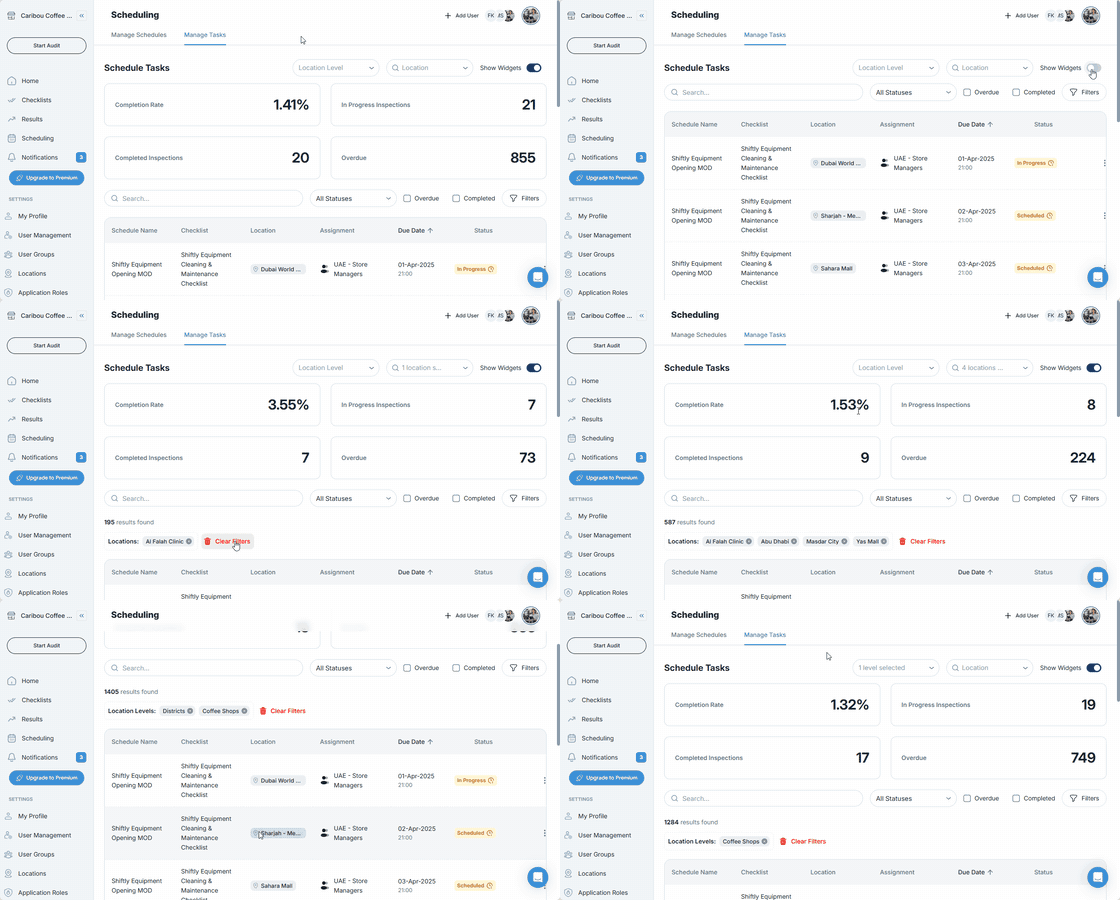
Widget Filters: Location & Location Level
Next to the widget toggle, you’ll find two dedicated filters that control the data shown in the widgets above:
Location Level Filter
- Filter widget counts by a specific level in your location hierarchy (e.g. Region, Branch)
- Dropdown displays available levels configured in your hierarchy
Location Filter
- Filter widget counts by a specific location (e.g. Istanbul Office, Plant A)
- Automatically adapts based on the level selected
These filters also affect the task table below.
Resetting Filters
To reset the widget filters:
- Click the “X” beside each dropdown
- Or switch the selection to “All”
This will restore widgets to display organization-wide totals.
What You See in the Task List
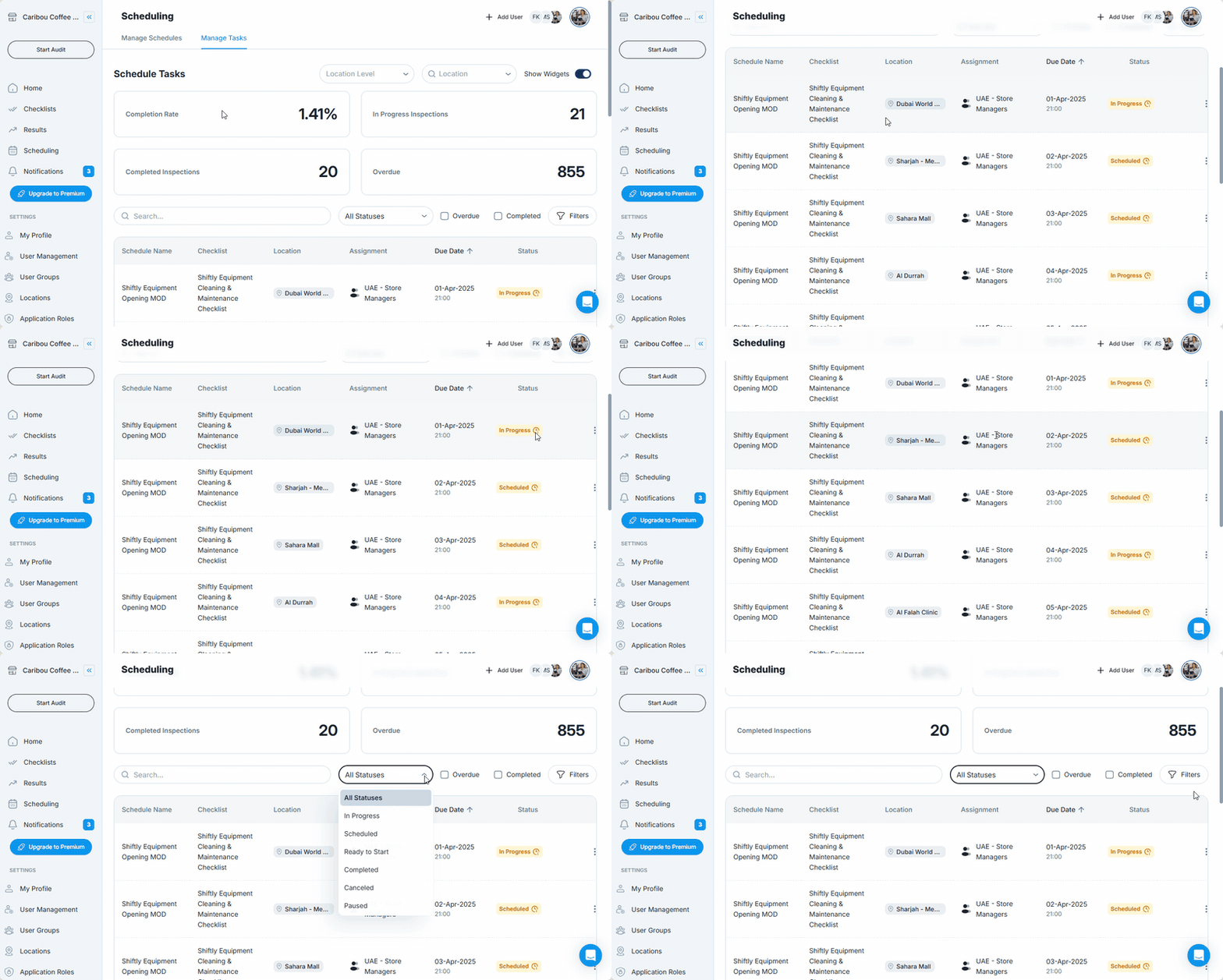
Each row in the Manage Tasks list shows:
- Schedule Name
- Checklist used
- Location
- Assigned Group
- Due Date
- Status (In Progress, Scheduled, Ready to Start, Completed, Cancelled, Paused)
Filters on the Manage Tasks Page
The filter panel is located at the top of the task table. It includes:
| Filter | What It Does |
|---|---|
| Search Bar | Search by Schedule Name |
| Task Status | Choose from: In Progress, Scheduled, Ready to Start, Completed, Cancelled, Paused |
| Overdue Checkbox | Filters all overdue tasks regardless of their status |
| Completed Checkbox | Filters all completed tasks |
| Due Date | Use date pickers to narrow by due date timeframe |
Click the “X” on a filter tag to remove it, or use the “Clear all” button to reset all filters.
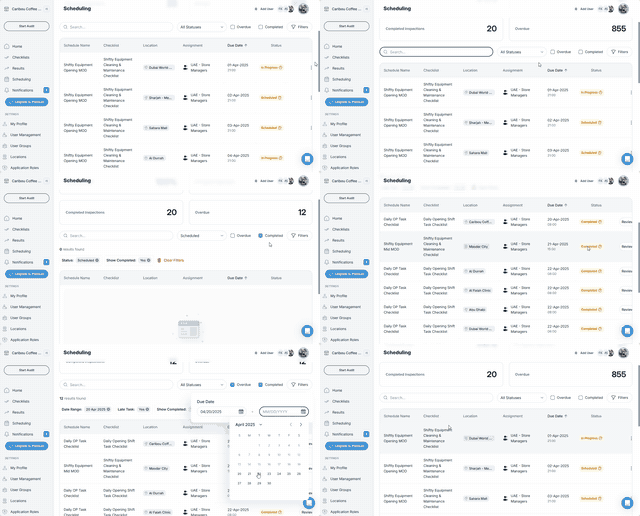
✅ You can also use Location and Location Level filter above widgets to filter your task list table.
Reassign, Reschedule and Cancel Tasks
Each row in the Manage Tasks list includes a three-dot (⋮) action menu on the far right. This menu gives users access to following actions:
| Option | Description |
|---|---|
| Reassign Task | Select a new user group to take over the task |
| Reschedule Task | Update the start of the individual task |
| Cancel Task | Immediately cancel the audit task; it will no longer appear in the assignee’s task list |
❗ The Cancel Task option is not available for already cancelled tasks.
Best Practices
- Use Overdue filter to quickly follow up on overdue tasks
- Combine Checklist + Location filters to monitor specific programs (e.g. "Monthly Food Safety – Istanbul")
- Use “View Audit Result” to verify corrective actions or documentation
- Use date filters weekly to audit task volume and coverage
Who Can Access the Manage Tasks Tab?
| Role | Access |
|---|---|
| Application Admin | ✅ Full access |
| Audit Admin | ✅ Full access |
| Account Admin | ✅ Full access |
| Standard User | ❌ No access |
Next article: Scheduled Task Reminders (Push, Email) →