Manual Dashboard Refresh
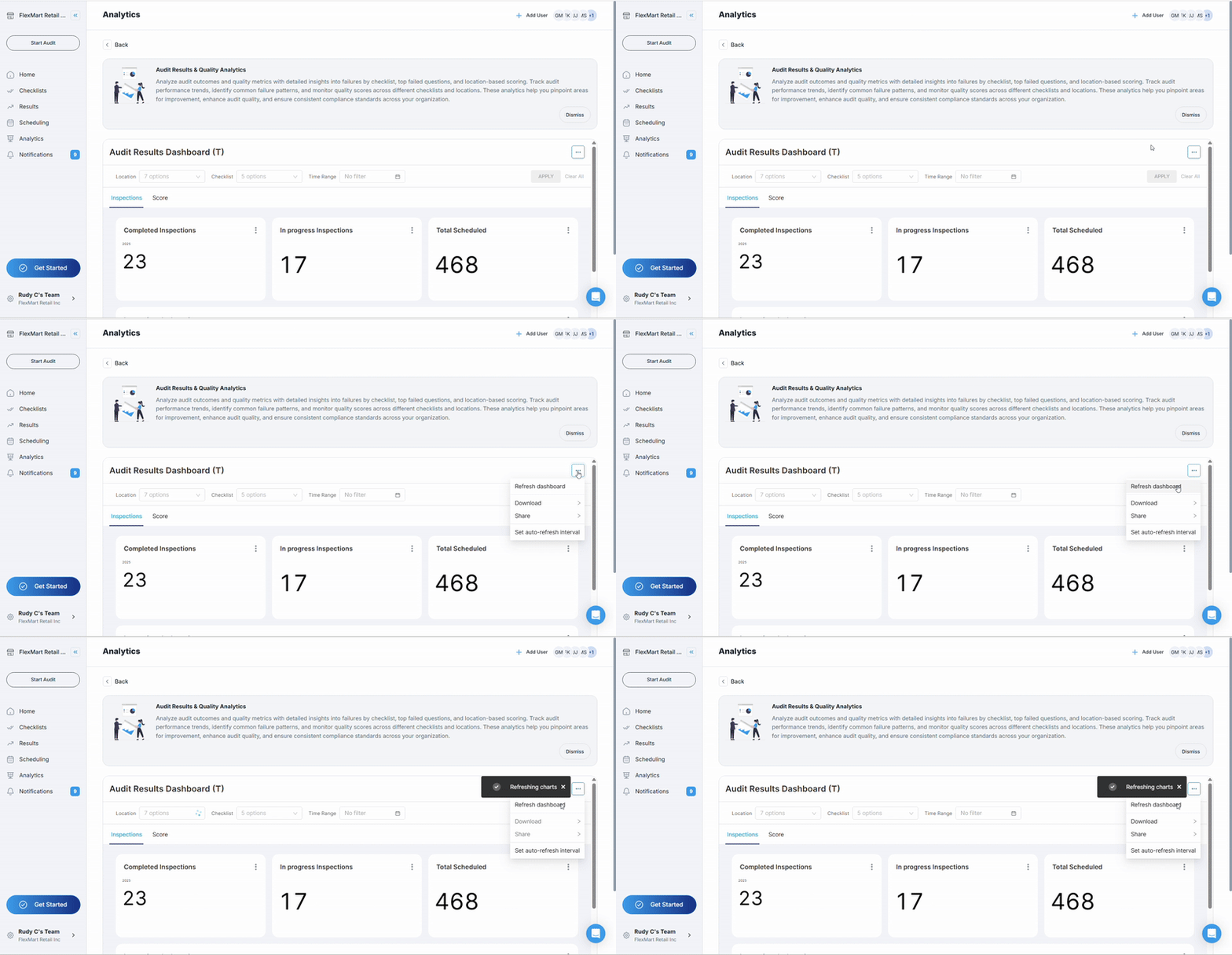
What it does:
- Updates all dashboard data with the most recent information
- Reloads charts and numbers to show the latest audit results
- Ensures you're seeing current data, not cached information
When to use it:
- When you know new audits have been completed recently
- If dashboard data seems outdated or inconsistent
- After making changes to audit schedules or completing overdue audits
- When working with live data during busy audit periods
- Before important meetings or presentations to ensure current data
How it works:
- Click the three dots (⋯) in the top right corner of your dashboard
- Select "Refresh dashboard" from the dropdown menu
- The page will reload with current data
- All charts and metrics will update automatically
- Your current filter settings will be preserved
Automatic Refresh Options
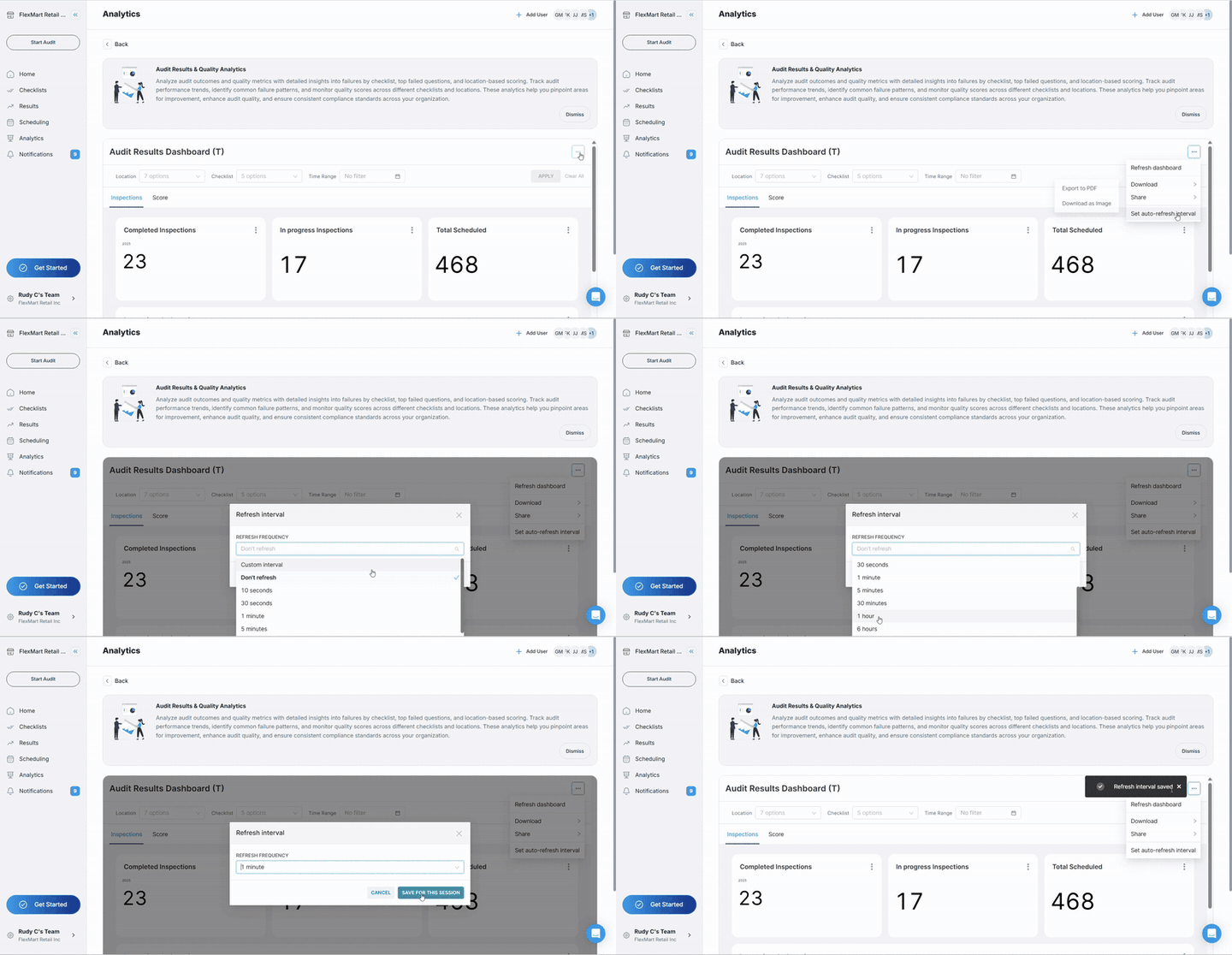
Set up auto-refresh:
- Click the three dots (⋯) in the top right corner
- Select "Set auto-refresh interval"
- Choose from available refresh frequencies: Don't refresh (manual only) 10 seconds (for real-time monitoring) 30 seconds (for high-activity periods) 1 minute (for active monitoring) 5 minutes (balanced updating) 30 minutes (periodic monitoring) 1 hour (less frequent updates)
Benefits of auto-refresh:
- Never miss new audit data as it becomes available
- Perfect for displays on office monitors or kiosks
- Ensures consistent, current data during team meetings
- Reduces the need to manually check for updates