What Dashboard Downloads Include?
What it does:
- Exports your dashboard data and visualizations
- Creates files you can use in presentations, reports, or offline analysis
- Captures your current view with all applied filters
- Provides multiple format options for different needs
Data included in downloads:
- All visible charts and graphs from your current dashboard view
- Summary metrics and key performance indicators
- Data tables with detailed breakdowns
- Filter settings and time range information
- Dashboard title and timestamp of export
Available Download Formats
Export to PDF
What you get:
- Complete dashboard view in a professional document format
- High-quality charts and tables that maintain their formatting
- Multi-page layout for comprehensive data presentation
- Print-ready format suitable for physical distribution
Best for:
- Comprehensive reports for stakeholders and management
- Formal compliance documentation
- Board presentations and executive summaries
- Archival records that need to maintain professional appearance
- Documents that will be printed or formally distributed
Download as Image
What you get:
- High-quality visual representation of your dashboard
- Clean, clear charts ideal for embedding in other documents
- Optimized resolution for both digital and print use
- Lightweight files that are easy to share and store
Best for:
- Embedding charts in PowerPoint presentations or slide decks
- Including visuals in reports created in other software
- Quick sharing via email or messaging platforms
- Social media or internal communication posts
- Adding audit data visualizations to websites or intranets
How to Download Your Dashboard?
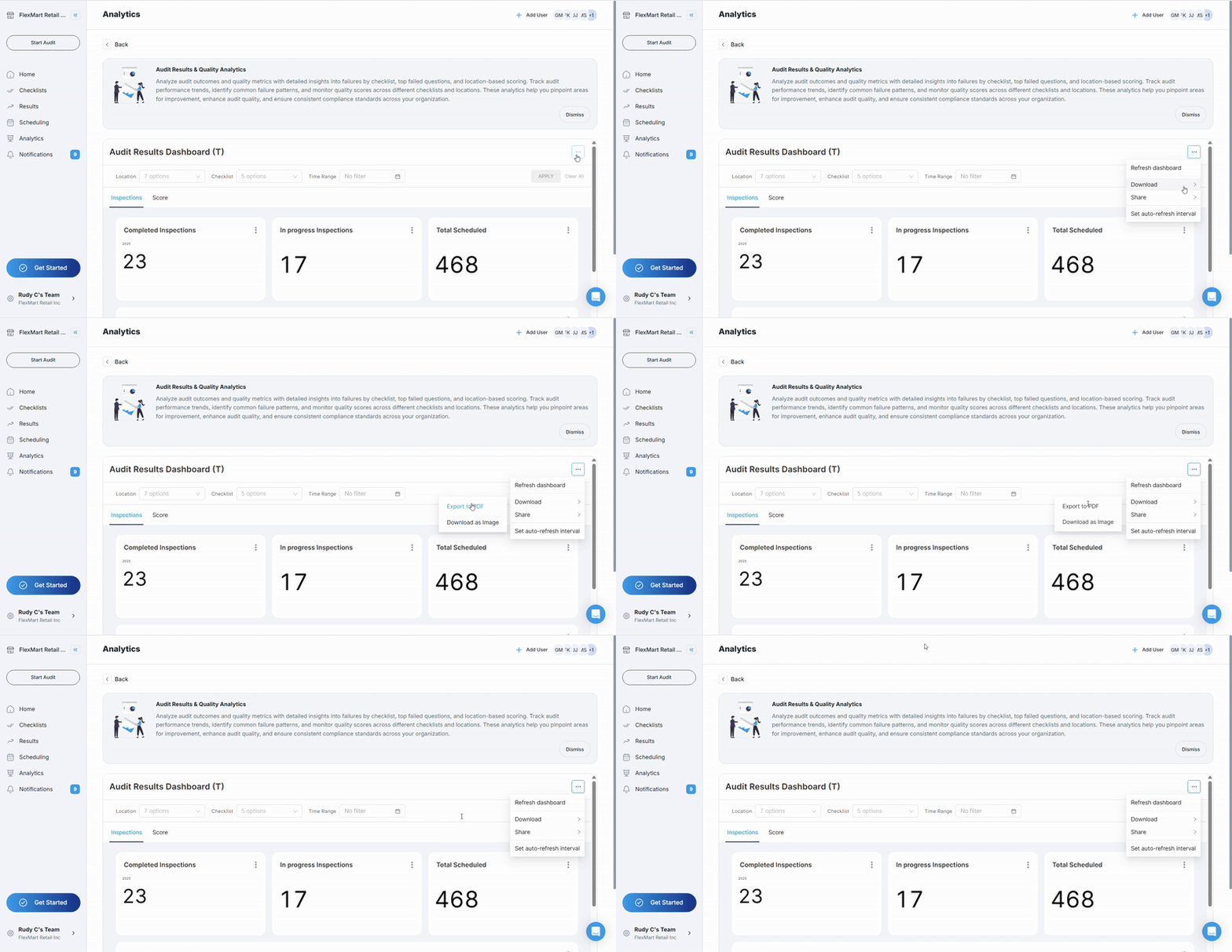
Step-by-Step Process
- Set your view: Apply any filters and select the time range you want to export
- Access download options: Click the three dots (⋯) in the top right corner of your dashboard
- Select download: Choose "Download" from the dropdown menu
- Choose format: Select either "Export to PDF" or "Download as Image"
- Configure settings: Select quality settings and any additional options
- Download file: The file will be saved to your device's default download folder