Overview
Audit Now's notification preferences give you complete control over how you receive important updates about audits, actions, and checklists. You can customize Push (mobile) and Email notifications independently for each notification type, ensuring you stay informed without being overwhelmed.
Accessing Notification Preferences
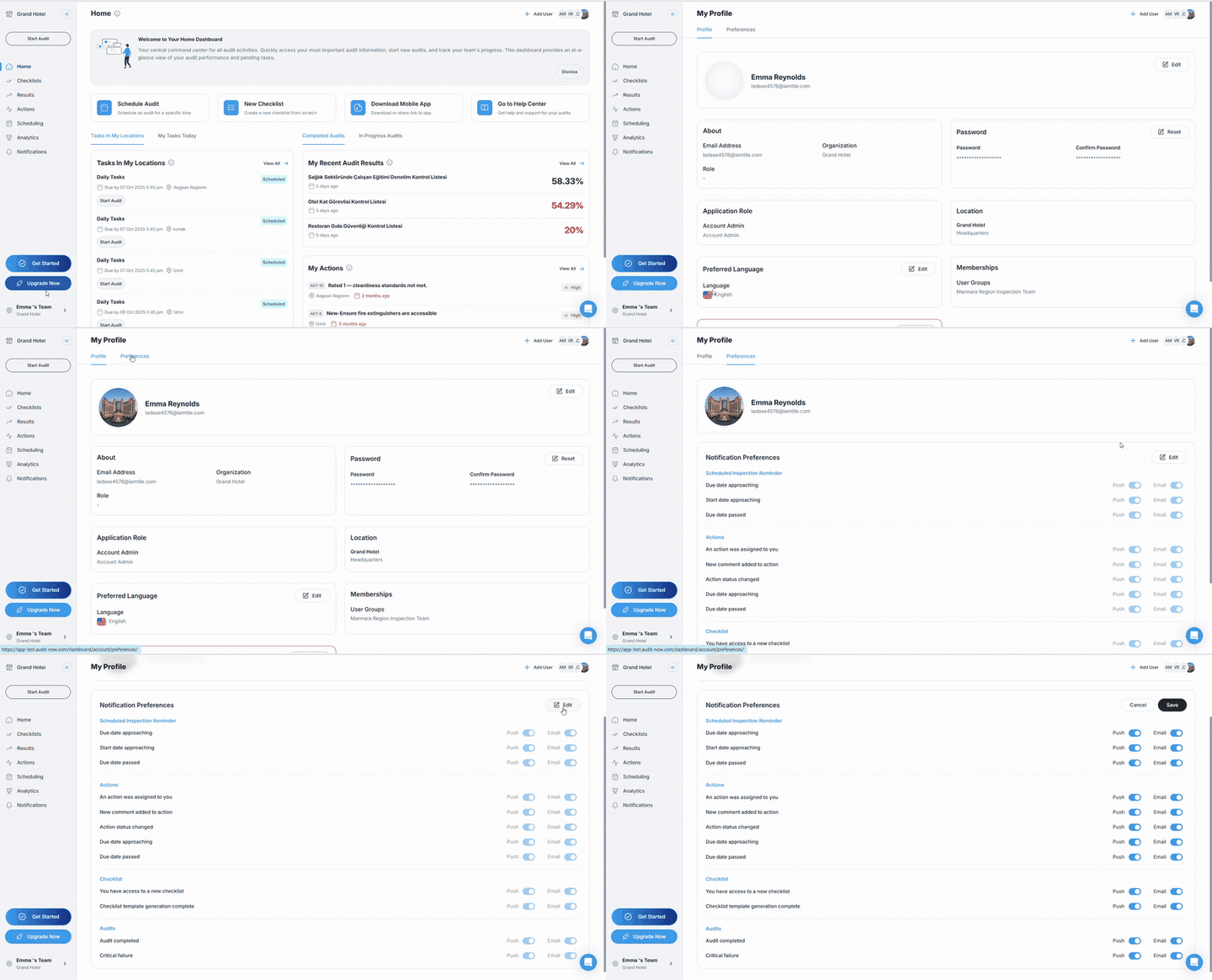
- Navigate to My Profile > Preferences tab
- Find Notification Preferences section and click Edit
Notification Categories Explained
Scheduled Inspection Reminders
Stay on top of scheduled audits with automatic reminders:
| Notification Type | When It's Sent | Purpose |
|---|---|---|
| Due date approaching | Shortly before the audit is due | Prevent missing deadlines |
| Start date approaching | Before the audit becomes available | Prepare for upcoming audits |
| Due date passed | When audit is overdue | Track incomplete audits |
Pro Tip: Keep Push notifications enabled for field workers so they receive instant mobile alerts.
Actions
Track assigned tasks and corrective actions:
| Notification Type | When It's Sent | Purpose |
|---|---|---|
| An action was assigned to you | When you receive a new task or it's reassigned | Start working on assigned tasks |
| New comment added to action | When team members add comments to your actions | Stay updated on collaboration |
| Action status changed | When task status updates (Open → In Progress → Closed) | Track action progress |
| Due date approaching | 1 day before the action is due | Complete actions on time |
| Due date passed | 1 day after the due date | Resolve overdue actions |
Important: Overdue action reminders only trigger for actions in the "Open" status category. Once moved to "Closed" category, reminders stop automatically.
Checklists
Stay informed about checklist access and AI-generated templates:
| Notification Type | When It's Sent | Purpose |
|---|---|---|
| You have access to a new checklist | When a new checklist is assigned to you | Begin using new checklists |
| Checklist template generation complete | When AI finishes creating your custom checklist | Review and use AI-generated templates |
Audits
Track audit completion and critical findings:
| Notification Type | When It's Sent | Purpose |
|---|---|---|
| Audit completed | When an audit you're linked to is submitted | Review completed audit results |
| Critical failure | When a critical-level issue is detected during audit | Address urgent safety/compliance issues |
Notification Channels
Push Notifications
- Instant alerts on mobile app
- Appears in device notification tray
- Perfect for field workers
- Enables quick access to take action
Best For: Urgent actions, overdue tasks, and critical failures
Email Notifications
- Detailed information in professional format
- Sent to your registered email address
- Great for record-keeping and documentation
- Includes direct links to access the platform
Best For: Weekly summaries and situations requiring documentation
Configuring Your Notification Preferences
Basic Setup
- Click the Edit button in Notification Preferences
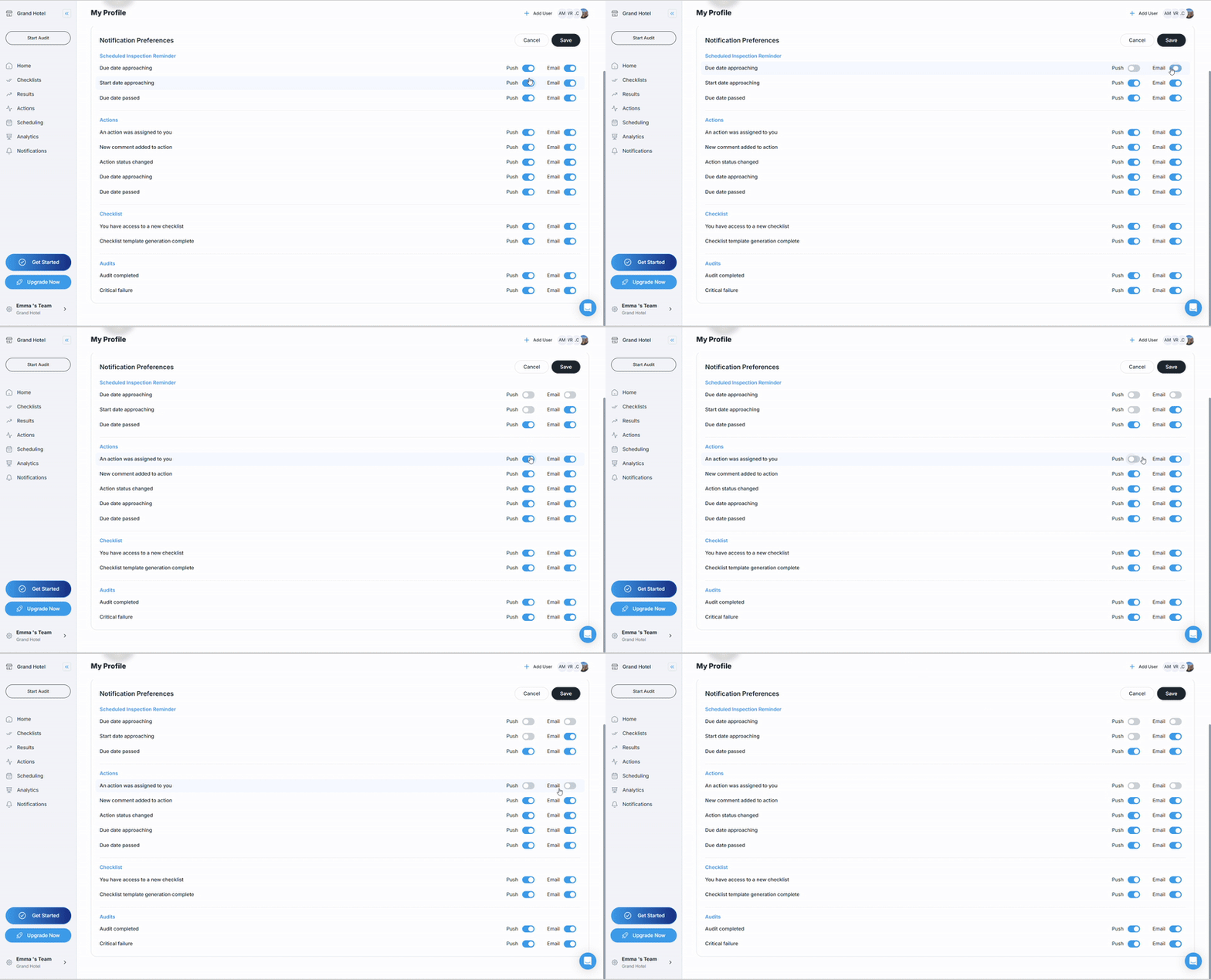
- Use the toggle switches for each notification type:
- Push: Blue = On, Gray = Off
- Email: Blue = On, Gray = Off
- Changes save automatically