This article covers two common problems: not being able to move to the next page in an audit, and not being able to delete a schedule. First check what is listed here. If the problem continues, contact the support team.
I Cannot Move to the Next Page in an Audit
When a checklist is built, questions can be marked as Required. Required questions are shown with an asterisk (*) next to the question text during an audit.
If the Continue button does not move forward, check the following:
- Make sure all required questions (the ones with an asterisk) on your current page are answered
- Check that the identifier fields at the top of the page (for example, Site / Location) are filled in
- Scroll the page from top to bottom to see whether you missed a question
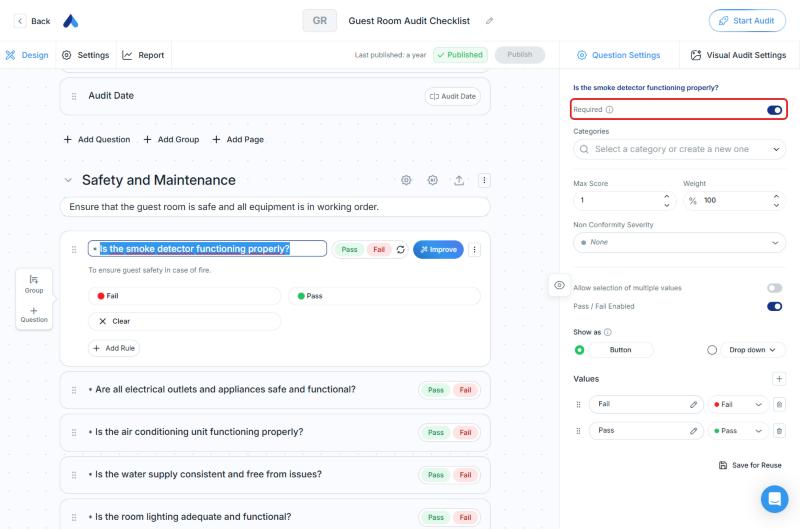
The person who builds the checklist can see which questions are required: in the checklist editor, click a question and look at the Required switch in the Question Settings panel on the right.
If you still cannot continue, send the support team the checklist name, the page and question where you are stuck, the warning you see on screen, and a screenshot if possible.
I Cannot Delete a Schedule
To delete a schedule:
- Click Scheduling in the left menu
- Open the Manage Schedules tab
- Click the ⋮ menu at the end of the schedule's row
- Choose Delete Schedule
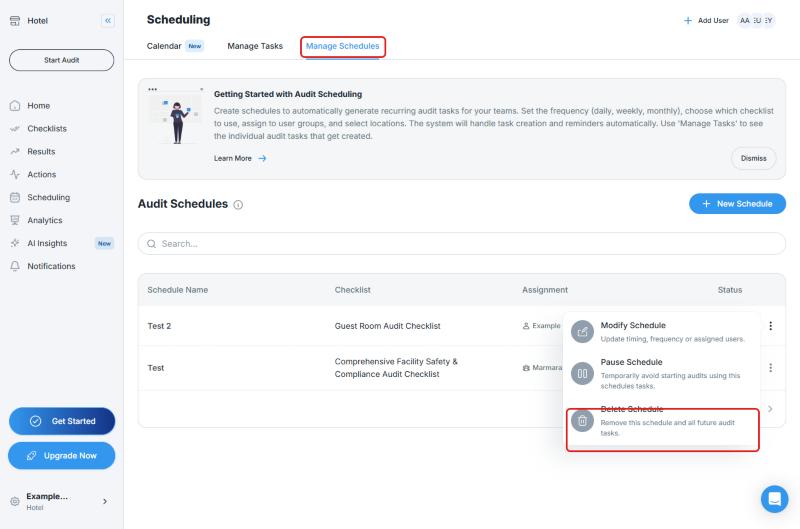
The same menu also includes:
- Modify Schedule: Updates the timing, frequency, or assigned users
- Pause Schedule: Temporarily avoids starting audits using this schedule's tasks
- Delete Schedule: Removes this schedule and all future audit tasks
If You Cannot See the Options in the Menu
The permission to create, modify, and delete schedules depends on your role. The Application Admin, Audit Admin, and Account Admin roles can do these actions. The Standard User role cannot create, modify, or delete schedules. In that case, ask your administrator for help.
For the steps to modify, pause, and delete schedules, see Modify, Put on Hold/Resume or Delete Schedules.
Frequently Asked Questions
What happens if I delete a schedule? According to the description of Delete Schedule, the schedule and all future audit tasks are removed. If you only want to stop audits temporarily, use Pause Schedule.
Why can't I see the delete option? Your role may not allow deleting schedules. Talk to your administrator.
Why does the Continue button not move forward? First check that the required (asterisk) questions on the page are answered. If the problem continues, contact the support team.
Best Practices
- If you want to turn a schedule off temporarily, use Pause Schedule instead of deleting it
- When you build a checklist, mark only the questions that are truly needed as Required. Unnecessary requirements slow auditors down
Next steps
Learn how to manage schedules in detail.
Next article: Modify, Put on Hold/Resume or Delete Schedules →