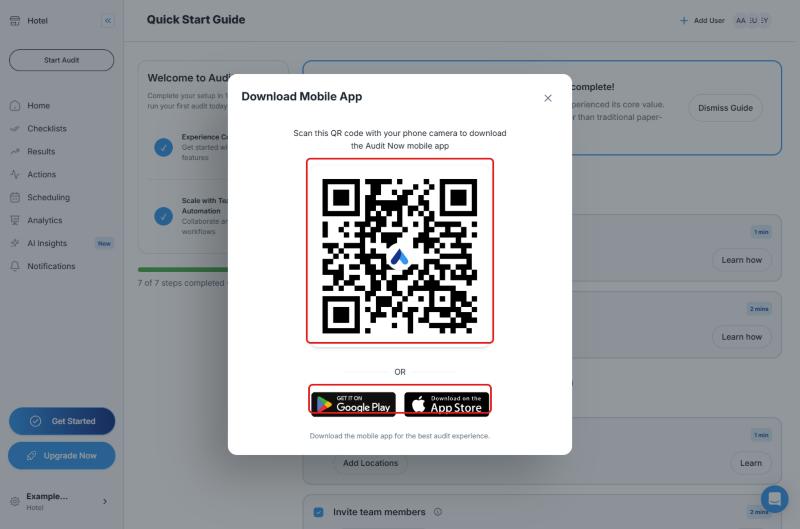
You can download the Audit Now mobile app to your phone in two ways: by scanning the QR code with your phone's camera, or by using the Google Play or App Store buttons. You reach the download window from the web dashboard.
Open the Download Window from the Web Dashboard
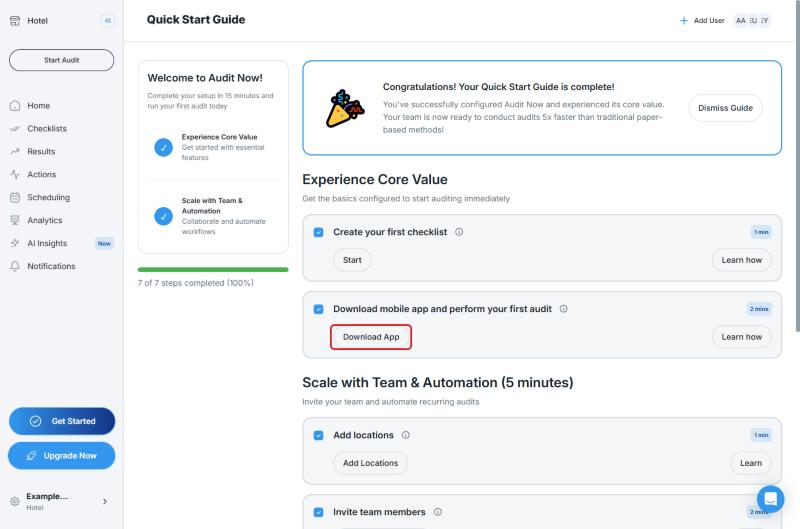
- Click the Get Started button in the lower-left corner. The Quick Start Guide opens
- In the Download mobile app and perform your first audit step, click Download App
- In the Download Mobile App window that opens, you have two options:
- QR code: "Scan this QR code with your phone camera to download the Audit Now mobile app"
- Google Play or App Store buttons: Google Play for Android, App Store for iPhone
After You Download
After you install the app, see Download the Mobile Application and Sign In to sign in.
Frequently Asked Questions
Which stores can I download the app from? Google Play for Android and the App Store for iPhone. The download window has a button for each.
I am downloading from my phone. Do I need the QR code? No. If you opened the web dashboard on your phone, you can click the Google Play or App Store button directly. The QR code is an easy way to move to your phone when you use the dashboard on a computer.
I cannot find or download the app in my store. First try scanning the QR code, or use the store buttons in the download window. If the problem continues, send the support team your phone model, operating system version, and the message you see.
Best Practices
- Ask your auditors to download the app and sign in before audit day
- When you announce the app to your team, you can share a screenshot of the QR code in the download window
Next steps
Learn how to sign in to the mobile app.
Next article: Download the Mobile Application and Sign In →