Read Before
This guide shows how to access the app and log in with your credentials.
Step 1: Get the Mobile App
You can easily download the app using the QR code provided in the Audit Now web platform.
How to Access the QR Code:
- Log in to the Audit Now web dashboard
- Select “Start Audit” from the left menu
- A pop-up window will show the QR code
- Scan the QR code with your mobile device
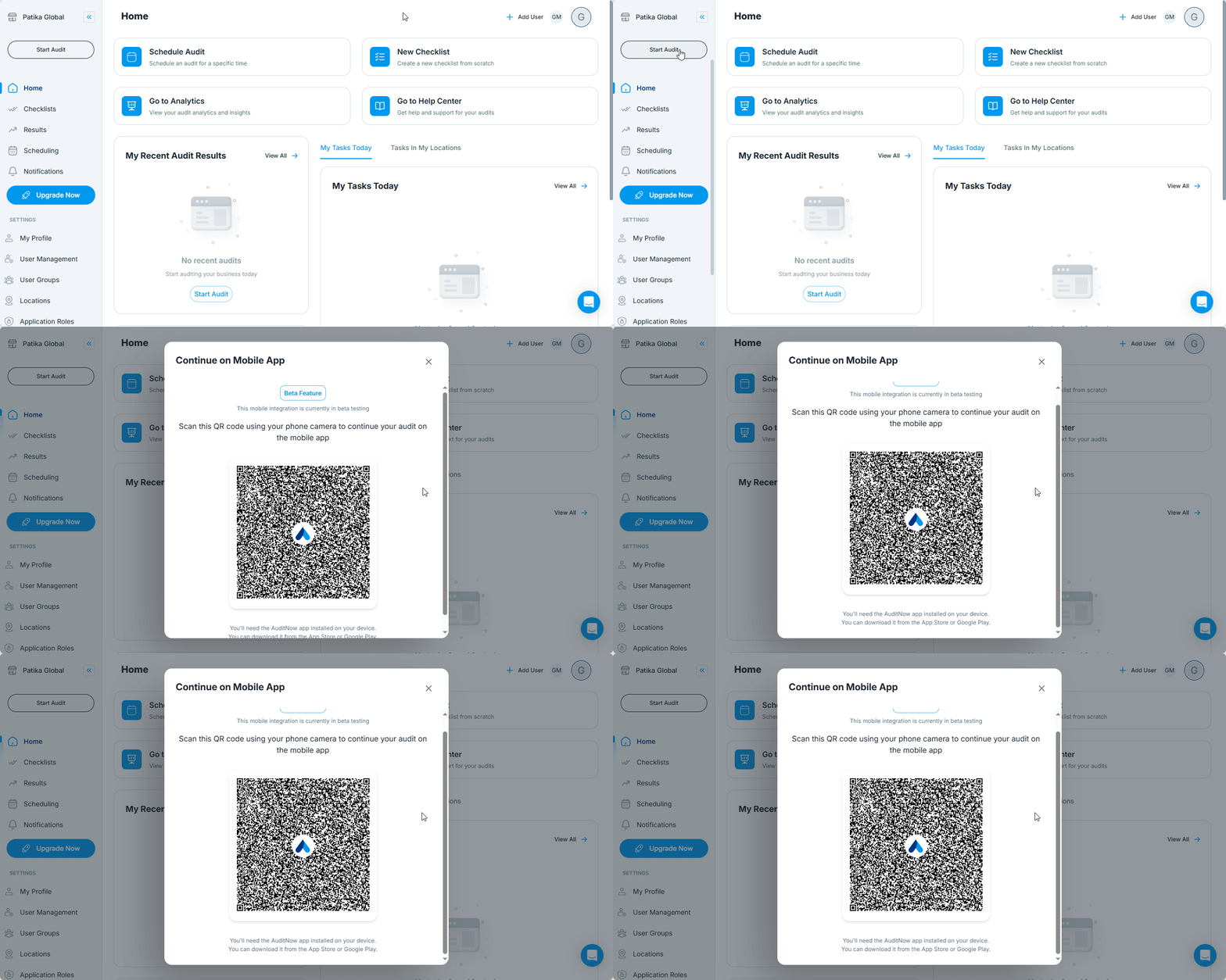
This takes you directly to the Audit Now app in the App Store (iOS) or Google Play (Android)
Step 2: Sign In to the Mobile App
Once downloaded:
- Open the Audit Now app on your mobile device and click Login
- Enter your email address and the password you set during sign-up
- Tap Sign In
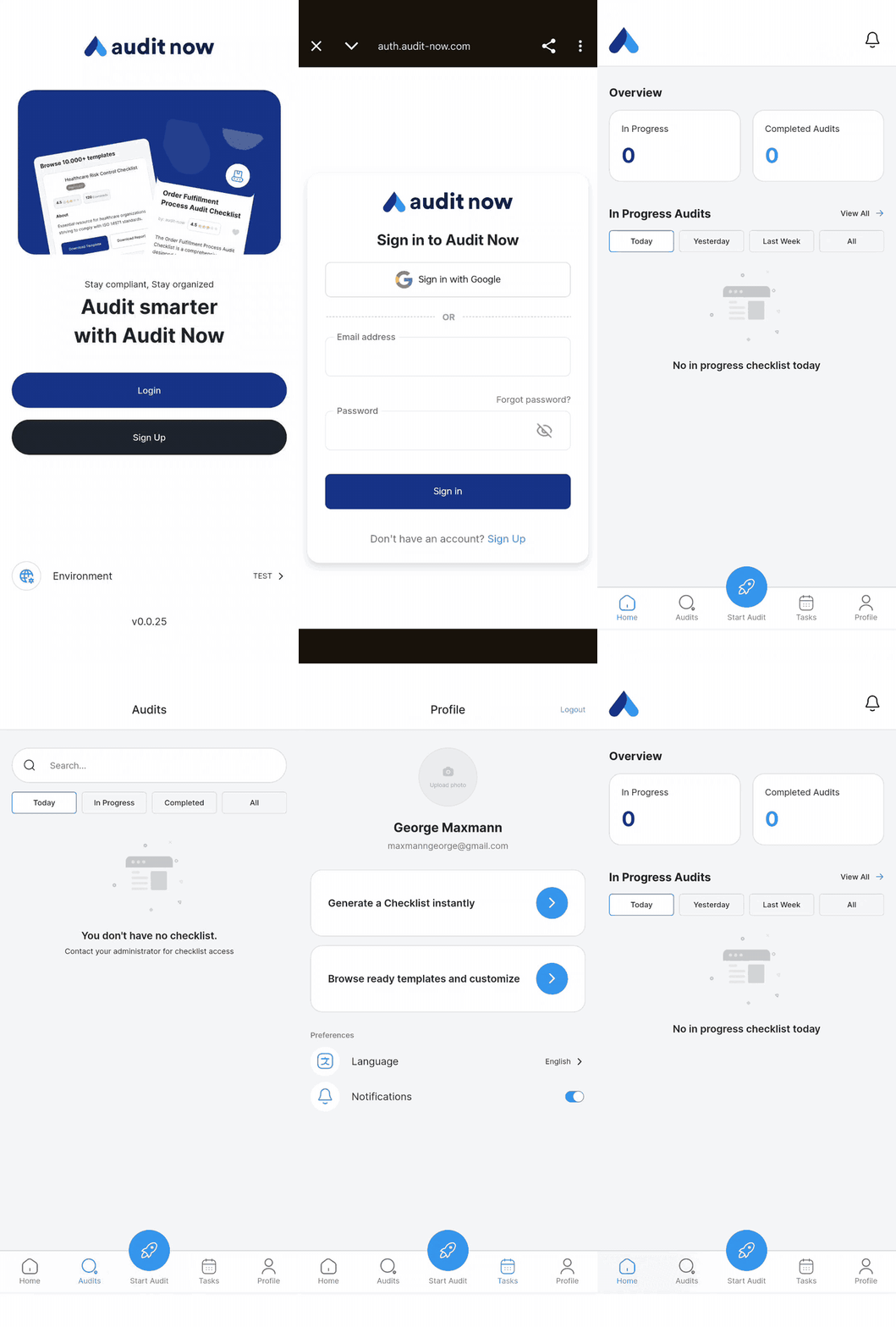
You’ll be taken directly to the Tasks screen where your scheduled audits will appear.
Best Practices
- Enable notifications during app setup to receive reminders about due or overdue tasks
- Use the same login credentials as the web platform
- Bookmark the QR code location for future team members to onboard easily
Next article: How to Delete Your Account Permanently? →