Locations decide where audits happen and how results are grouped. You add a new location on the Settings → Locations page. This article shows the path step by step with screenshots.
Steps to Add a Location
- Open the account menu in the lower-left corner, go to Settings, and click the Locations tab at the top
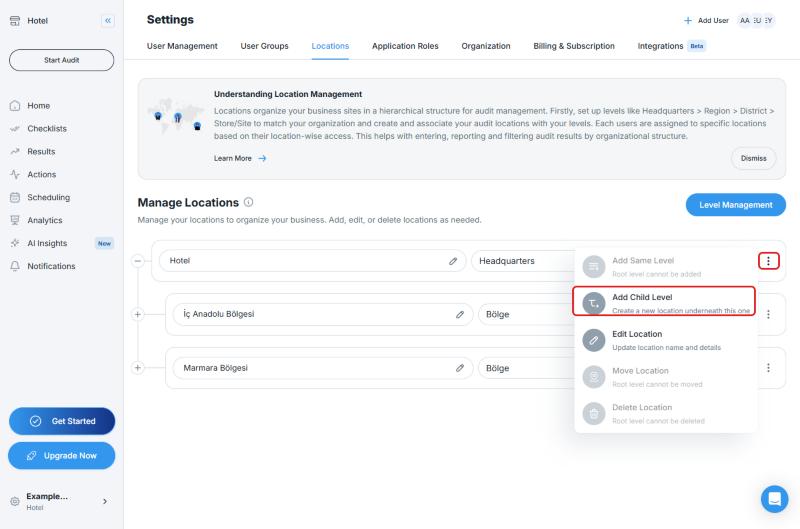
- In the location tree, click the ⋮ menu at the end of the row of the parent location that the new location will belong to
- Choose Add Child Level ("Create a new location underneath this one")
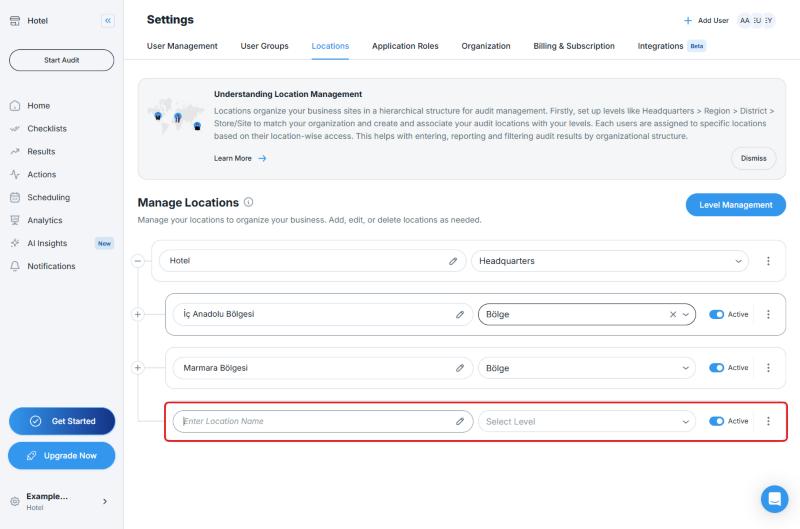
- In the new row that opens in the tree, type the location's name in the Enter Location Name field
- Choose the location's level from the Select Level list (for example, a region level)
- Make sure the Active switch on the right is on, so the location can be used
Options in the Location Menu
The ⋮ menu of a location has these options:
| Option | What It Does |
|---|---|
| Add Same Level | Adds a new location at the same level as the selected one |
| Add Child Level | Creates a new location underneath this one |
| Edit Location | Updates the location's name and details |
| Move Location | Moves the location to another place in the hierarchy |
| Delete Location | Deletes the location |
Why are some options gray? For the top root location (for example, Hotel, with the Headquarters level), Add Same Level, Move Location, and Delete Location are not available. In the menu they appear gray with the notes "Root level cannot be added", "Root level cannot be moved", and "Root level cannot be deleted". To add a location under the root location, use Add Child Level.
Edit Levels
To add or order location levels (for example, Region, City, Store), use the Level Management button at the upper right of the location tree. The levels appear in the Select Level list in the location tree.
For planning your structure, moving locations, and location details, see Create your locations and location hierarchy.
Frequently Asked Questions
Where do I click to add a location? On the Settings → Locations page, choose Add Child Level from the parent location's ⋮ menu.
Why can't I delete or move the root location? The top root location (the base level) cannot be deleted or moved, and you cannot add a location at the same level. These options appear gray in the menu.
Best Practices
- Before you add locations, define your levels (such as Region and Store) in Level Management
- Instead of deleting locations you no longer use, turn off their Active switch
Next steps
Learn the location hierarchy in detail.
Next article: Create your locations and location hierarchy →