Read Before
Where to Find Access Controls
- Go to Checklists from the left-hand menu
- Find the checklist you want to configure and click on its ellipsis
- Select Settings
- Go to Access tab
- Then go to View / Edit Result tab
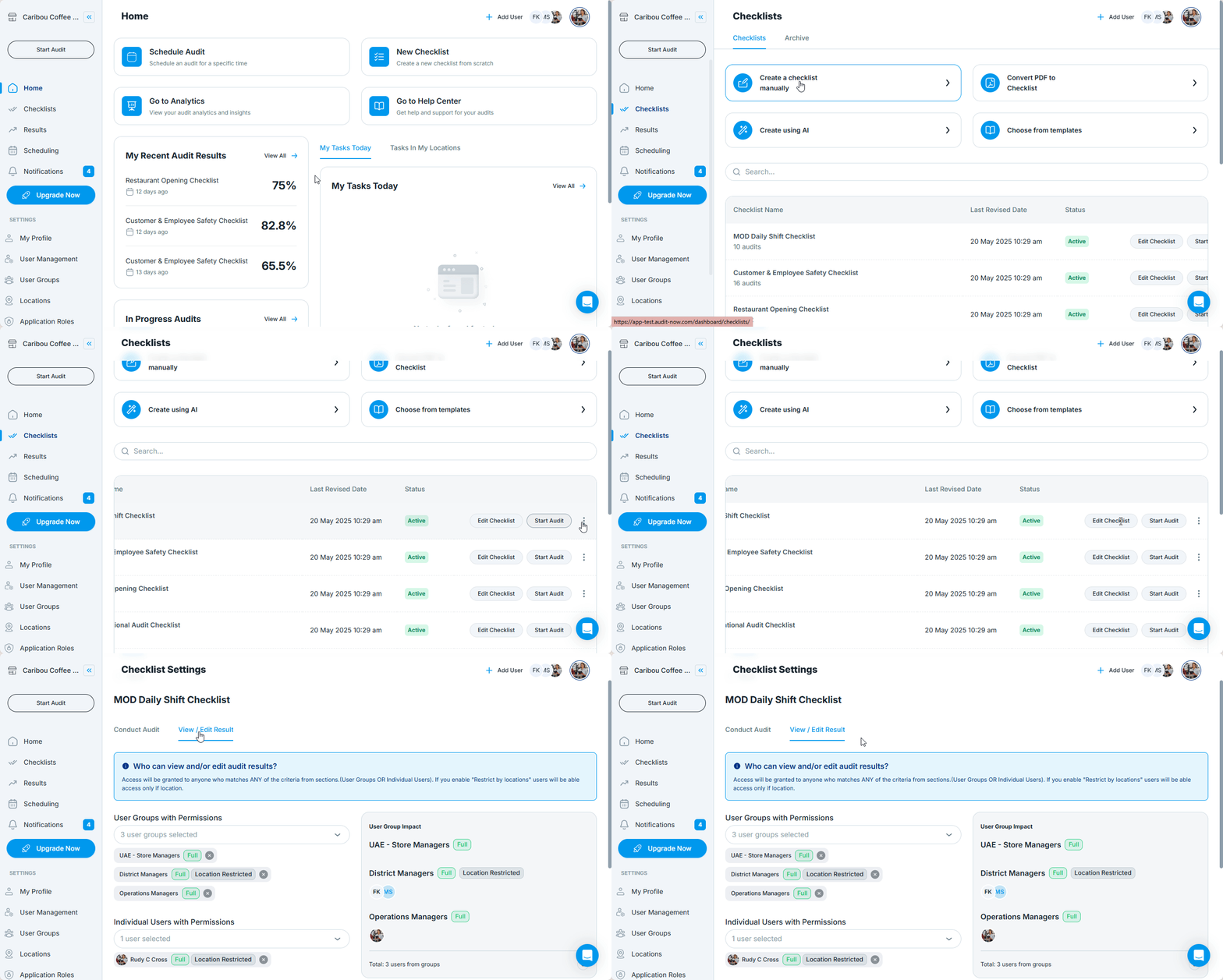
Assign Result Access by User Group or Individual Users
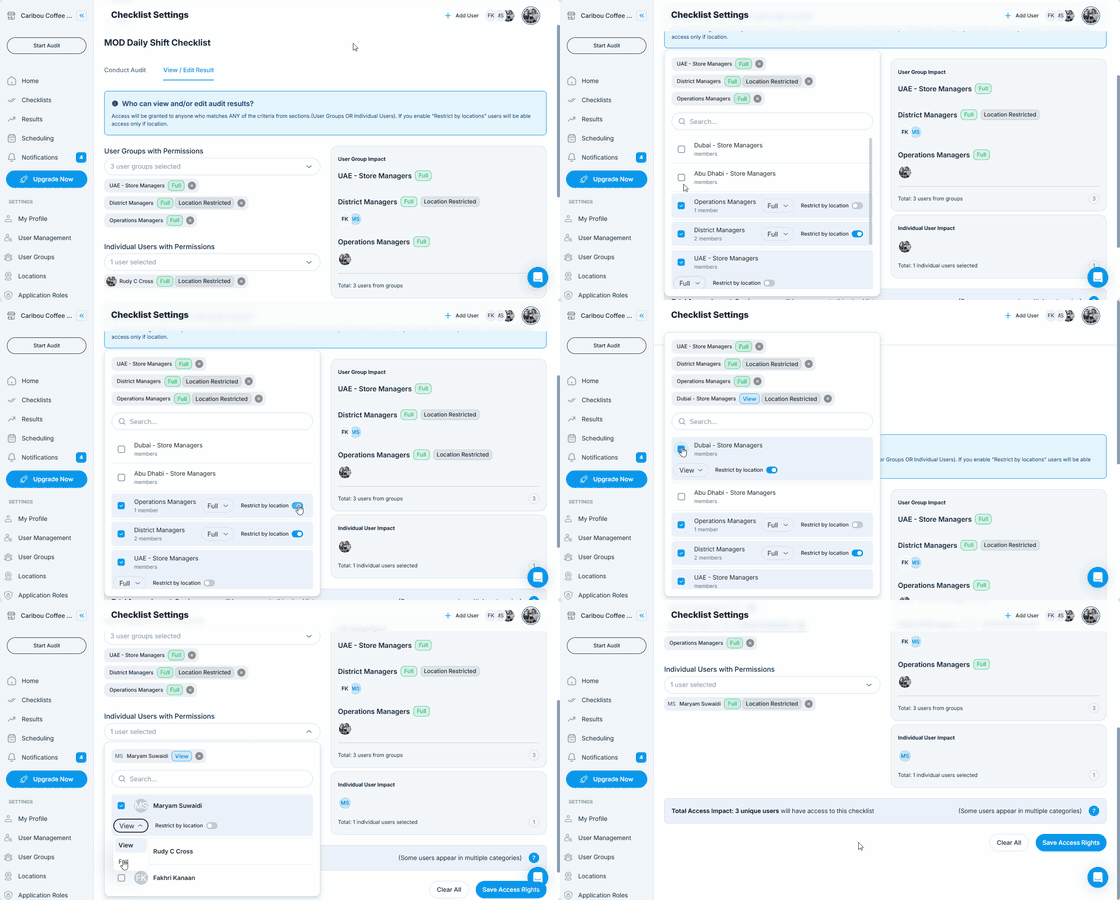
You can grant result access to:
- Individual Users
- User Groups
Each entry has a dual-permission selector:
- View Only – User can view audit results but cannot make changes
- Full Access – User can view and edit results
Additionally, you can toggle location restrictions:
- You can enable the location restriction toggle to ensure that selected users or groups can only access results for audits conducted at locations already assigned to them.
Special Case: In-Progress Audits
If a user is assigned to conduct an audit (but not granted view/edit result access):
- They can still access and complete any in-progress audit they started themselves
- However, they cannot view or edit results of completed audits
This ensures workflow continuity for auditors while protecting result data visibility.
Saving Your Changes
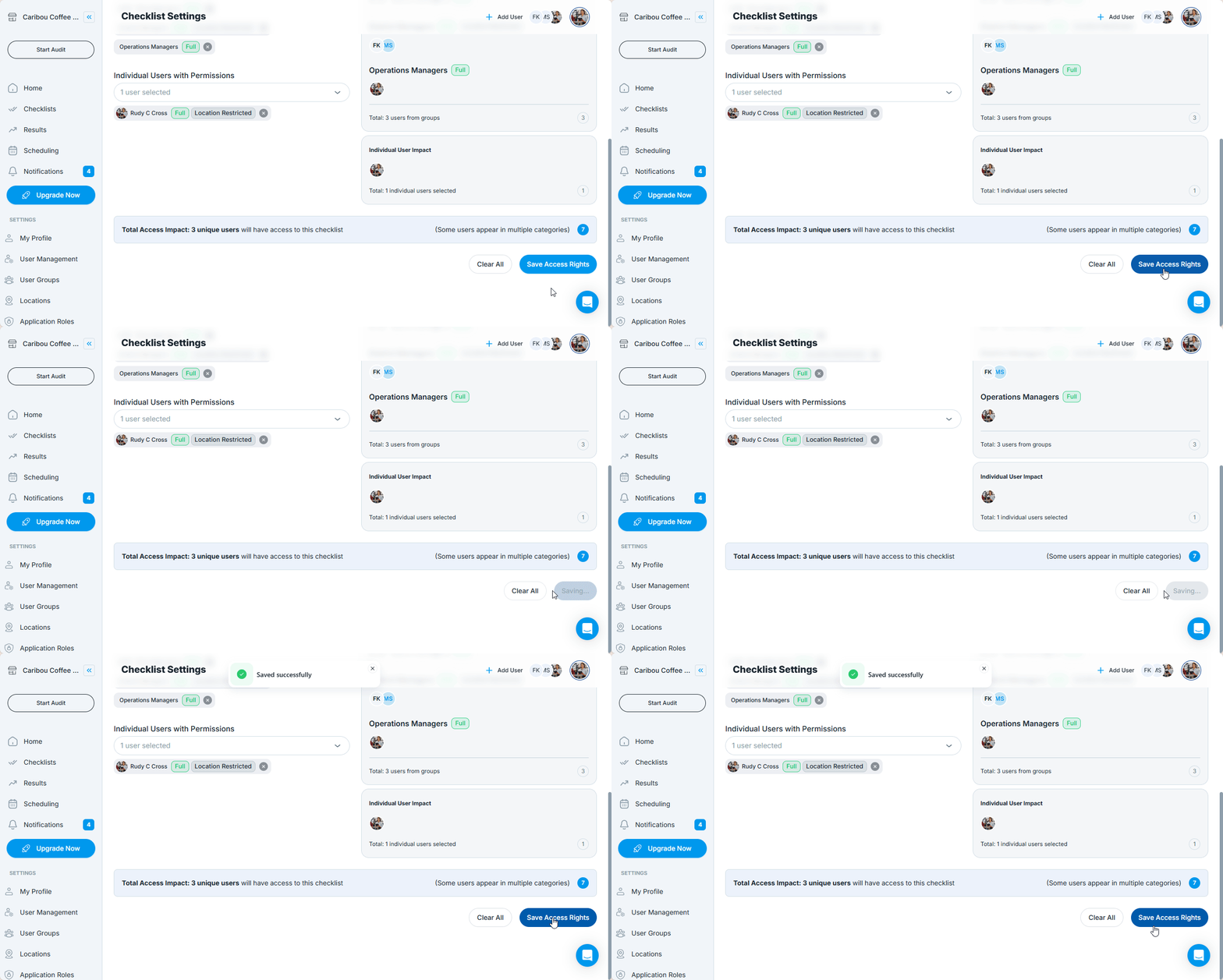
Once your access settings are defined:
- Click Save Access Rights at the bottom of the screen
- Your permission rules will take effect immediately
These settings apply across:
- Results page (web)
- In-app Inspections page (mobile)
Best Practices
- Grant View Only access to roles like auditors or supervisors
- Use Full Access sparingly—for checklist owners or audit managers only
- Always enable location restrictions when working across departments or regions
- Review permissions when teams or locations are restructured
Next article: Manage Who Receives Automatic Audit Reports →