Read Before
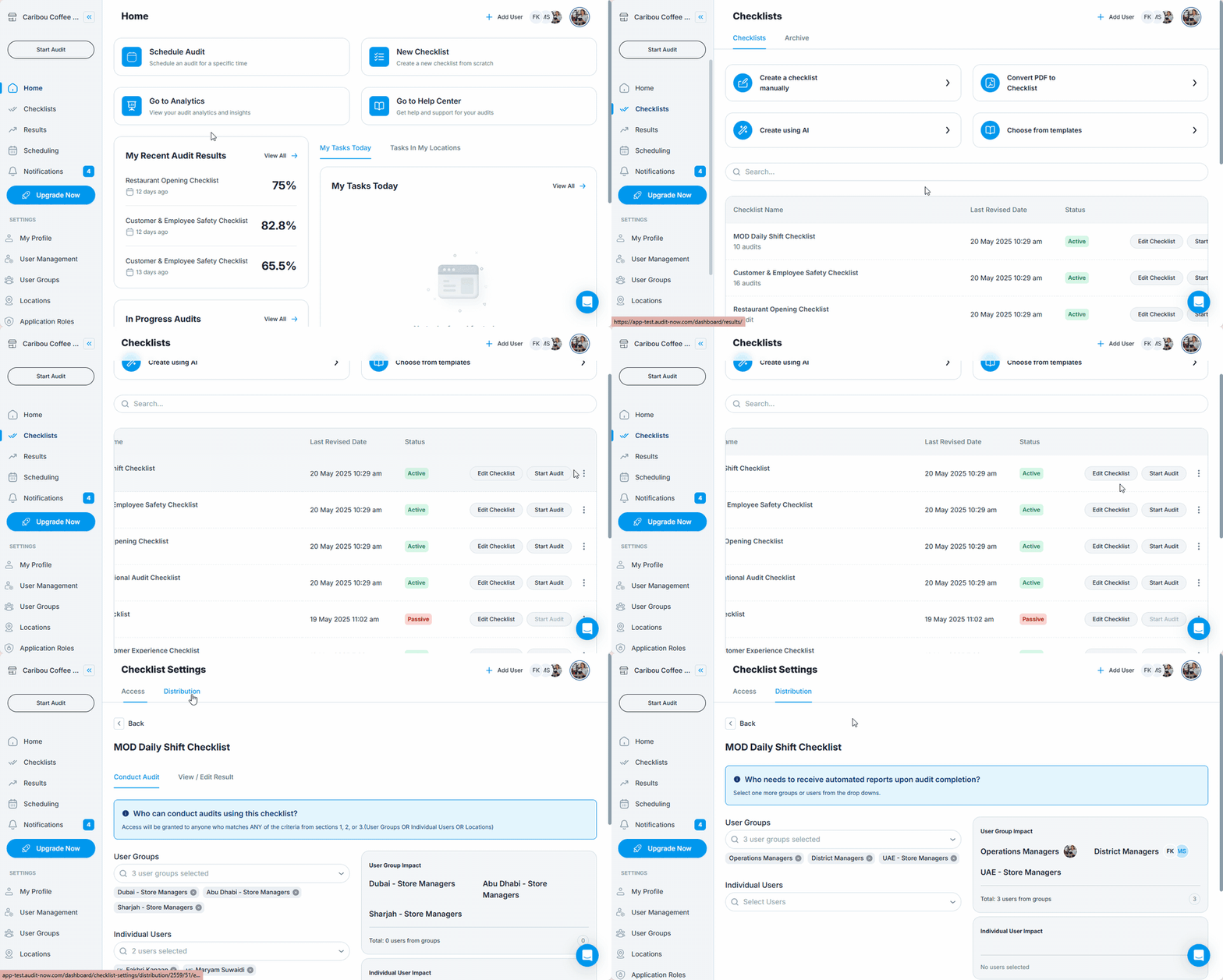
Where to Set Up Report Distribution
- Go to Checklists from the left-hand menu
- Find the checklist you want to configure
- Click the ellipsis (⋮) next to it
- Select Settings
- Open the Distribution tab
Add Recipients to Receive Reports
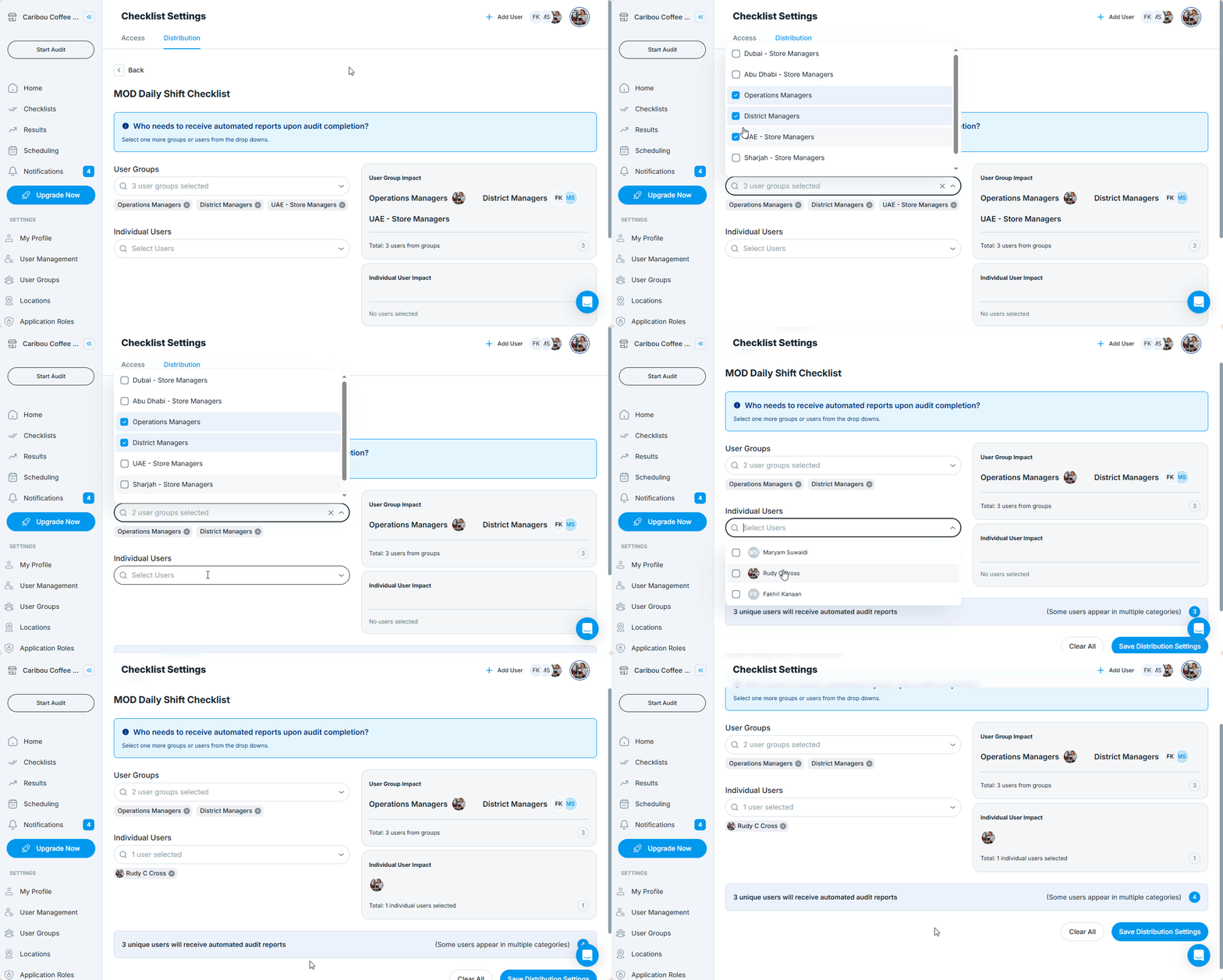
In the Distribution tab, you can choose who will automatically receive audit reports when a checklist is completed.
You can add:
- Individual Users – Registered users in the system
- User Groups – Groups already defined under User Management
Use the searchable dropdown fields to add multiple entries in each category.
Saving Distribution Settings
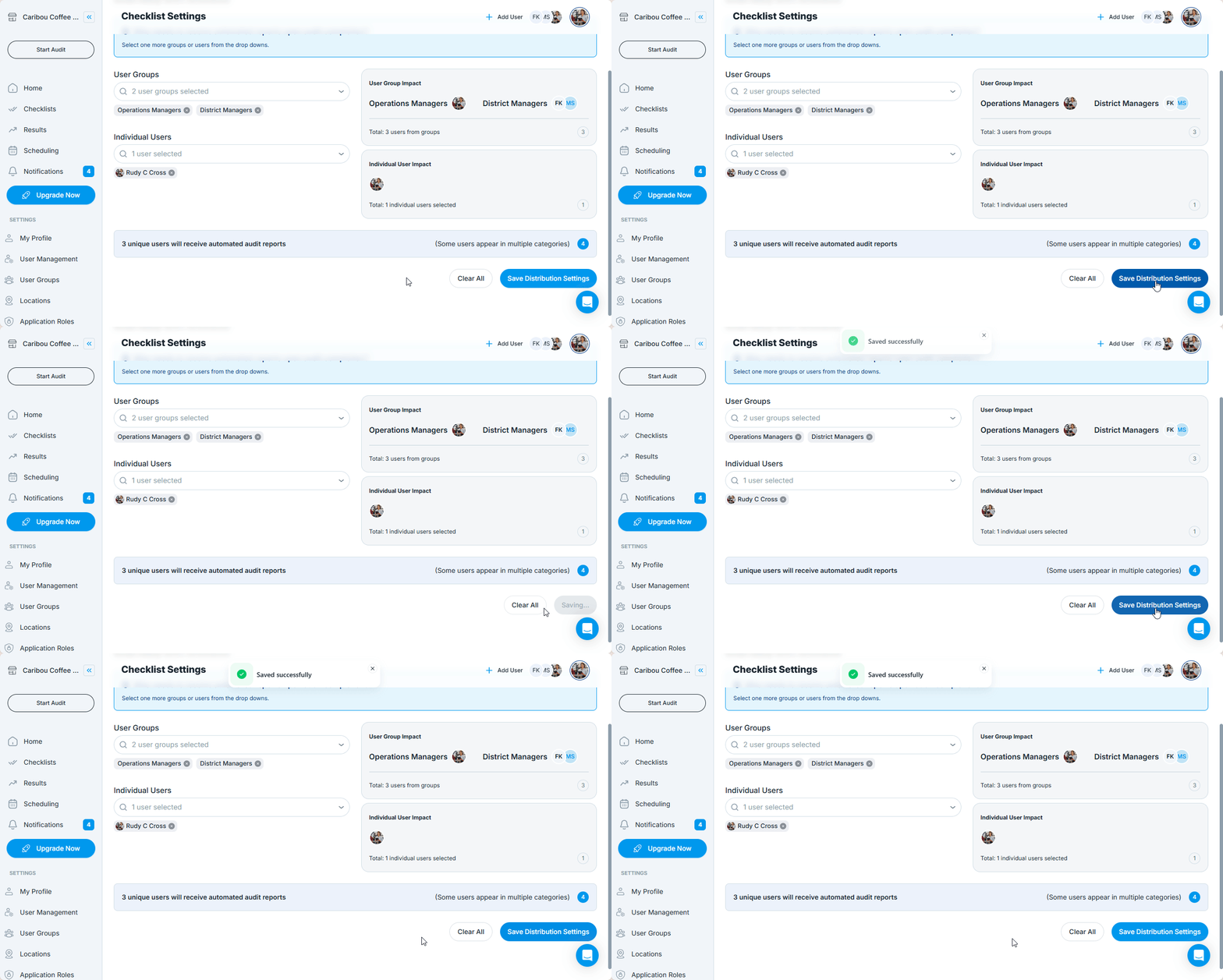
Once your access settings are defined:
- Click Save Access Rights at the bottom of the screen
- The settings apply to all future audits completed using this checklist
Best Practices
- Add User Groups to scale distribution without manual updates
- Review distribution lists regularly to match reporting needs
Next article: How to Create a New Audit Schedule →