If a user cannot see a checklist or a location when starting an audit, the cause is usually one of the settings below. As an administrator, check them in order. Most of the time the problem is found in the first three steps.
1. Is the Checklist Active?
- Go to the Checklists page
- Check that the Status column of the checklist says Active
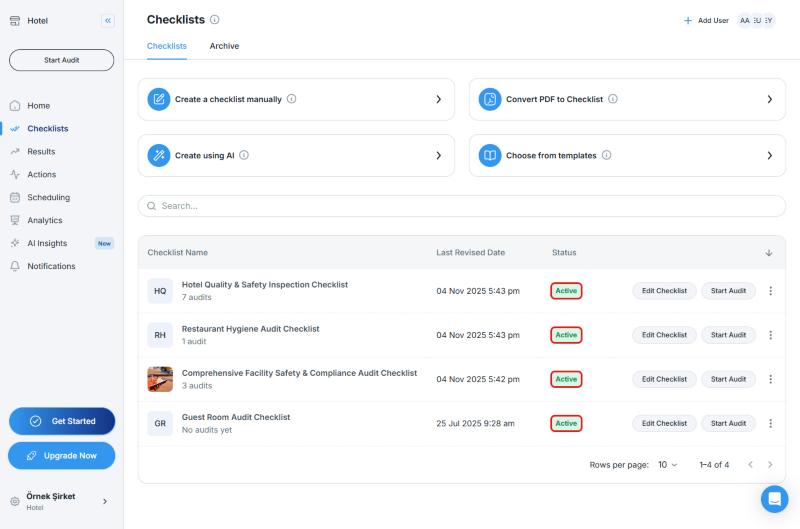
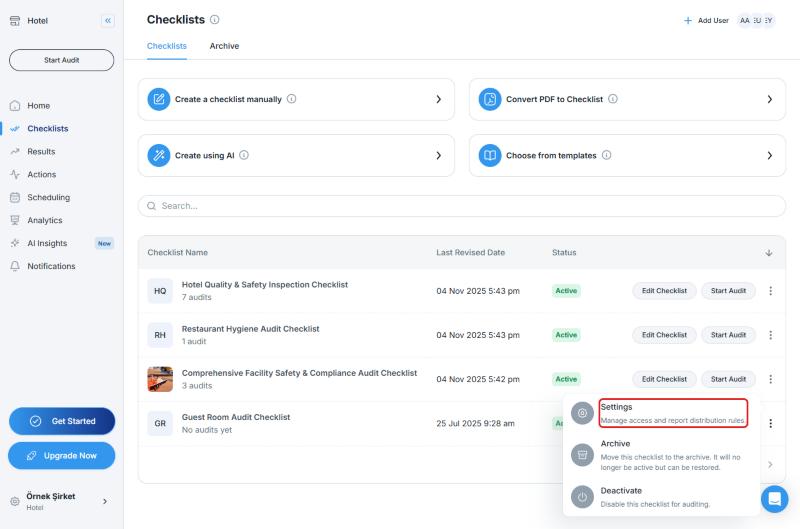
An archived or deactivated checklist cannot be used for audits. The ⋮ menu at the end of the row includes Archive ("It will no longer be active but can be restored") and Deactivate ("Disable this checklist for auditing"). You can find archived checklists on the Archive tab. There, use Restore in the row's ⋮ menu to make a checklist active again.
2. Is the User Allowed to Conduct Audits?
- On the Checklists page, click the ⋮ menu in the checklist's row and select Settings
- On the Access tab, open the Audits sub-tab
- Check that the user appears in at least one of the User Groups, Individual Users, or Locations sections
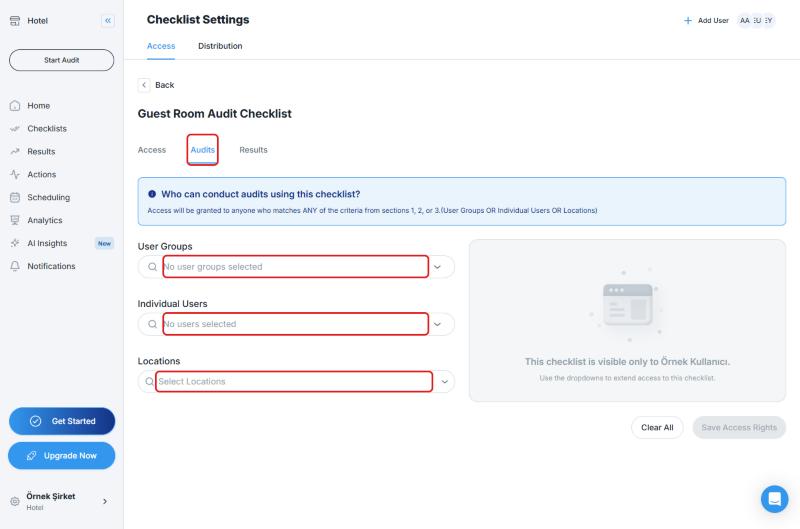
On this screen you will see: "Who can conduct audits using this checklist? Access will be granted to anyone who matches ANY of the criteria from sections 1, 2, or 3 (User Groups OR Individual Users OR Locations)." If nobody is selected, only the owner can access the checklist.
Also check the Access and Results sub-tabs on the same page to see who can access the checklist and who can view its results. If you change any setting, remember to click Save Access Rights.
3. Are the User's Location and Role Correct?
- Go to Settings → User Management and click the user
- In the Location card, check the locations assigned to the user. Click Edit to change them
- In the Application Role card, check that the role is suitable for conducting audits (for example, Standard User: a basic user who can conduct audits and view results)
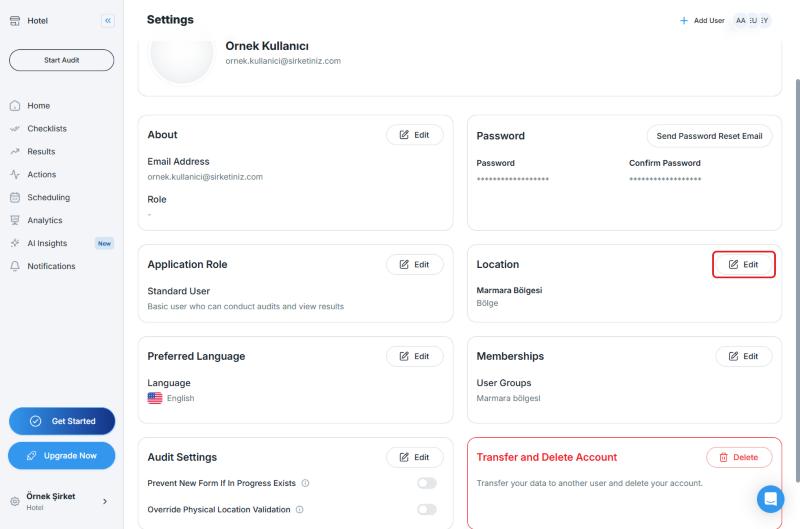
Every user is assigned to specific locations based on their area of responsibility. To learn what each role can do, see User Roles in Audit Now.
4. Are Audits Enabled for the Location Level?
- Go to Settings → Locations and click Level Management
- Check the switch in the Enable Audits column. This switch turns the audit feature on for the locations at that level
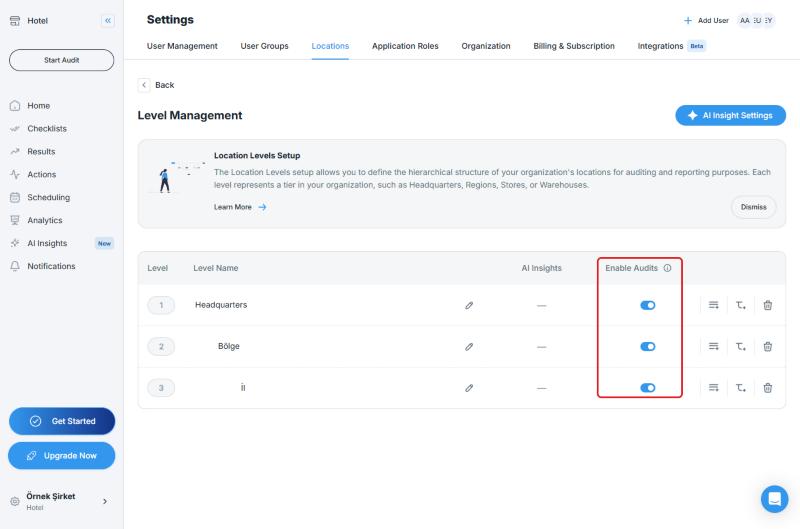
If the switch is off, the audit feature is not enabled for locations at that level. If you only want audits to be conducted at the store or site level, turn off the switches for the upper levels (for example, Region). Make sure the switch is on for the level where audits should be conducted.
5. Is the Location Active?
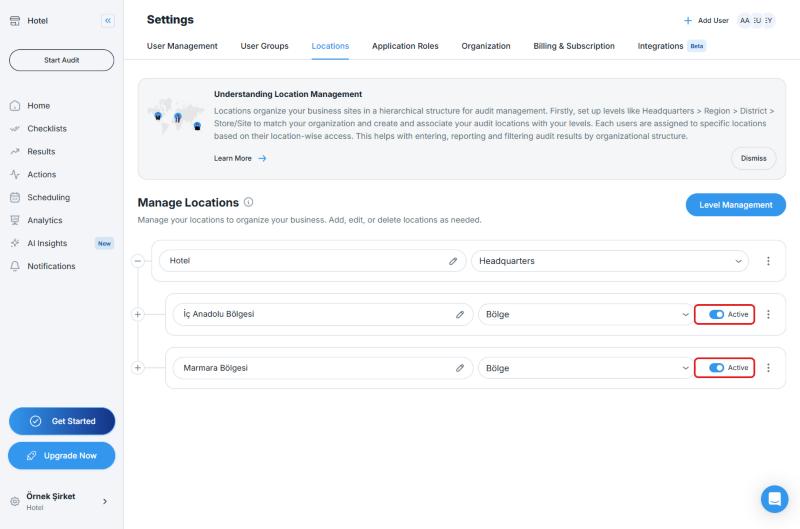
- On the Settings → Locations page, open the location tree
- Check that the Active switch next to the location is on
Quick Check Table
| Symptom | Where to Look |
|---|---|
| The checklist does not appear at all | Checklists → is Status Active? (Step 1) |
| The user cannot see the checklist | Checklist Settings → Access → Audits (Step 2) |
| The user cannot see a location | User page → Location card (Step 3) |
| Audits can be started at the region level too | Level Management → Enable Audits (Step 4) |
| A location is missing from the list | Locations → Active switch (Step 5) |
Best Practices
- After creating a new checklist, add the user group or location that will use it on the Audits sub-tab
- Use user groups instead of adding users one by one, they are easier to manage
- When you add a new location, check that it also appears in the users' Location cards
Next steps
Learn more about who can access a checklist and conduct audits with it.
Next article: Manage Who Can Conduct Audits →