There are four ways to create a checklist in Audit Now. You can reach all of them from the cards at the top of the Checklists page. The best choice depends on what you already have and how specific your process is.
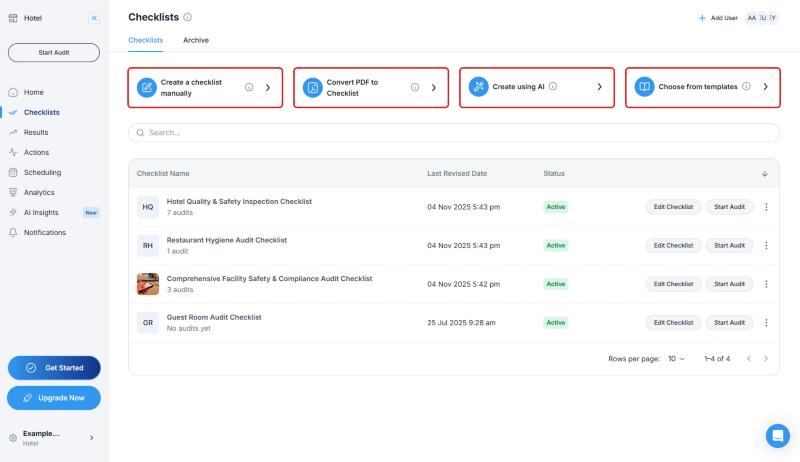
Which Option Should I Choose?
| Your Situation | Best Option |
|---|---|
| A ready-made template for your industry would do the job | Choose from templates |
| You already have a PDF form, an SOP document, or a paper checklist | Convert PDF to Checklist |
| You could not find a template, but you know your industry, standard, and what you audit | Create using AI |
| Your process is very specific and you want to define every question and response type yourself | Create a checklist manually |
Whichever option you start with, you can always edit the checklist in the editor afterward.
1. Choose from Templates
According to the info icon on the card, you can choose from thousands of ready-made, industry-specific templates.
- On the Checklists page, click the Choose from templates card
- Type a keyword into the Search box (for example, "hygiene" or "fire"), or click Filters
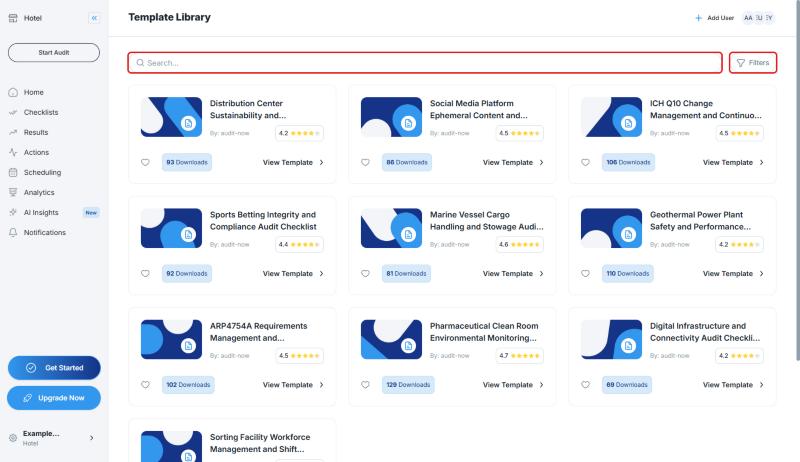
In the filter panel you can narrow the list by your favorites, sort order, industry, standard, facility type, and profession.
- On a template, click View Template. The Template Preview opens on the right
- On the Questions tab, review the template's questions the way an auditor would see them
- If it fits, click Use This Template
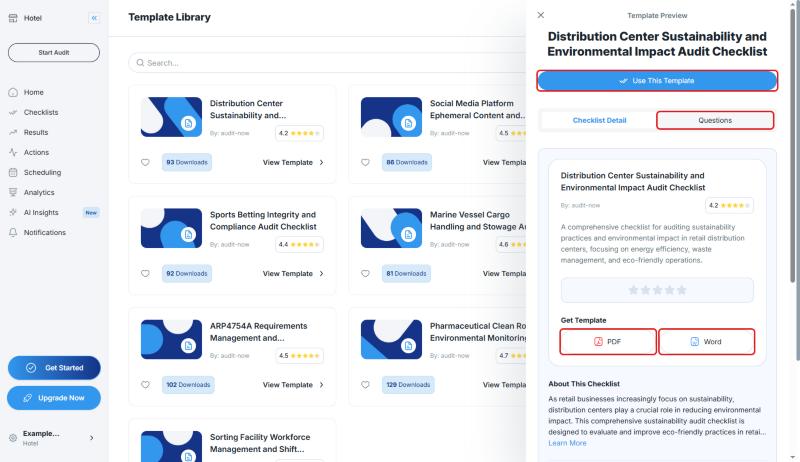
In the same preview, the Get Template section lets you download the template as a PDF or a Word file. This is useful when you want to put a template's list of questions on paper or share it with your team.
For more details, see Import from the Checklist Library.
2. Create Using AI
When you cannot find a ready-made template, the AI assistant can build a checklist for your industry and needs.
- Click the Create using AI card
- Answer four short questions in order. For each one you can click a suggestion or type your own answer:
- Industry: Which industry are you in? (for example, Manufacturing, Healthcare, Food & Beverage, Construction, Retail)
- Workplace: What kind of workplace do you have? (for example, factory, office, warehouse, restaurant, hospital)
- Standard: Which standards do you audit against? (for example, ISO 9001, HACCP, OSHA regulations, GMP, internal SOP)
- Target: What are you auditing? (for example, a production line, facility safety, employee training)
- On the last step, click the button to create the checklist
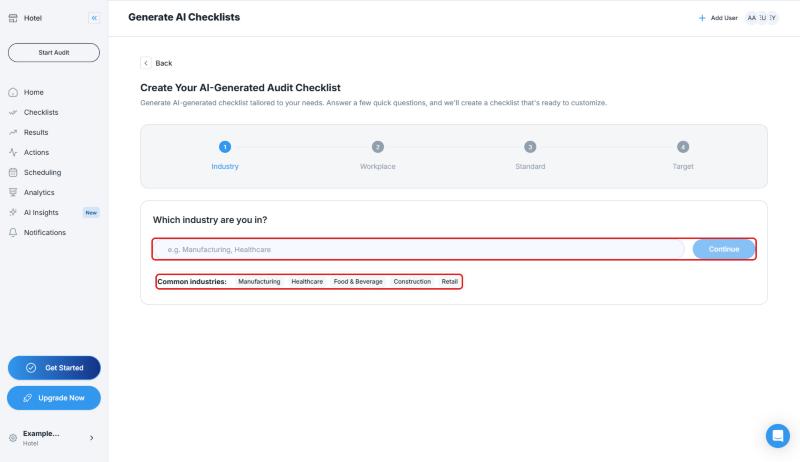
The clearer your answers are, the closer the checklist will be to what you need. You can edit the result in the editor.
For more details, see Use AI to Generate a Tailored Checklist.
3. Convert PDF to Checklist
If you already have an audit form, a standard operating procedure (SOP), or a checklist, AI can turn it into an interactive digital checklist.
- Click the Convert PDF to Checklist card
- Drag your PDF file into the window or click browse to select it. You can upload up to 3 PDF files, and each file must not exceed 10MB
- If you like, write your wishes for the conversion in Give AI instructions (for example, "Make the critical hygiene questions required and set the response types to Yes/No")
- Click Upload
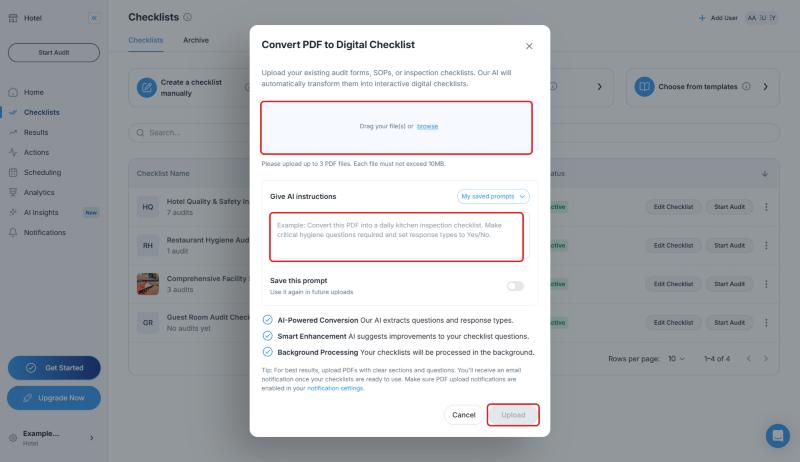
The conversion is processed in the background, and you will be notified by email when your checklist is ready. To receive the email, make sure PDF upload notifications are enabled in your notification settings.
For the best results, upload PDFs with clear sections and questions. For more details, see Import Your SOP Document or PDF Checklist.
4. Create a Checklist Manually
You build your own checklist from scratch with a drag-and-drop interface. It is ideal for unique processes, or when you want full control over every question and response type.
For the steps, see Create a checklist manually.
Frequently Asked Questions
Is there a ready-made checklist for my industry? Start by searching in Choose from templates. If you do not find a match, try Create using AI. The AI wizard asks for your industry, standard, and what you audit, and builds a checklist for you.
Can I print a template's list of questions? Yes. In the template preview, use the PDF or Word buttons under Get Template. To download the report of a completed audit as a PDF, see Viewing, Editing, and Generating Audit Reports.
I used a template but want to change it. Can I? Yes. When you use a template, the checklist opens in the editor, where you can change its questions, pages, and response types.
Best Practices
- Browse the template's questions on the Questions tab before you use it, so you can rule out a template that does not suit your team
- In the AI wizard, do not skip the Standard step. Telling the AI which standard you audit against improves the result
- If you already have a paper form, try Convert PDF to Checklist instead of writing everything from scratch
Next steps
Learn how to import your checklist from the template library in detail.
Next article: Import from the Checklist Library →