You can download a completed audit report as a PDF, print it, or share it by email from the web dashboard. This article covers the web dashboard. To share reports from the mobile app, see Viewing, Editing, and Generating Audit Reports.
How to Download an Audit Report as a PDF
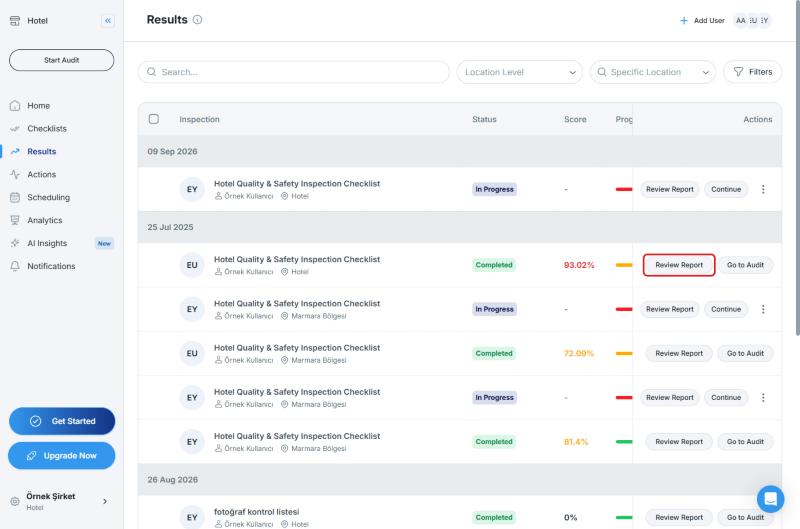
- Go to the Results page and click Review Report on the row of an audit whose status is Completed
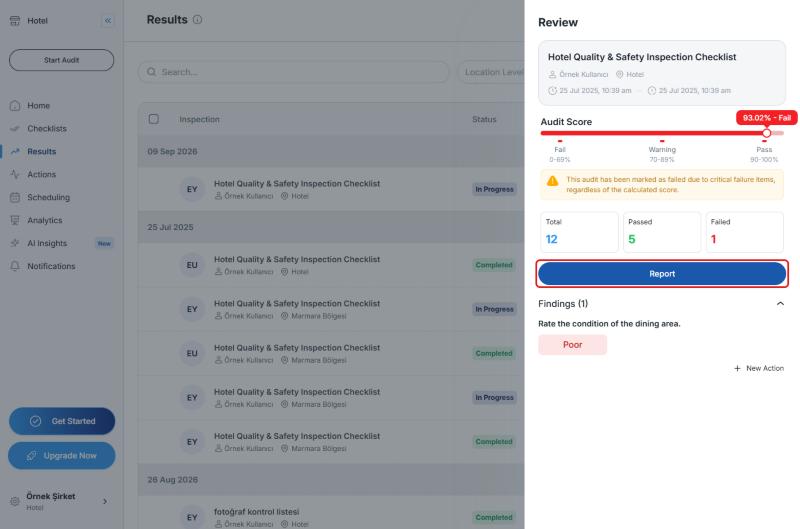
- In the Review panel that opens on the right, click Report
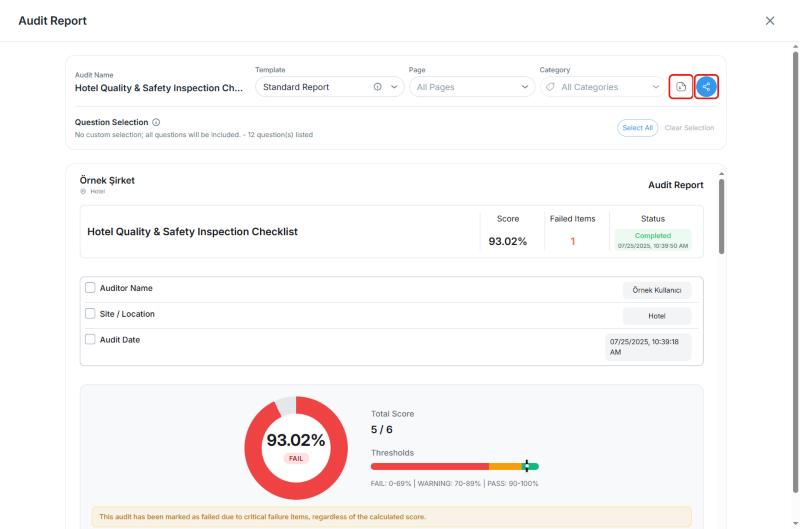
- In the Audit Report window, click the Download button in the upper-right corner. The report is downloaded to your device as a PDF
Set Up the Report Before You Download
In the same window you can choose what the report includes:
- Template: The template that defines how the report looks (for example, Standard Report). To customize templates, see Customize Your Audit Reports with Report Templates
- Page and Category: Choose which pages and categories appear in the report
- Question Selection: If you do not make a custom selection, all questions are included. To include only specific questions, use Select All and Clear Selection. This selection applies to both the PDF download and report sharing
How to Print an Audit Report
Save the report as a PDF with the Download button, then open the PDF file and print it using your PDF viewer's print option.
How to Share an Audit Report by Email
- In the Audit Report window from step 3 above, click the Share button
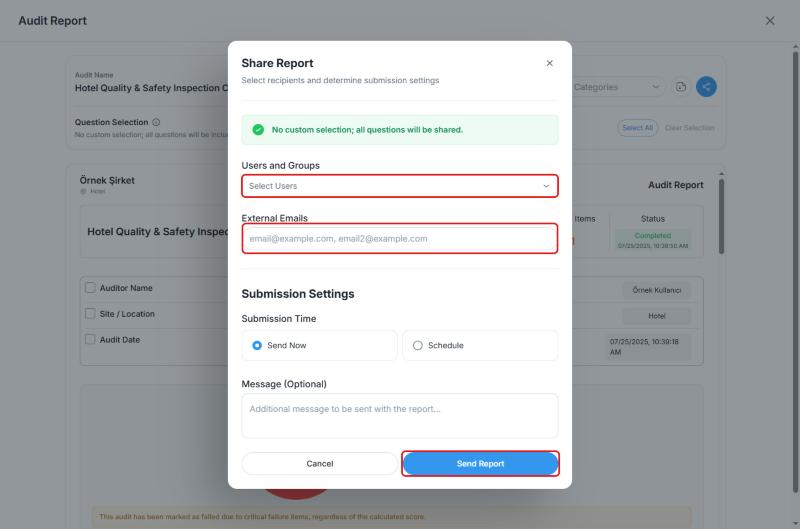
- In the Share Report window, choose the recipients and submission settings:
- Users and Groups: Select users or user groups in your organization
- External Emails: Enter the email addresses of recipients outside your organization, separated by commas
- Submission Time: Send Now or Schedule
- Message (Optional): Add a note to be included with the report
- Click Send Report
Frequently Asked Questions
Who can download a report? The Application Admin, Audit Admin, and Account Admin roles can export reports for the audits they have access to. Standard Users can only view results and cannot export them.
Can I print my checklist's list of questions? There is no separate print or export button for the checklist itself. The report of a completed audit contains the questions and the answers given, and you can download it as a PDF and print it.
How do I download my dashboard (analytics) data? That is a separate action from downloading an audit report. See How to Download Your Dashboard Data?
Best Practices
- Choose the right template before you download, so the PDF has the layout you need
- If you only want to share certain sections, select the relevant questions in Question Selection
- If you want reports to be sent automatically as soon as an audit is completed, see Manage Who Receives Automatic Audit Reports
Next steps
Customize report templates to fit your needs.
Next article: Customize Your Audit Reports with Report Templates →