Before you start using a checklist, you can preview its questions the way an auditor will see them. When you no longer need a checklist, you can archive it, deactivate it, or restore it. To delete a checklist permanently, you need to write to the support team. This article covers all of this step by step.
How to Preview Checklist Questions
- On the Checklists page, click Edit Checklist on the checklist's row
- On the Design tab, click the eye icon in the middle of the page. A preview panel opens on the right, inside a phone frame
- Click a page or a question in the list on the left. The preview shows the page and question you selected
- Use the page selector below the preview to move between pages
- To close the preview, click the X icon in the same place. The Question Settings panel appears again
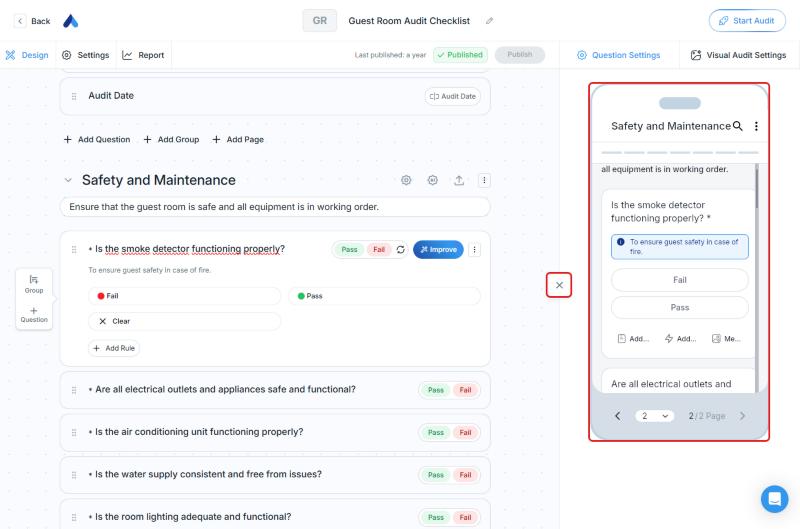
The preview is for viewing only. You cannot answer questions or move the audit forward in it. Use it to see the result right away while you edit a question.
If you want to try it like a real audit, you can use Start Audit. To see the questions of a ready-made template before you use it, open the Questions tab in the template preview in the Template Library.
How to Archive or Deactivate a Checklist
- On the Checklists page, click the ⋮ menu at the end of the checklist's row
- Choose what you need:
- Archive: "Move this checklist to the archive. It will no longer be active but can be restored."
- Deactivate: "Disable this checklist for auditing."
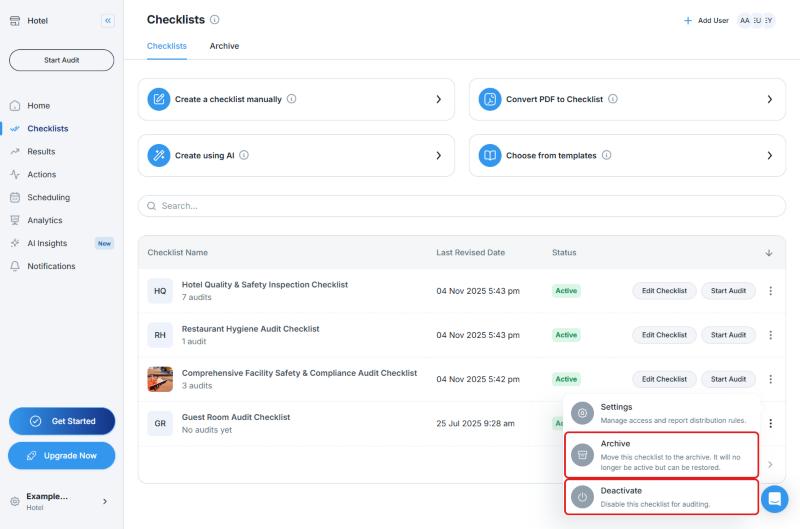
The Settings option in the same menu is for managing access and report distribution rules.
How to Restore an Archived Checklist
The checklists you archive appear on the Archive tab.
- On the Checklists page, click the Archive tab
- Click the ⋮ menu at the end of the checklist's row
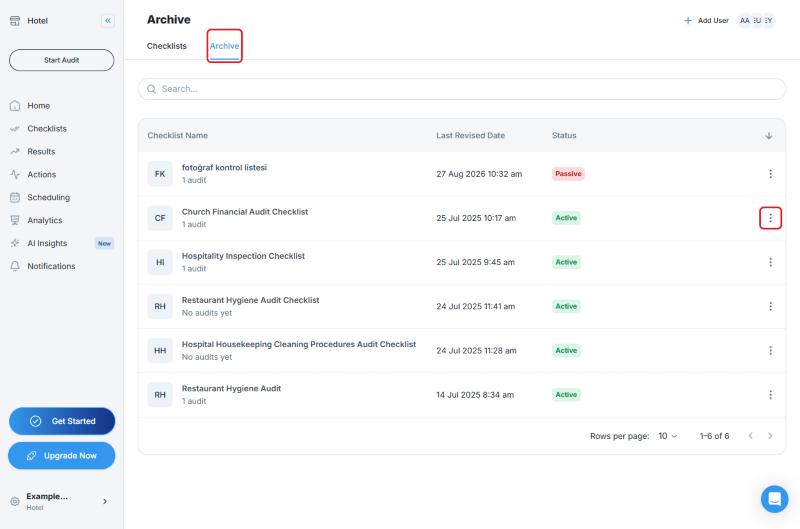
- Choose Restore from the menu: "Restore this checklist from the archive. It will be active again."
How to Delete a Checklist Permanently
Users cannot delete checklists themselves. When a checklist is deleted, the past audits and forms linked to it can be affected too, so deletion is done together with the support team. If you want a permanent deletion, send the support team a request with the checklist's name. If you are not sure, leave the checklist in the archive. You can restore it at any time.
Which One Should I Choose?
| What You Want to Do | What to Do |
|---|---|
| You will not use the checklist for now, but you may need it later | Archive it, and use Restore on the Archive tab when you need it |
| You want to turn the checklist off for audits | Deactivate |
| You no longer need the checklist at all | Archive it first. If you need permanent deletion, write to the support team |
| You want to remove one question or page inside a checklist | Do not delete the checklist. Delete that question or page in the editor |
For question and page actions in the editor, see Adding / Editing Questions in a checklist and Managing pages in a checklist.
Frequently Asked Questions
Can I delete a checklist, or can I only deactivate it? You cannot delete checklists yourself, but you can use Archive or Deactivate. If you want permanent deletion, write to the support team. Because the past audits and forms linked to a deleted checklist can be affected, deletion is done together with the support team.
What should I do instead of deleting a checklist? Move a checklist you do not use to the archive with Archive. You can make an archived checklist active again at any time with Restore.
How do I use an archived checklist again? On the Archive tab, open the checklist's ⋮ menu and choose Restore. The checklist becomes active again.
I cannot see the question preview. The preview opens from the eye icon on the Design tab of the checklist editor (Edit Checklist). Look for it in the editor, not on the checklists page.
Best Practices
- After you edit a question, open the preview to see how an auditor will see it
- Archive checklists you are unsure about instead of deleting them. You can restore them any time
- If only one question or page in a checklist is not useful, do not delete the whole checklist. Remove that question or page in the editor
Next steps
Learn how to manage who can use and see your checklist.
Next article: Manage Who Can Conduct Audits →