The Audits Dashboard - Scores and Findings shows completed audits by auditor and by location. You can see how many audits each auditor completed, how long audits take on average, how many findings were recorded, and how many questions were passed or failed in each audit.
Note: Some labels inside this dashboard, such as the title and the tab names, appear in Turkish. This article gives the English meaning in parentheses.
How Do I Open the Dashboard?
- Click Analytics in the left menu
- On the Audits Dashboard - Scores and Findings card, click View Dashboard
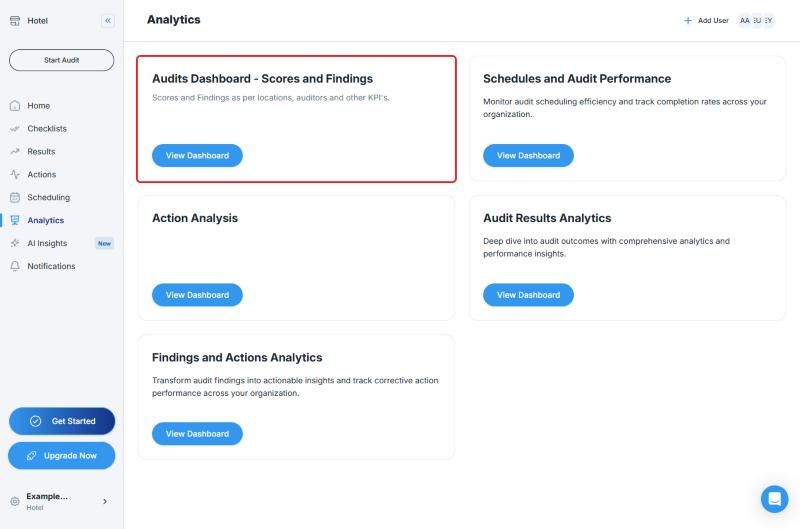
The dashboard has three tabs:
| Tab | What It Shows |
|---|---|
| Genel (General) | Summaries such as completed audits, average score, total findings, and findings per audit, plus charts such as the score and findings trend and the most common findings |
| Denetçi (Auditor) | A score and findings summary per auditor, and the details of each audit |
| Konum (Location) | An average score and findings summary per location, and the details of each audit |
How to See Results by Auditor
- Click the Denetçi (Auditor) tab
- Look at the Denetçi Bazında Skor ve Bulgu (Score and Findings by Auditor) table. For each auditor you will see:
- Toplam Denetim (Total Audits): The number of audits the auditor completed
- Ort. Denetim Süresi (Average Audit Duration): The average duration of the audits
- Ort. Skor (Average Score): The average score
- Toplam Bulgu (Total Findings): The total number of findings
- Denetim Başına Bulgu (Findings per Audit): The number of findings per audit
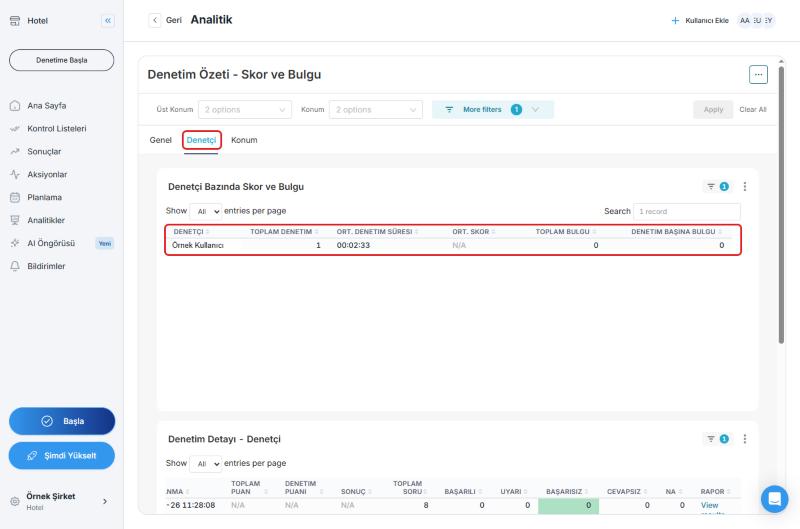
Below it, the Denetim Detayı - Denetçi (Audit Details - Auditor) table has one row per audit. Each row shows the location, checklist, auditor, completion time, total score, audit score, and result. Scroll the table to the right to see these columns:
- Toplam Soru (Total Questions)
- Başarılı (Passed)
- Uyarı (Warning)
- Başarısız (Failed)
- Cevapsız (Unanswered)
- NA (not applicable)
- Rapor (Report): A link to that audit's report
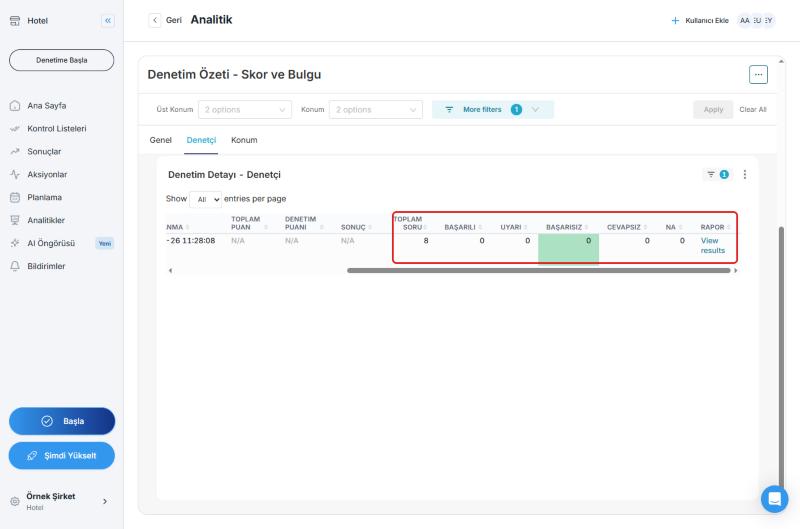
To see the failure rate of an auditor or an audit, you can divide the number in the Başarısız (Failed) column by the number in the Toplam Soru (Total Questions) column.
How to See Results by Location
Click the Konum (Location) tab. The Konum Bazında Ort. Skor ve Bulgu (Average Score and Findings by Location) table shows total audits, average score, total findings, and findings per audit for each location. The detail table below it has one row per audit.
How to Narrow the Results: Filters
At the top of the dashboard you will find these filters: Üst Konum (Parent Location), Konum (Location), and More filters. When you open More filters, you can choose:
- Kontrol Listesi (Checklist): Only the audits of specific checklists
- Denetçi (Auditor): Only the audits of specific auditors
- Tarih Aralığı (Date Range): Which period to show (required)
After you change the filters, click Apply.
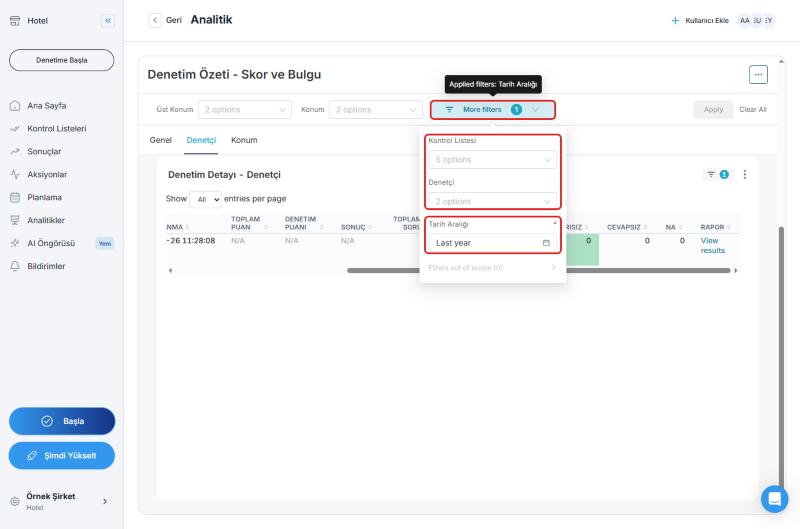
If you cannot see any data: By default, the dashboard opens with the Current quarter date range. If no audits were completed in that period, the charts and tables stay empty. Click the Tarih Aralığı (Date Range) field and change the range (for example, to Last year), click Apply, and then click Apply in the filter bar.
For more about filters, see Using Dashboard Filters.
Refresh, Download, and Share the Dashboard
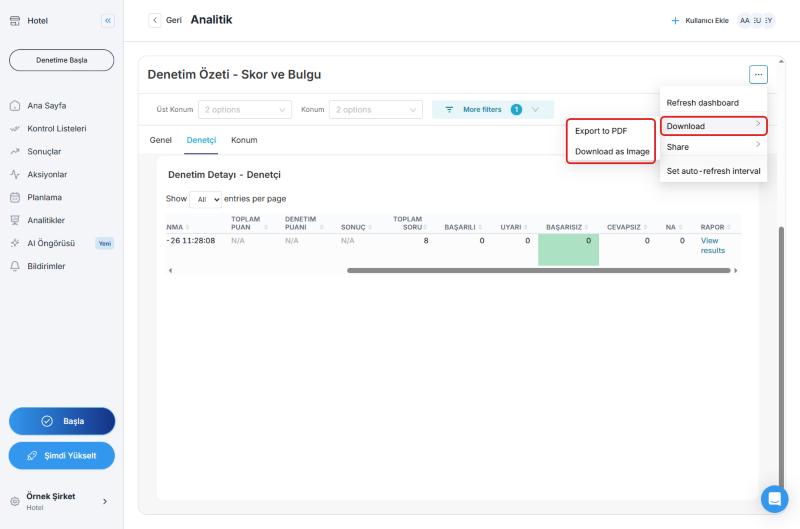
The ⋯ menu in the upper-right corner of the dashboard includes:
- Refresh dashboard: Refreshes the data
- Download: Export to PDF and Download as Image
- Share: Copy a link to the dashboard or share it by email
- Set auto-refresh interval: Choose how often the dashboard refreshes automatically
To download the data as a table, see How to Download Your Dashboard Data?
Frequently Asked Questions
How many audits did each auditor complete? On the Denetçi (Auditor) tab, look at the Toplam Denetim (Total Audits) column in the Denetçi Bazında Skor ve Bulgu table.
How do I see an auditor's or location's failure rate? There is no separate rate chart. You can calculate the rate from the Başarısız (Failed) and Toplam Soru (Total Questions) columns in the audit details table.
The dashboard looks empty. Why? The most likely reason is that the date range opens as Current quarter and no audits were completed in that period. Widen the Tarih Aralığı (Date Range) filter.
Best Practices
- When the dashboard looks empty, check the Tarih Aralığı (Date Range) filter first
- Use More filters to look at a specific auditor or checklist
- To see the details of one audit, use the Rapor (Report) link in the details table
Next steps
Analyze audit results in more detail.
Next article: Audit Results Analytics →