In Audit Now, the question "who can do and see what" for a checklist is managed in four separate areas. All of them are on the checklist's Settings tab, in the Access & Distribution section. This article gives an overview of the four areas.
The Four Permission Areas
- On the checklist's row, click Edit Checklist
- Open the Settings tab and expand the Access & Distribution section
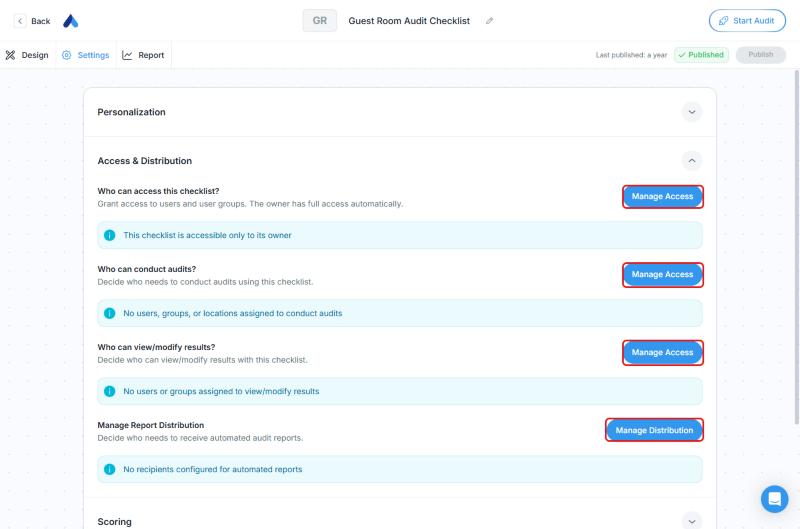
| Question | Button | What It Decides |
|---|---|---|
| Who can access this checklist? | Manage Access | Who can open and see the checklist. The owner has full access automatically |
| Who can conduct audits? | Manage Access | Who will conduct audits using this checklist |
| Who can view/modify results? | Manage Access | Who can view and modify the results of this checklist |
| Manage Report Distribution | Manage Distribution | Who automatically receives audit reports |
On a new checklist, only its owner has access by default. For other users to use it, you need to add users, groups, or locations in these areas.
Who Do You Choose in Each Area?
- Access: User groups and individual users
- Who can conduct audits: According to the on-screen description, anyone who matches ANY of the criteria: user groups OR individual users OR locations
- Who can view/modify results: User groups OR individual users. If you enable "Restrict by locations", users will be able to access results only through their locations
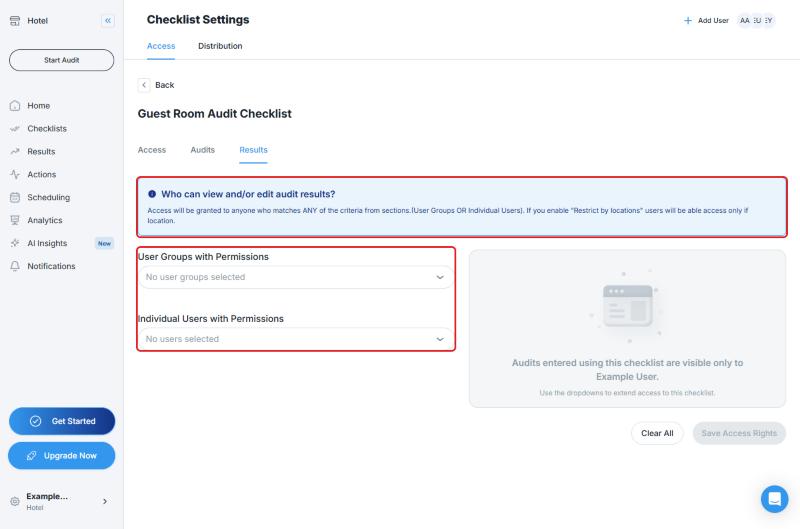
The Manage Access buttons open the Checklist Settings page in a new tab. The page has Access, Audits, and Results tabs. After you make your changes, click Save Access Rights.
What Do Roles Do?
Permissions depend on the user's application role as well as the checklist settings. Examples of roles:
- Standard User: A basic user who can conduct audits and view results
- Other roles, such as the admin roles (Application Admin, Audit Admin, Account Admin)
For everything each role can do, see User Roles in Audit Now.
Detailed Guides
- Who can conduct audits: Manage Who Can Conduct Audits
- Who can view or edit results: Manage Who Can See or Edit Audit Results
- Who receives reports: Manage Who Receives Automatic Audit Reports
Frequently Asked Questions
How do I restrict basic users' access to results? Access to results depends on two things: the Who can view/modify results? setting on the checklist, and the user's application role. Use the setting to limit who can see results, and look at Restrict by locations to limit by location. You can find what a role affects in User Roles in Audit Now and in the results permissions guide.
A user cannot see the checklist. What should I do? Check that the user has audit permission and appears in the right group, user list, or location. Also check that the checklist is Active, and the user's location and role. For who can conduct audits, see Manage Who Can Conduct Audits.
Who can see a new checklist? By default, only its owner. For other users to use it, give permissions in the areas above.
Best Practices
- Use user groups instead of adding users one by one
- After you create a new checklist, review the four areas in order
- After permission changes, remember to click Save Access Rights
Next steps
Learn in detail who can conduct audits.
Next article: Manage Who Can Conduct Audits →